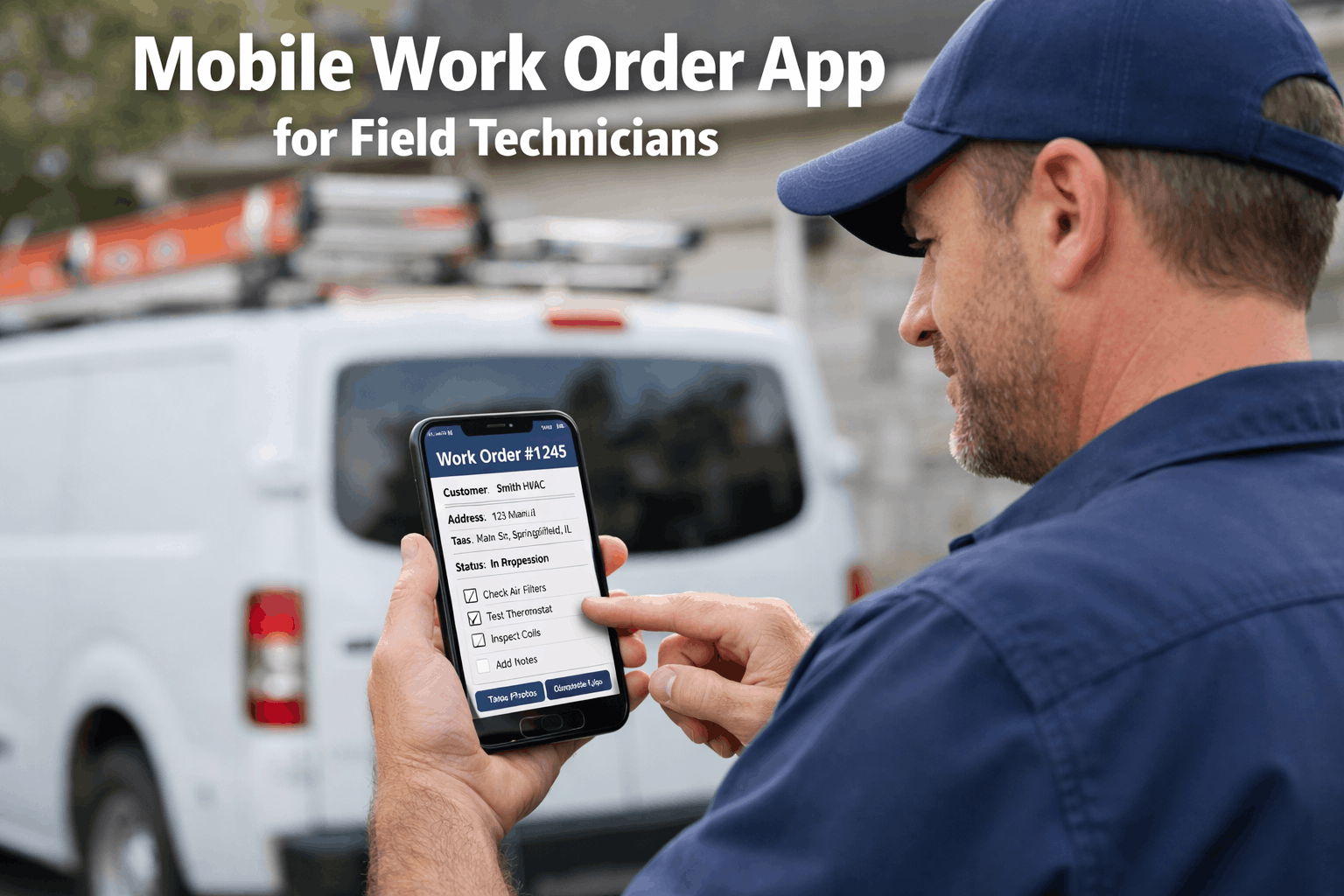
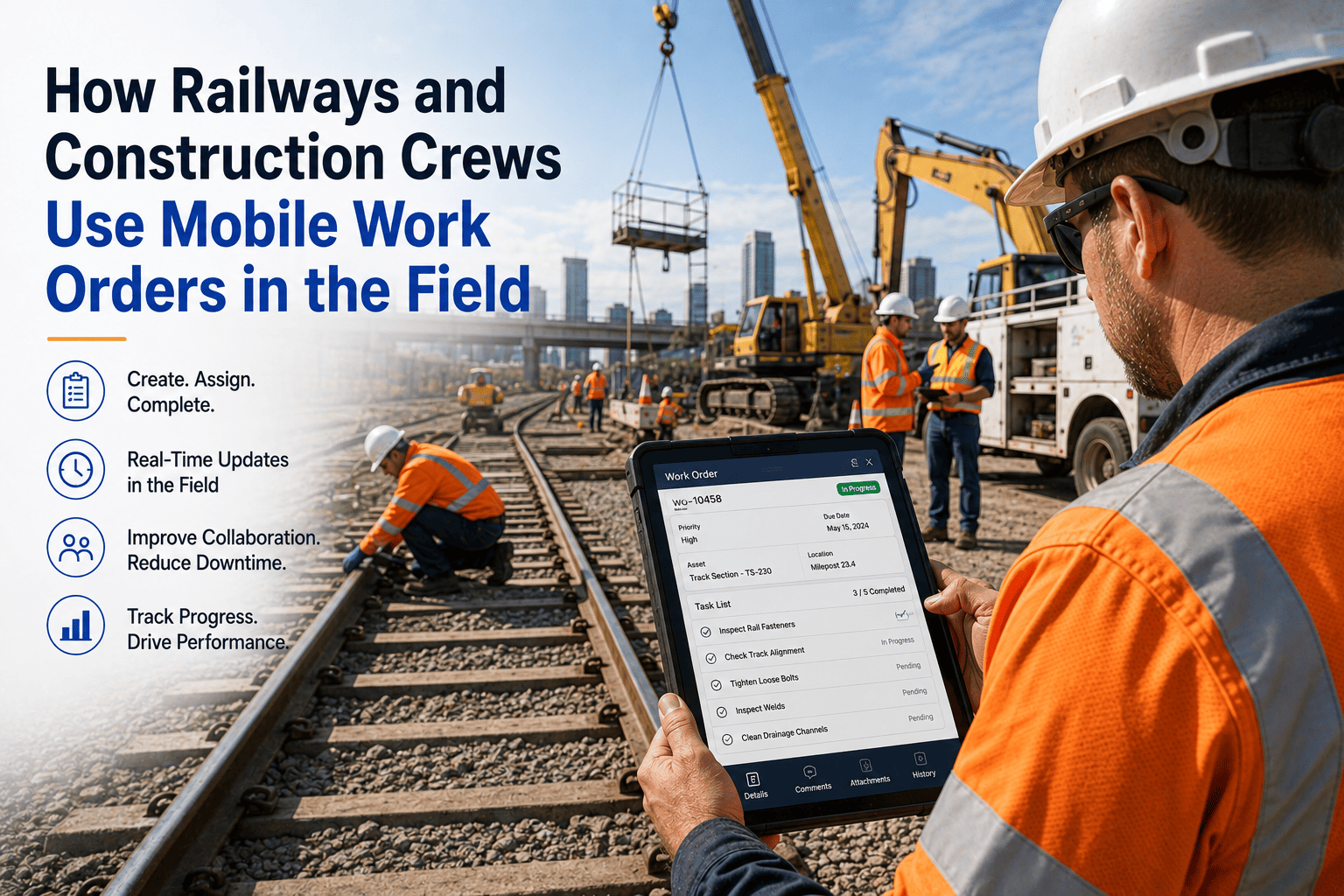
A maintenance technician standing in front of a malfunctioning air handling unit in a basement mechanical room should not need to walk back to the shop, find a computer, log into the CMMS, search for the asset, read through six months of work order history, check if the replacement part is in the storeroom, fill out a paper form, and then walk back to the AHU to start the repair. That round trip wastes 45–90 minutes on 30% of corrective work orders — time that a mobile work order app eliminates entirely. The technician opens the app at the asset, sees the full repair history, checks parts inventory, logs their arrival, documents the work with photos and voice notes, scans the replacement part, and closes the work order — all without leaving the mechanical room. The difference between a CMMS with a mobile app and a CMMS without one is the difference between a system technicians actually use and a system that generates data nobody trusts because half the field never updates it. Start your free OxMaint trial and deploy the mobile app to your field team within the first week.
45–90 min
Wasted per technician per day on information retrieval, status updates, and return trips that mobile access eliminates
2×
Effective technician output when mobile-first workflows replace paper forms, radio dispatch, and desktop-only CMMS access
35% → 70%
Wrench time improvement: from industry average on paper systems to best-in-class with mobile work order management
Why Desktop CMMS Fails Field Technicians
A CMMS that only works on a desktop computer is a management tool, not a field tool. The people who generate 90% of work order data — field technicians — cannot access it where they work. The result is predictable: technicians do not update work orders in real time, supervisors do not have accurate status visibility, and the CMMS data decays into an unreliable record that nobody trusts for decision-making.
Technicians complete repairs in the field, then return to the shop at end of shift to update work orders from memory. Details are forgotten. Parts consumed are approximated. Labor hours are estimated. Root cause notes are skipped because the tech is tired and wants to clock out.
Mobile solution: Work orders are updated in real time as work happens. Check-in timestamps capture exact arrival. Voice-to-text logs repair notes while the tech is still at the asset. Parts are scanned, not recalled from memory. Close-out happens on-site, not hours later.
The technician arrives at the equipment with zero context. They do not know what was done last time, what parts were used, what the common failure modes are, or what the senior tech who retired last year documented about this specific asset’s quirks. Every repair starts from scratch.
Mobile solution: Full asset maintenance history is available on the mobile device at the point of repair. Last 5 repairs, most common failure modes, parts previously used, manufacturer specs, and any technician notes from prior work orders — all accessible in 2 seconds.
The supervisor builds a schedule on the desktop, then communicates it through a 45-minute morning meeting, radio calls throughout the day, and phone calls when emergencies re-shuffle the plan. Technicians carry paper lists that become obsolete by 10 AM.
Mobile solution: Work orders appear on each technician’s mobile device sorted by priority and optimized by route. Emergencies re-sequence the queue automatically. The tech’s next job is always the top item on their phone. Zero dispatch meetings. Zero radio calls for routine assignment.
Paper work orders have no photo capability. Desktop CMMS requires transferring photos from a personal phone — emailing, downloading, uploading, attaching. Nobody does it. Asset histories have zero visual documentation. Compliance auditors have no visual evidence.
Mobile solution: In-app camera captures before/after photos attached directly to the work order with GPS coordinates and timestamps. No transfer step. No separate app. The technician taps the camera icon, takes the photo, and it is permanently linked to the work order and asset record.
The 10 Mobile Capabilities That Define a Best-in-Class Work Order App
Not all mobile CMMS apps are equal. Some are simplified desktop views crammed onto a phone screen. Others are purpose-built for field technicians working with gloved hands, poor lighting, intermittent connectivity, and zero patience for complicated navigation. These 10 capabilities separate a field-grade mobile work order app from a desktop afterthought:
1
Offline Mode with Full Functionality
Impact: mission-critical
Without it: app is useless in basements and mechanical rooms
The app must cache the technician’s work order queue, asset data, checklists, and parts information locally. Technicians can check in, log notes, take photos, scan parts, and complete work orders while fully offline. When connectivity returns, data syncs automatically — with timestamps reflecting when actions actually occurred, not when they synced. This is non-negotiable for basements, mechanical rooms, rural campuses, and any facility where cellular coverage is inconsistent.
2
One-Tap Status Updates (No Manual Entry)
Impact: adoption-critical
Without it: technicians stop using the app within 2 weeks
Status transitions must be inferred from natural workflow actions. Tapping “Start” sets status to en route. Tapping “Check In” sets status to on-site and starts the labor clock. Taking a photo or logging a note sets status to in progress. Tapping “Complete” triggers close-out. The technician never manually selects a status from a dropdown — the system infers it from what they are doing.
3
In-App Photo and Video Capture
Impact: documentation quality
Without it: zero visual evidence for audits or asset history
Before and after photos captured through the app’s built-in camera are automatically attached to the work order with GPS coordinates, timestamps, and the technician’s identity. No emailing photos. No uploading later. No separate camera app. Video capture for complex repairs creates a visual knowledge base that accelerates training for new hires by 40–60%.
4
Voice-to-Text Work Notes
Impact: documentation completeness
Without it: techs skip notes because typing on a phone is painful
Technicians dictate repair notes instead of typing: “Replaced VAV actuator BEL-LF24, verified full stroke, discharge temp now 55 degrees, asset operational.” Speech-to-text converts dictation into structured work order notes. AI parsing extracts: work performed (actuator replacement), part used (BEL-LF24), measurement taken (55°F), and asset status (operational). Complete documentation with zero keyboard input.
5
Barcode and QR Code Scanning
Impact: inventory accuracy + speed
Without it: parts consumed are approximated, inventory data is fiction
The technician scans the barcode or QR code on the part packaging or shelf label. The system logs part number, quantity, and cost against the work order. Storeroom inventory auto-deducts in real time. If inventory drops below the reorder point, a purchase requisition generates automatically. Also used for asset identification: scan the QR tag on any piece of equipment to instantly pull up its full maintenance record.
6
Asset History at Point of Repair
Impact: diagnostic speed
Without it: every repair starts from scratch
When a technician opens a work order, the app surfaces the asset’s complete context: last 5 repairs, most common failure modes, parts previously used, manufacturer specs, any AI-generated repair recommendations, and notes from previous technicians. A new hire gets the same quality of asset context that a 20-year veteran carries in their head — reducing diagnostic time from hours to minutes.
7
GPS-Optimized Route Sequencing
Impact: 60–90 min recovered per tech per day
Without it: random assignment wastes travel time between buildings
The app presents the technician’s queue sorted not just by priority but by geographic proximity. Tasks in the same building or adjacent buildings are batched together. The route is optimized to minimize total travel time across all assignments. On a 200-acre campus or multi-building facility, this single capability recovers 60–90 minutes of productive wrench time per technician per day.
8
Push Notifications for Priority Changes
Impact: emergency response speed
Without it: emergencies rely on phone calls and radio
When an emergency work order is assigned or when the technician’s queue is re-sequenced, they receive a push notification that interrupts whatever they are doing. Emergency alerts override do-not-disturb settings with audible notification. The tech sees the new priority, the location, and the expected response — without a phone call from dispatch.
9
Digital PM Checklists with Conditional Logic
Impact: PM quality and consistency
Without it: PM quality varies by technician and is unverifiable
PM work orders include standardized checklists that guide the technician step by step: inspect belt tension (pass/fail), record bearing temperature (numeric entry), check filter differential pressure (reading), photograph drain pan condition (photo required). Conditional logic: if filter DP exceeds threshold, auto-generate a filter replacement work order. Every PM is performed consistently regardless of which technician executes it.
10
Mandatory Close-Out Fields
Impact: data completeness
Without it: 40% of work orders closed as “done” with no useful data
The app requires all essential fields — work performed, root cause (if applicable), parts consumed, after photo, and labor time — before allowing the technician to tap “Complete.” If any required field is empty, the system prompts for it. This eliminates the single most common data quality problem in maintenance: work orders closed as “completed” with zero documentation of what was actually done.
OxMaint includes all 10 capabilities in a single mobile app available on iOS and Android. Book a demo to see all 10 mobile capabilities demonstrated on live work order data.
Built for Technicians. Not Adapted from a Desktop.
OxMaint’s mobile app is designed for field workers with gloved hands, poor lighting, and zero patience for complicated navigation. Offline mode, one-tap status updates, voice-to-text, barcode scanning, and in-app photo capture — all in an interface that technicians master in a single shift.
The Mobile Workflow: From Assignment to Close-Out in 5 Taps
The best mobile work order app is one that field technicians actually use. Usage depends on simplicity. If the workflow requires more than 5 intentional taps plus the actual repair work, adoption will suffer. Here is the complete mobile workflow from assignment notification to closed work order:
01
Tap 1: Open the Assignment
Push notification arrives: “New work order assigned: AHU-7, Building 5, Room 204. Priority: High. Supply air temp 82°F vs. 72°F setpoint.” Technician taps the notification to open the work order. They see: asset location, problem description, repair history (last 5 WOs), suggested parts, and a route to the building.
Status auto-updated: Assigned → Viewed
02
Tap 2: Start (En Route)
Technician taps “Start” to indicate they are heading to the job. GPS begins tracking travel time (optional, configurable by organization). The supervisor’s dashboard shows this technician is en route to Building 5. Travel time between jobs is logged for productivity analysis.
Status auto-updated: En Route. Travel clock started.
03
Tap 3: Check In (On-Site)
Technician arrives at the asset and taps “Check In.” GPS or Bluetooth beacon confirms location. The labor clock starts. Response time KPI is calculated (submission to check-in). The requestor receives a notification: “A technician has arrived at your location.”
Status auto-updated: On-Site. Response time captured. Requestor notified.
⚙
The Actual Repair Work
The technician performs the repair. During the work, they use the app naturally: snap a before photo (in-app camera), dictate repair notes (voice-to-text), scan the replacement part (barcode reader), and snap an after photo. Each of these actions generates real-time data attached to the work order — without the tech explicitly “updating” anything.
Work happens here — app captures data from natural actions
04
Tap 4: Complete
The technician taps “Complete.” The system checks that all mandatory close-out fields are populated. If anything is missing (no after photo, no parts logged, no root cause selected), the app prompts for the missing item. Once all fields are satisfied, the work order moves to completed status. The requestor receives: “Your maintenance request has been completed.”
Status auto-updated: Completed. Close-out verified. Requestor notified.
05
Tap 5: Next Job (Queue Auto-Advances)
The app automatically advances to the next work order in the technician’s queue — already sorted by priority and optimized by route. The tech taps “Start” on the next job and the cycle repeats. No returning to the shop. No checking a clipboard. No calling dispatch. The queue is always current, always prioritized, always routed.
Queue auto-advances. Next job ready. Zero downtime between tasks.
Mobile vs. Desktop vs. Paper: The Complete Comparison
Work order access
Clipboard from morning meeting
Computer in the shop only
Anywhere, any time, any device
Status updates
Never (paper returned end of day)
Hours later when tech returns to shop
Real-time from every tap
Asset history access
Filing cabinet (if it exists)
Available but not at point of repair
Full history at the asset in 2 seconds
Photo documentation
None
Requires manual upload (rarely done)
In-app camera, auto-attached
Parts tracking
Written on paper (often illegible)
Entered from memory hours later
Barcode scan, auto-deducted
Dispatch speed
45-min morning meeting + radio
Email (checked irregularly)
Push notification in seconds
Emergency re-routing
Phone calls to each tech
Phone calls to each tech
AI re-sequences entire team in 90 sec
Offline capability
Always offline (paper)
No access without network
Full offline with auto-sync
Lost work orders
15–25% (paper lost or never filed)
5–10% (never updated after field work)
0% (tracked end-to-end automatically)
The ROI of Going Mobile: What Changes Financially
The financial case for mobile work order management is built on five quantifiable improvements that compound across every technician, every day, every work order. Conservative estimates for a team of 12–18 field technicians:
Wrench time recovery
60–90 min/day × 14 techs recovered from travel, dispatch, and information retrieval. Equivalent to 2–4 additional FTEs.
$130K–$280K
First-time fix improvement
Asset history + parts pre-staging eliminate 40–60% of return trips. Each avoided return trip saves 1–2 hours.
$45K–$95K
Dispatch elimination
Zero morning dispatch meetings (45 min/day × supervisor + 14 techs). Push notifications replace radio calls all day.
$35K–$65K
Data quality improvement
100% close-out compliance enables accurate cost tracking, asset analytics, and compliance documentation — supporting $500K+ in downstream decisions.
$50K–$120K
New hire ramp acceleration
Asset history access on mobile reduces ramp time from 12–18 months to under 6 months. Saves $25K–$50K per new hire in lost productivity.
$50K–$100K
Total annual value
Combined productivity + quality + knowledge preservation
$310K–$660K
Adoption: How to Get Technicians to Actually Use It
The best mobile app fails if technicians refuse to use it. Adoption is not a training problem — it is a design problem. If the app makes the technician’s day easier, they use it. If it feels like extra paperwork on a smaller screen, they abandon it within two weeks. Here are the five principles that drive 95%+ adoption:
The app must save the technician more time than it takes to use. If checking in takes 3 taps but eliminates a 15-minute phone call, adoption is automatic. If the app requires 12 fields of data entry that previously took zero effort on paper, adoption dies.
OxMaint approach: 5 taps from assignment to close-out. Voice-to-text for notes. Barcode scan for parts. Photo from in-app camera. Zero manual status updates — inferred from actions.
Start by showing technicians what the app gives them: full asset history at point of repair, no more dispatch meetings, no more return trips for parts information, and no more end-of-shift paperwork. Only after they experience the value should you activate mandatory close-out documentation.
OxMaint approach: Week 1 — techs use the app for receiving assignments and viewing asset history (all give, no take). Week 2 — add photo capture and voice notes. Week 3 — activate mandatory close-out fields. Graduated adoption.
Field technicians work with gloved hands, dirty screens, poor lighting, and divided attention. Touch targets must be large. Navigation must be minimal. Text entry must be optional (voice-to-text for everything). The app must work in portrait mode with one hand. No pinch-to-zoom on tiny tables.
OxMaint approach: Large tap targets, high-contrast interface, voice-first data entry, single-hand operation. Designed by observing technicians in the field, not UX designers in an office.
Your Technicians Deserve Better Than a Clipboard.
OxMaint’s mobile app puts the entire CMMS in every technician’s pocket — offline capable, voice-enabled, barcode-scanning, photo-documenting, and designed for field workers who have better things to do than fill out forms. Deploy in one week. Adoption in one shift. ROI from day one.
Frequently Asked Questions
Does the OxMaint mobile app work offline in basements and mechanical rooms?
Yes — full offline functionality is non-negotiable for any mobile CMMS deployed in real facilities. The app caches the technician’s complete work order queue, asset data, checklists, and parts information locally on the device. Technicians can check in, log notes, take photos, scan parts, and complete work orders while fully offline. When connectivity returns (WiFi, cellular, or building network), data syncs automatically with timestamps reflecting when actions actually occurred, not when they synced. This is critical for basements, mechanical rooms, tunnels, and any location where cellular coverage is unreliable.
Sign up free to test offline mode in the most connectivity-challenged areas of your facility.
How quickly do technicians adopt the mobile app?
Most technicians are fully productive within a single shift of guided use — typically 1–2 hours. The interface is designed for field workers, not office workers: large tap targets, minimal navigation, voice-to-text for notes, and one-tap status transitions. The key to rapid adoption is showing technicians what the app gives them before asking them to give data back. Week 1: they receive assignments and view asset history (pure benefit). Week 2: photo and voice documentation added. Week 3: mandatory close-out fields activated. By week 3, they are already dependent on the asset history and route optimization and accept close-out documentation as part of the workflow.
Is the app available on both iOS and Android?
Yes. OxMaint’s mobile app is native on both iOS and Android, optimized for the screen sizes and operating systems most common in field service environments. The app also works on tablets for supervisors who prefer a larger screen for dashboard viewing. BYOD (bring your own device) is fully supported — technicians can use their personal phones with role-based access controls that separate work data from personal data. For organizations that provide company devices, the app supports MDM (mobile device management) enrollment for centralized deployment and security policy enforcement.
Can building occupants submit maintenance requests through a mobile interface?
Yes. OxMaint provides a separate requestor interface (mobile web or app) designed for non-technical building occupants. They select the building and room, describe the issue in plain language, attach a photo, and submit. No maintenance terminology required. No asset IDs. No priority codes. The CMMS handles all classification, priority assignment, and technician routing behind the scenes. Requestors receive automatic status notifications when their request is assigned, when the technician arrives, and when the work is completed.
Book a demo to see both the technician app and the requestor interface side by side.
What does mobile deployment cost and how fast does it deploy?
OxMaint’s mobile app is included in the platform at no additional cost — there is no separate mobile license or per-device fee. Deployment timeline: Week 1, import your asset registry and configure work order types. Week 2, deploy the app to field technicians. By day 14, every new work order is being managed through the mobile workflow. Most organizations see measurable improvements in response time and data completeness within 30 days. The annual ROI of $310K–$660K from productivity gains, data quality improvement, and knowledge preservation typically exceeds the total platform cost by 5–8× in the first year.