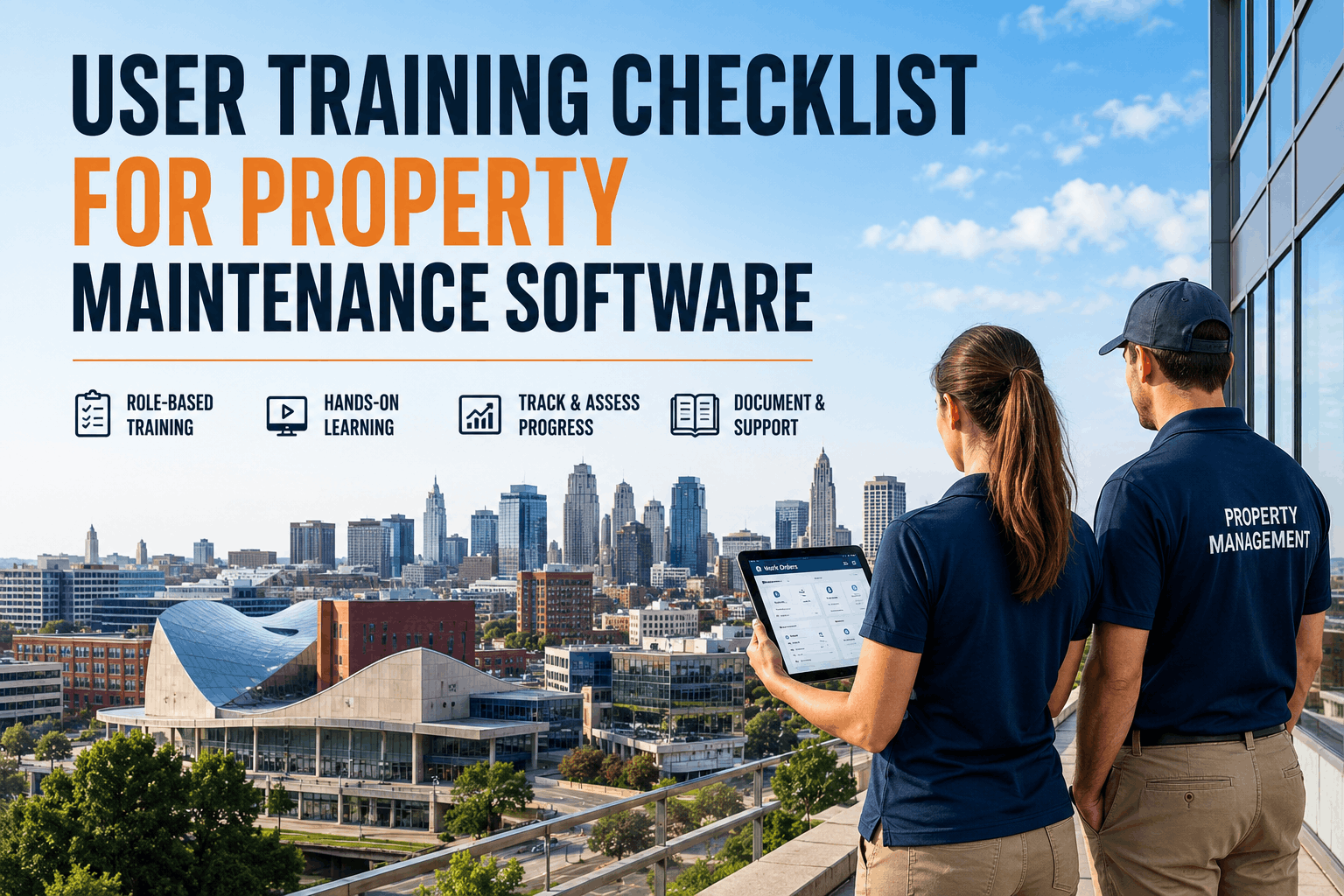
A new maintenance technician's first week should be spent learning your properties, equipment, and safety protocols — not struggling with software. Yet most property managers spend 4–8 hours on CMMS training alone, and new hires still make data entry errors, miss required fields, and fail to complete work orders correctly for weeks. The problem is not the technician's aptitude — it is a training approach that tries to teach everything instead of focusing on what technicians actually need to do daily. Sign Up Free to access Oxmaint's role-based training materials. Book a Demo to see how property managers onboard new technicians in under 2 hours. This guide gives maintenance supervisors a practical framework to train new staff on CMMS basics — work order receipt, completion, parts lookup, photo uploads, and signature capture — in 90 minutes or less, with a checklist to verify competency before they go into the field.
Why Most CMMS Training Fails (And Why 2 Hours Is Enough)
Traditional CMMS training fails because it tries to teach everything. Trainers walk through every menu option, every report, every configuration setting — 80 percent of which a technician will never use. Technicians need to know five things: how to see assigned work orders, how to navigate to the right property and unit, how to log time and parts, how to add photos, and how to close the work order. Everything else is noise. Sign Up Free to access Oxmaint's technician-focused training module that hides everything except what each role needs to see. Property managers who switch to role-based training reduce new hire ramp time from 2–4 weeks to 2–4 days.
The 90-Minute CMMS Training Agenda: What Technicians Actually Need to Know
The training agenda below covers every task a technician performs daily. No fluff. No features they will never use. Each module includes hands-on practice using a training account with sample work orders. Book a Demo to see Oxmaint's technician training environment.
- Log in to mobile app and desktop version
- Show technician dashboard — what they see vs what supervisors see
- Explain work order list: open, in progress, completed, overdue
- Show filtered view: "Assigned to Me" and "Available in My Area"
- Practice claiming an open work order from the queue
- Explain priority indicators (P1 red, P2 yellow, P3 green)
- Open work order, read description, view attached photos
- Log time spent (start time, end time, or duration entry)
- Add parts used (search by name or scan barcode)
- Add completion notes (what was fixed, what remains)
- Take and attach "after" photos
- Capture tenant signature (if required)
- Mark work order as complete
- Search for part by name, part number, or barcode scan
- Check stock availability at each property
- Request part transfer from another property
- Create parts request if not in inventory
- Access PM schedule view (today's due tasks)
- Open PM checklist for specific asset (pool, HVAC, elevator)
- Complete checklist items (pass/fail/NA with notes)
- Mark PM task complete — auto-generates next due date
- How to reassign a work order (wrong skills, need backup)
- How to add a note asking supervisor for help
- How to flag a work order as "needs parts" or "waiting on vendor"
- Where to find video tutorials and quick reference guide
The New Hire Training Checklist: Verify Competency Before Field Deployment
Training is not complete until the technician demonstrates competency. The checklist below includes every task a technician must perform independently before being sent into the field. Sign Up Free to download a printable version of this checklist for your training sessions.
| Task | Demonstrated ✓ | Notes |
|---|---|---|
| Log in to mobile app with own credentials | □ | |
| View list of work orders assigned to them | □ | |
| Claim an available work order from queue | □ | |
| Open a work order and read full description | □ | |
| Navigate to correct property and unit using map or directions | □ | |
| Log time spent (start/end or duration) | □ | |
| Search for and add a part from inventory | □ | |
| Take a photo and attach to work order | □ | |
| Add completion notes describing work performed | □ | |
| Capture tenant signature on mobile device | □ | |
| Mark work order as complete | □ | |
| View today's PM tasks | □ | |
| Complete a PM checklist with pass/fail items | □ | |
| Reassign a work order to another technician | □ | |
| Add a note asking supervisor for help | □ |
Training Materials That Work: Quick Reference Guides and Video Tutorials
Even after hands-on training, new technicians will forget steps. Provide them with job aids they can reference in the field. The most effective training materials are one-page quick reference guides and 2–3 minute video tutorials for each task. Book a Demo to see Oxmaint's library of technician training videos and printable quick reference guides.
Measuring Training Effectiveness: Before vs After
Property managers who implement the 90-minute role-based training program report measurable improvements in new hire productivity and data accuracy. The table below shows before and after metrics for technicians trained with traditional comprehensive training vs the accelerated role-based method. Sign Up Free to access Oxmaint's training effectiveness dashboard.
| Metric | Traditional Training (4–8 hours) | Role-Based Training (90 min) | Improvement |
|---|---|---|---|
| Time to first completed work order | 2–4 days | 2–4 hours | −75% |
| Data entry error rate (first week) | 15–25% | 5–8% | −60% |
| Time to independent proficiency | 2–4 weeks | 2–4 days | −75% |
| Training completion rate | 60–80% | 95–100% | +25% |
| Technician satisfaction with training | 3.2/5 | 4.7/5 | +47% |
| Support tickets for CMMS questions (first month) | 8–12 per technician | 2–4 per technician | −60% |