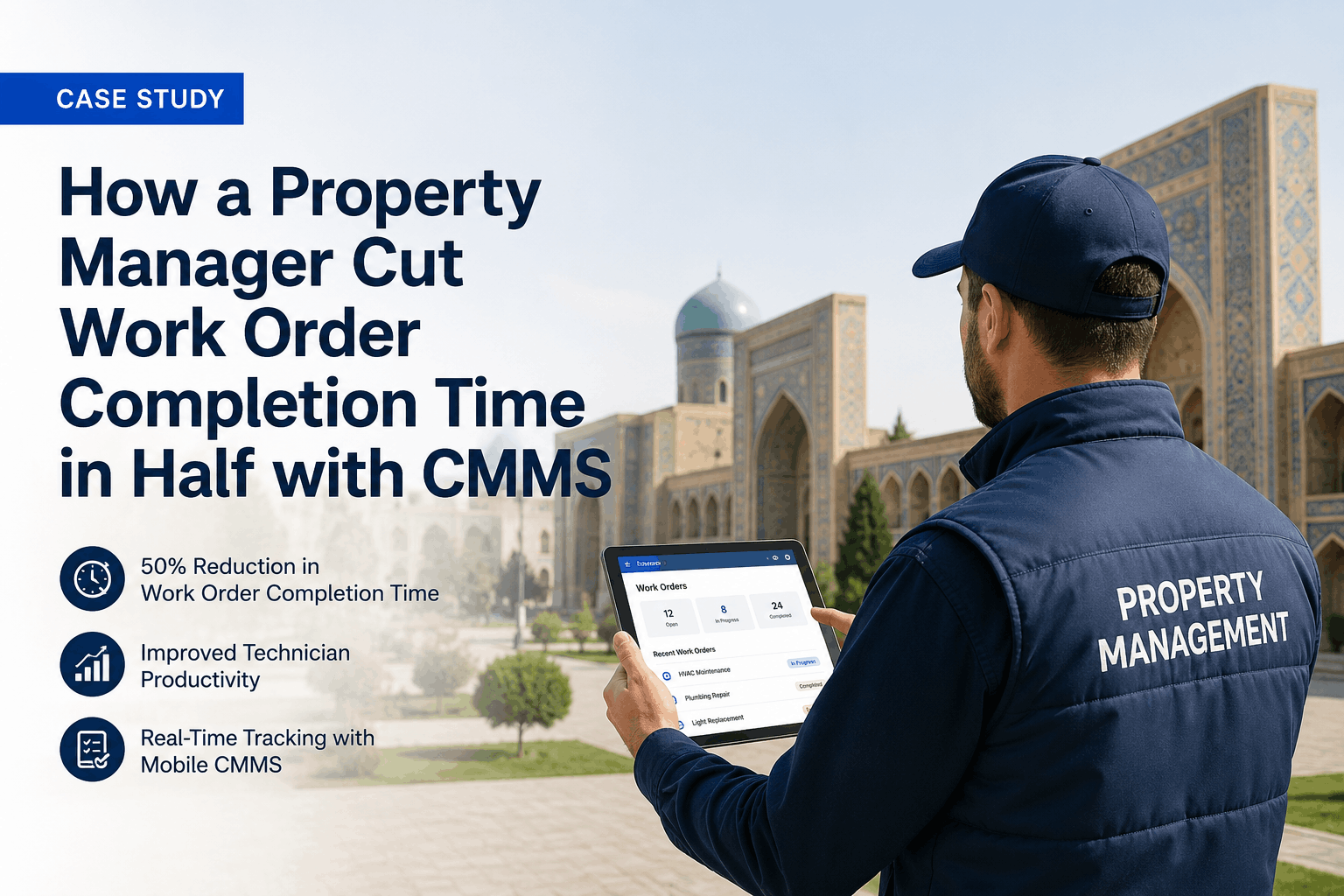
Disorganized maintenance requests create immediate operational chaos—technicians drive back and forth for parts, residents call repeatedly for updates, and billable hours slip through the cracks. Yet most properties treat work orders as simple to-do lists rather than a structured lifecycle. This reactive approach guarantees backlog growth, with the same issues resurfacing while maintenance budgets hemorrhage on inefficient labor.
A structured Work Order (WO) workflow transforms property maintenance from a chaotic scramble into a systematic execution machine. By defining clear stages from intake to closure, teams ensure accountability, data integrity, and resident satisfaction. Properties implementing digital WO workflows report 45% faster resolution times and reduce total maintenance administrative costs by 30% within the first year. Start free to streamline your maintenance operations.
The Perfect Work Order Lifecycle
The lifecycle methodology systematically moves a request from chaos to closure. Each stage has a defined owner and required data input, ensuring nothing is lost in translation and every hour is accounted for.
Work Order Categories
Not all work orders are created equal. Classifying them correctly drives your priority logic and reporting insights. Book demo to see automated categorization.
Digitize Your Maintenance Process
Our software guides technicians through the workflow, tracks time automatically, and ensures nothing slips through the cracks.
Fishbone Diagram: Work Order Bottlenecks
The Ishikawa diagram helps identify why work orders get stuck in "Pending" status. Identifying these bottlenecks allows you to clear the path for your technicians.
Technician
- Skill gap for task
- Overbooked schedule
- Lack of mobile tools
- Unclear instructions
- Travel time inefficiencies
Inventory/Parts
- Part out of stock
- Vendor delivery delay
- Wrong part ordered
- Tools unavailable
- Purchase approval slow
Resident/Access
- Permission to enter denied
- Loose pet in unit
- Changed locks
- Minors present (no entry)
- Incorrect unit info
Process
- Approval bottlenecks
- Duplicate requests
- Wrong priority assigned
- Paperwork lost
- Lack of cutoff times
System/Data
- Mobile app sync fail
- Incomplete description
- No photos provided
- Wrong category
- Notification failure
Management
- Budget freeze
- Micromanagement
- Conflicting priorities
- Staff turnover
- Poor vendor management
Standard Operating Procedure (SOP)
Structured execution ensures consistency. Every technician should follow these steps for every work order to guarantee quality data and service.
Acknowledge & Prepare
Tech reviews the WO on mobile device. Checks "Permission to Enter" status and notes. Gathers required tools and likely parts from inventory before leaving the shop.
Entry & Assessment
Knock loud, announce "Maintenance." Upon entry, assess the issue. If scope differs from WO, update the description in the app immediately.
Document "Before" Condition
Take a clear photo of the damage or issue before touching it. This protects the team against liability and proves the initial state.
Execution & Tracking
Perform the repair. Start the "Timer" in the app to log labor hours. Scan barcodes of any parts used to deduct from inventory automatically.
Cleanup & Closeout
Clean the work area. Take "After" photo. Leave a "Service Completed" door hang tag. Enter completion notes in app and change status to "Closed."
Priority & SLA Matrix
Define clear expectations for response times based on urgency. This aligns resident expectations with team capacity.
| Priority Level | Definition | Response Target | Completion Target |
|---|---|---|---|
| P1: Emergency | Safety/Habitability risk (Fire, Flood, No Heat) | 15 Minutes | Stabilize: 2 Hrs / Fix: 24 Hrs |
| P2: Urgent | Major inconvenience (No AC, Clogged Toilet, Lock) | 4 Hours | 24 Hours |
| P3: Routine | Minor issue (Drip, Light out, Cabinet hinge) | 24 Hours | 48 - 72 Hours |
| P4: Scheduled | Preventive Maintenance or Planned Project | As Scheduled | By Due Date |
| P5: Deferred | Non-critical cosmetic (Paint touchup, Landscaping) | 7 Days | 14 Days / Pending Budget |
Technician Quality Checklist
Every closed work order should meet these data quality standards to ensure reporting accuracy.
Data Integrity
Visual Proof
Resident Service
Completion Notes
Case Study: The Paperless Transition
A 300-unit complex moved from paper tickets to a digital workflow, reducing backlog by 60% in two months.
Problem Statement
Property Manager spent 2 hours daily data-entrying paper work orders. Techs lost slips frequently. Residents called 15x/day asking "When will my leak be fixed?" Backlog sat at 145 open tickets.
Initial Diagnosis
Bottleneck was information transfer. Techs drove to office to get paper slips (waste: 1 hr/day). Completed slips sat in van for days before being marked "Done" in system.
Workflow Implementation
Implemented mobile app workflow. Techs received WOs instantly on phones. "Start/Stop" timer mandatory for labor tracking. Automated email sent to resident upon "Assigned" and "Completed" status.
Root Cause
Lack of real-time communication caused perception of slowness and actual administrative delays.
Corrective Actions
1. Eliminate paper slips entirely. 2. Auto-assign WOs based on tech zone. 3. Enable resident self-service portal for updates. 4. Weekly "Backlog Burn" meeting reviewing aged tickets.
Results
Backlog dropped to 45 tickets (healthy level). Manager saved 10 hrs/week admin time. Resident satisfaction score (CSAT) rose from 3.2 to 4.7 stars.
Workflow KPIs
You can't manage what you don't measure. Track these key performance indicators to optimize your team.
MTTR (Mean Time To Resolution)
Average time from "Created" to "Closed." Target: < 24 Hours for routine issues. High MTTR usually indicates staffing shortages or parts supply issues.
First-Time Fix Rate
Percentage of WOs closed on the first visit without needing a return trip. Target: > 85%. Low rates indicate poor triage or lack of truck stock inventory.
WO Aging (Backlog)
Number of WOs open longer than 7 days. Target: < 5% of total volume. High aging indicates "cherry picking" easy jobs and ignoring hard ones.
Recall Rate
Percentage of WOs reopened or duplicated for same issue within 30 days. Target: < 3%. High recall means poor quality repairs or "band-aid" fixes.
Automate Your Maintenance KPIs
Our dashboards display real-time team performance, helping you identify top performers and training needs instantly.