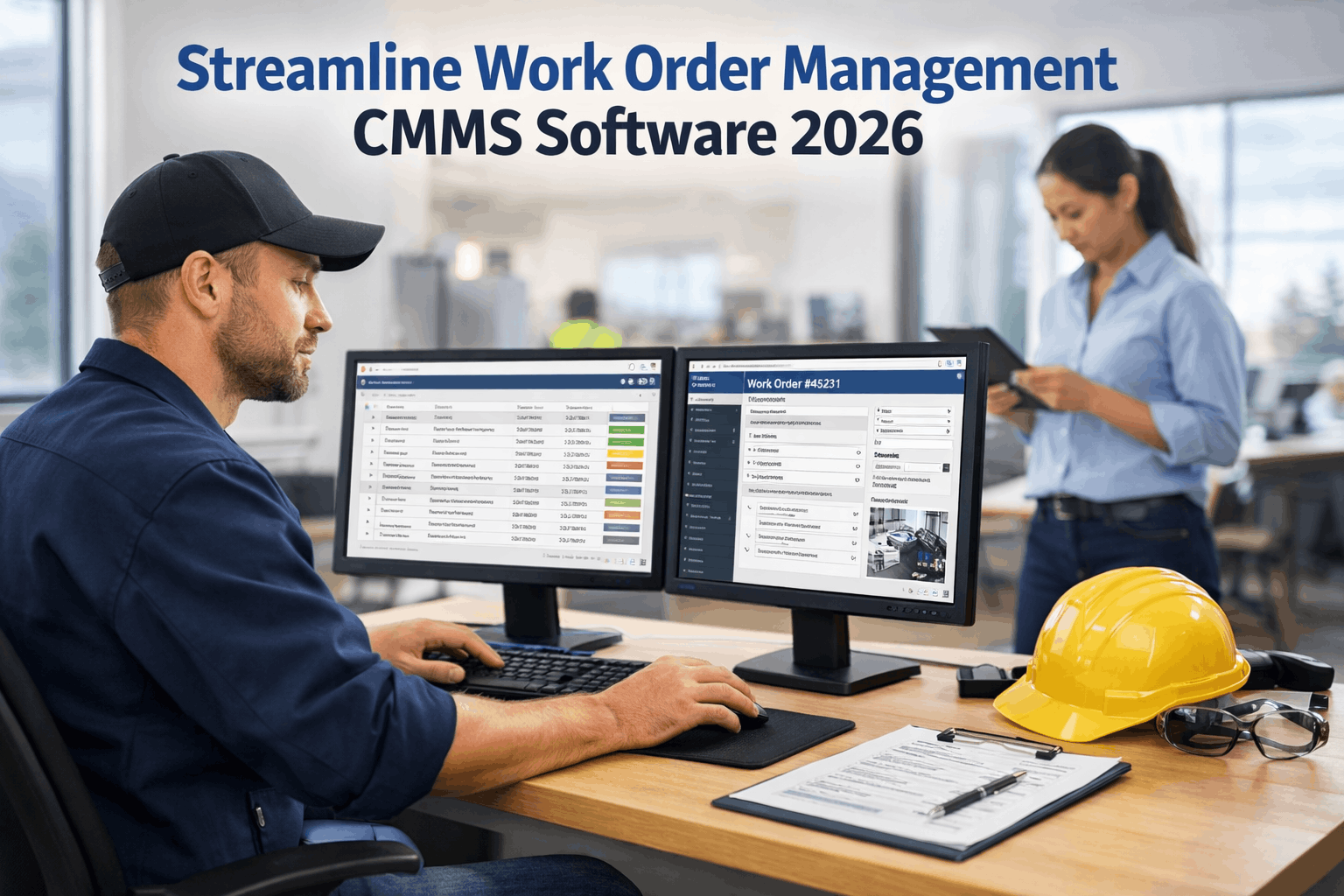
A work order approval process in your CMMS is the difference between a maintenance team that moves fast on the right repairs and one that waits three days for sign-off on a $40 bearing replacement. Done well, approval workflows enforce accountability, control spending, and prevent unauthorized repairs without adding bureaucratic drag. Done poorly, they become the bottleneck that forces technicians to skip the system entirely. This guide walks through how to design a work order approval process that matches your organization's risk profile — with the right approval tiers, escalation rules, and automation triggers — so the workflow speeds decisions rather than delaying them. Start a free trial to see Oxmaint's configurable approval workflows in action, or book a demo and we'll configure an approval matrix for your specific team structure.
Build an approval workflow that controls spending without slowing your team down.
- Configurable approval tiers — by cost threshold, asset criticality, or work type
- Mobile approvals — supervisors approve, reject, or escalate from anywhere
- Auto-approve rules — routine low-risk work skips the queue entirely
1,000+ maintenance teams rely on Oxmaint · Setup in days, not weeks
What Is a Work Order Approval Process in a CMMS?
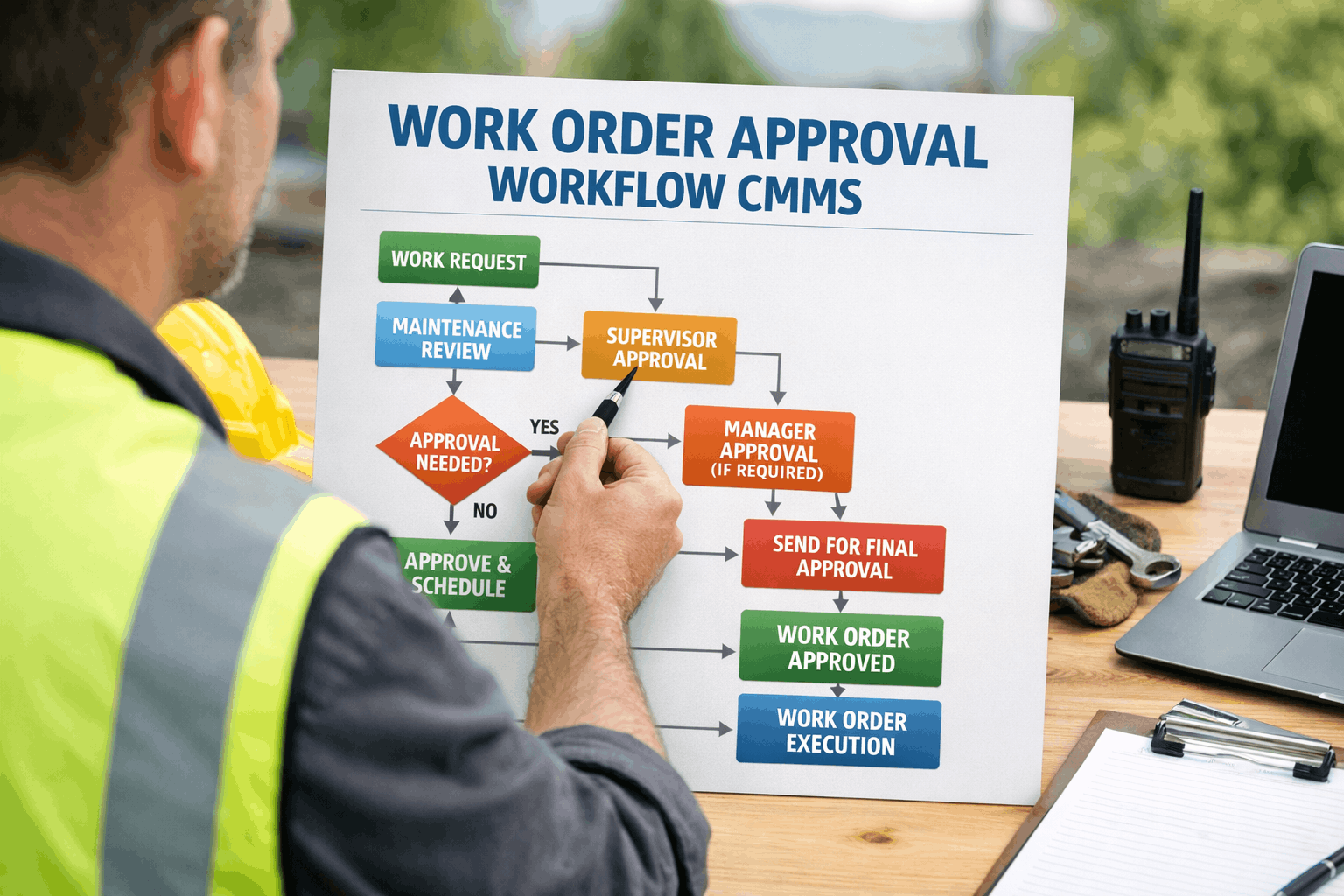
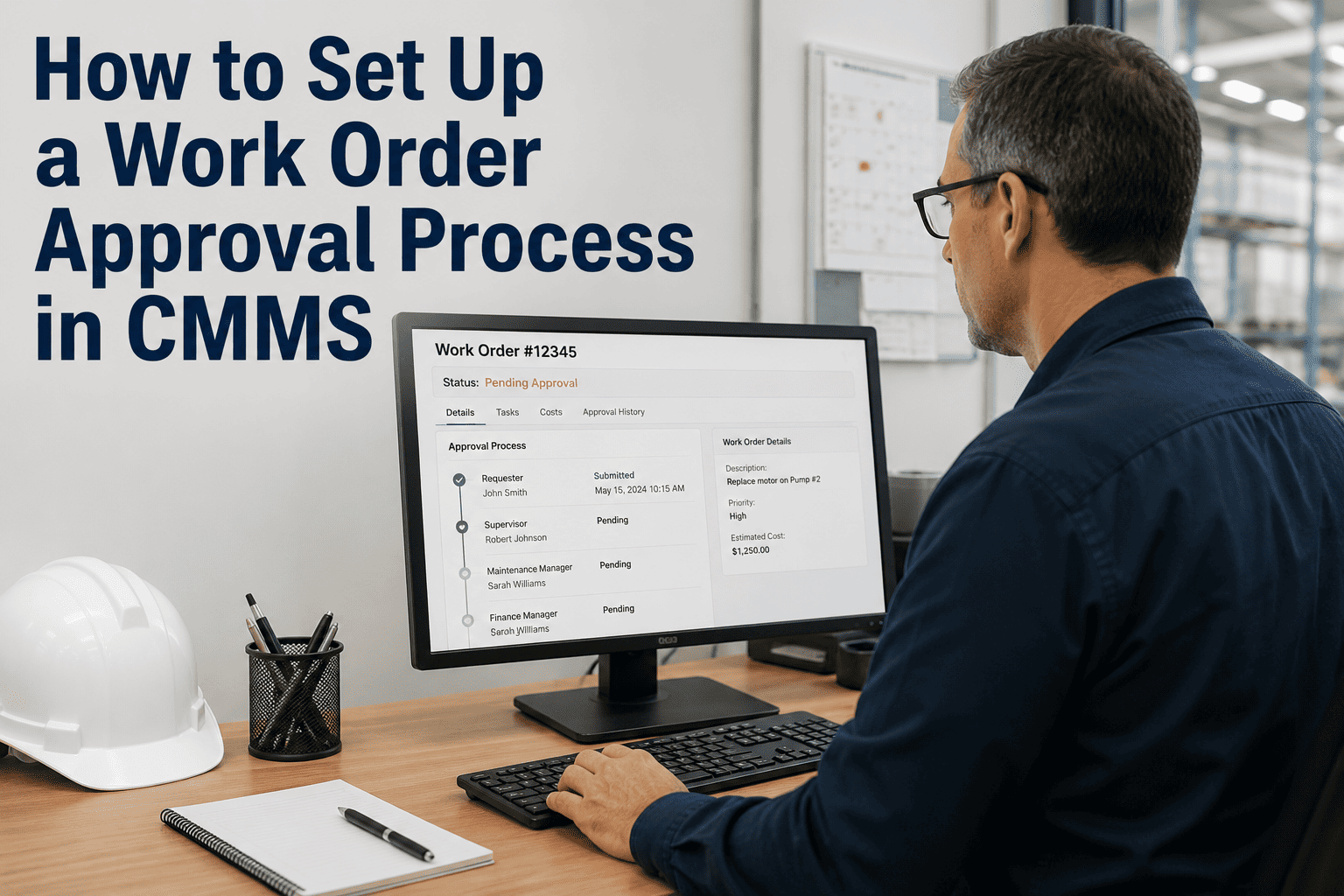
A work order approval process is a defined workflow that routes a requested maintenance task to one or more authorized decision-makers before a technician is dispatched and resources are committed. In a CMMS, approval workflows are configured as rules: when a work order meets specific criteria — cost above a threshold, asset criticality, work type, or requester role — it triggers a review step before proceeding.
The approval process serves three functions simultaneously: budget control (verifying spending is authorized before labor and parts are committed), safety review (confirming high-risk tasks have the right technician, PPE, and permits), and priority alignment (ensuring emergency and high-priority requests don't get stuck in the same queue as routine low-urgency tasks).
The critical design insight is that not everything needs approval. A well-configured CMMS approval matrix routes genuinely consequential decisions to human review and auto-approves routine, low-risk, pre-authorized work — keeping the system fast where speed matters. Explore how Oxmaint's work order management handles this automatically, with configurable rules tied to your asset criticality tiers.
How to Set Up a Work Order Approval Process in Your CMMS
Define Your Approval Tiers by Cost Threshold
Start with cost thresholds as the primary routing rule. A common structure: under $200 — auto-approve and dispatch; $200–$1,000 — supervisor approval required; $1,000–$5,000 — facilities manager or maintenance director approval; over $5,000 — VP Operations or Finance sign-off required. Adjust the thresholds to match your organization's actual budget authority levels, not someone else's template.
Add Asset Criticality as a Second Routing Dimension
Cost alone isn't enough. A $150 repair on a critical production line asset warrants supervisor review even if it's below the auto-approve threshold. Configure your CMMS to apply a criticality multiplier: Tier 1 critical assets always require at least supervisor approval regardless of cost. This prevents low-cost but high-consequence repairs from slipping through without oversight.
Set Emergency Bypass Rules — With an Audit Trail
Emergency work orders need to move in minutes, not hours. Configure a bypass rule that lets a senior technician or supervisor initiate emergency work immediately — but flags it for post-execution approval review within 24 hours. Speed during the emergency, accountability after. Never disable the audit trail — that's the part that protects you during incident investigations.
Define SLA Timers for Each Approval Tier
Approval workflows without SLA timers create black holes. Set a maximum response window for each tier: supervisor — 2 hours for urgent, 24 hours for routine; director — 4 hours for urgent, 48 hours for routine. When the timer expires without a decision, the work order automatically escalates to the next level — preventing approval queues from silently stalling maintenance operations.
Configure Contractor and Vendor Approval Separately
External contractor work orders carry unique approval requirements: scope confirmation, rate authorization, insurance verification, and purchase order linkage. Build a separate approval flow for contractor work that includes a required PO field and a mandatory scope-of-work review step — preventing unauthorized contractor spend that appears only on the invoice three weeks later.
Enable Mobile Approval and Review Reporting Monthly
If approvers can only act on work orders at a desktop, approval becomes a bottleneck every time a supervisor is in the field. Mobile approval is a functional requirement, not a nice-to-have. After go-live, review your approval queue data monthly: average approval time, rejection rate by approver, and volume by tier. These metrics surface workflow design problems before they become cultural resistance.
See how Oxmaint's approval workflow builder configures all of these steps without IT involvement — start a free trial or book a demo for a guided walkthrough of your specific team structure.
4 Approval Process Mistakes That Create Maintenance Bottlenecks
One-Size Approval for All Work Orders
Routing a $35 light bulb replacement through the same approval path as a $15,000 compressor rebuild is the fastest way to teach technicians to bypass the system. When every task requires sign-off, the system becomes an obstacle rather than a control. Tiered auto-approve rules for low-risk work are not a compromise — they're the design that keeps the system used.
No Escalation When Approvers Don't Respond
An approval queue without an escalation timer is a queue that can stall indefinitely. When the approver is on vacation or tied up, work orders that should have been dispatched two days ago sit waiting. SLA-triggered escalation to the next approver in the chain is the mechanism that keeps the process moving without manual follow-up.
Approvals by Email Outside the CMMS
Email-based approval creates split records — the decision lives in someone's inbox, not in the work order history. When an audit asks who authorized a repair or when it was approved, the answer is "I'd have to check my email from six months ago." CMMS-native approval keeps the entire decision trail attached to the work order permanently.
No Rejection Reason Captured
When approvers reject a work order without a required reason field, the requester doesn't know whether the repair was deemed unnecessary, the cost too high, the wrong vendor proposed, or the timing wrong. Unanswered rejections generate resubmission noise and erode technician trust in the approval process as a functional tool.
Oxmaint's approval workflow prevents all four of these failures by design — book a demo to see the configuration options for your organization size.
How Oxmaint Configures Work Order Approvals Without Building Bottlenecks
Configure auto-approve rules by cost threshold, asset tier, work type, and requester role. Routine pre-authorized work dispatches immediately. Only genuinely consequential work order requests enter the approval queue — keeping the system fast and the approver's queue manageable.
See Work Order Management →Supervisors approve, reject, request more information, or escalate from the Oxmaint mobile app — in the field, between tasks, without returning to a desktop. Approval SLA timers run regardless of location, and escalation happens automatically when windows expire.
See All Features →Emergency work orders trigger immediate dispatch with simultaneous notification to the approval chain. Post-execution review is required within a configurable window, keeping the audit trail complete without introducing delay at the moment of crisis.
See Safety & Compliance →Monthly reporting on average approval time by tier, rejection rate by approver, and volume distribution surfaces workflow design problems. If one approval tier is consistently the bottleneck, the data shows it — so you can fix the process rather than workaround it.
See Analytics & Reporting →Manual vs CMMS-Automated Work Order Approval
| Process Step | Manual / Email Approval | CMMS-Automated Approval |
|---|---|---|
| Routing decision | Requestor manually emails supervisor | Automatic — rules-based by cost, asset tier, work type |
| Auto-approve for low-risk | Not possible — everything requires email | Configured threshold — routine work dispatches instantly |
| Approval when approver is unavailable | Work order stalls until approver responds | SLA timer escalates to next approver automatically |
| Emergency bypass | Phone call to supervisor; no audit record | Immediate dispatch + notification + mandatory post-review |
| Audit trail | Approval lives in email inbox, not work order | Decision, timestamp, and approver attached to work order |
| Rejection reason | Often communicated verbally or not at all | Required field — reason attached to work order history |
| Average approval time | 4–24 hours (email response dependent) | Under 1 hour with mobile approval and SLA escalation |
What Teams Gain From a Properly Configured Approval Workflow
See your specific numbers with the Oxmaint ROI Calculator — or start a free trial and run a live approval workflow simulation for your team structure.
Frequently Asked Questions
How do you create a work order approval workflow in CMMS without creating bottlenecks?
What cost thresholds should trigger work order approval in a CMMS?
Should emergency work orders go through the approval process?
Can you set up a work order approval process in CMMS without IT support?
Set Up a Work Order Approval Process That Actually Works
Oxmaint's configurable approval workflow routes consequential decisions to the right approver, auto-approves routine work instantly, escalates automatically when SLAs expire, and keeps every approval decision attached to the work order — permanently, audit-ready, and accessible on mobile.
- Tiered routing — auto-approve routine work, review what actually matters
- Mobile-first approvals — supervisors act from anywhere, in seconds
- SLA timers and auto-escalation — no work order sits waiting indefinitely
Trusted by 1,000+ teams · Configurable without IT · Live in days