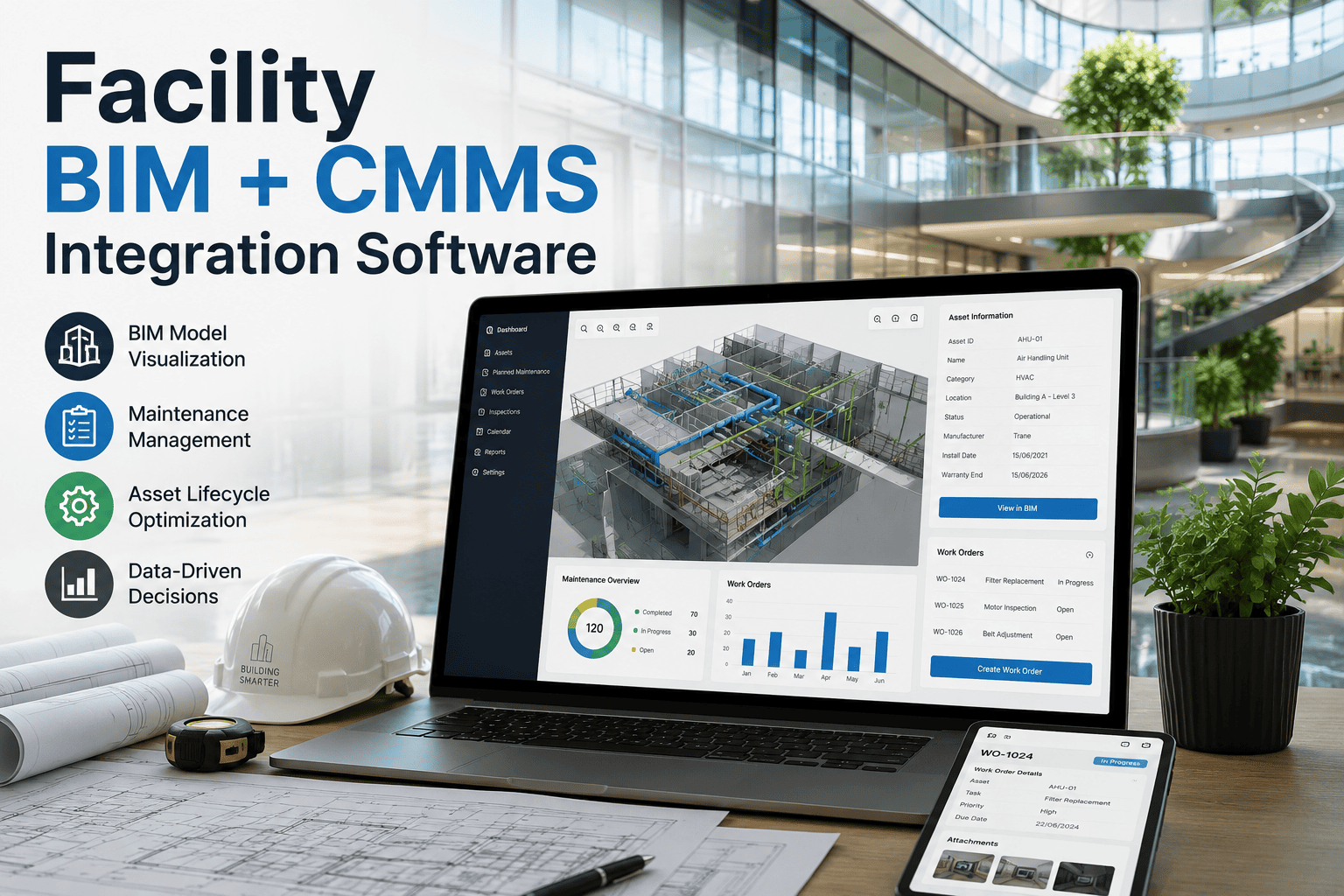
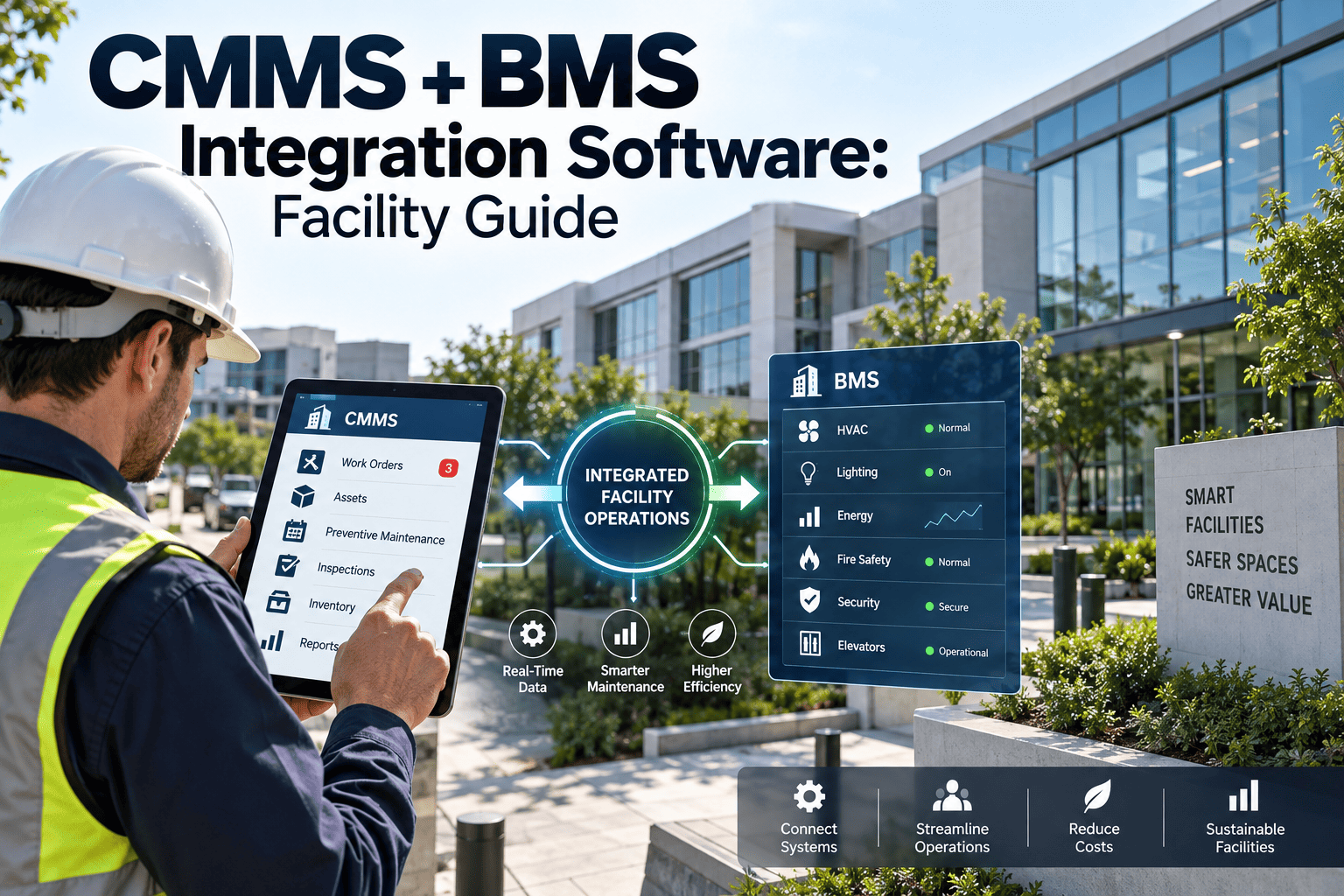
A construction project can generate a building information model with thousands of tagged assets — every valve, air handler, and fire damper modeled with its manufacturer, warranty date, and maintenance data attached. Then handover happens, the model gets archived on a drive nobody opens again, and the facility team starts tagging assets from scratch with a clipboard. BIM-to-CMMS integration exists to stop that waste by pulling the asset data already captured during design and construction directly into the system that will actually manage it for the next twenty years. This guide covers what data actually survives the handover, how the mapping between a BIM model and a CMMS asset registry works field by field, and how a CMMS platform like OxMaint ingests that model data instead of asking a technician to rebuild it by hand.
Facility Management · BIM & CMMS · 2026
Facility BIM + CMMS Integration: Make Handover Data Actually Useful
Every asset modeled during design and construction can become a live CMMS record instead of a dead PDF — here's how the BIM-to-FM data mapping actually works and what it takes to get it right.
70%
Of BIM model data is estimated to go unused once a facility team takes over building operations
6-9mo
Typical time facility teams spend manually re-tagging assets that were already modeled during construction
30-40%
Of initial CMMS setup effort eliminated when asset data is imported from BIM instead of entered manually
2
Data standards that make transfer possible — COBie for structured handover, IFC for the underlying model geometry
Why BIM Models Die at Handover
The disconnect isn't a technology problem so much as a handoff problem. Design and construction teams build the model to coordinate trades and catch clashes before they become field errors — asset data gets attached along the way, but nobody on that side of the project is thinking about how a facility team will use it two years into operations. Facility management typically inherits the model as a closeout deliverable, often as a static file format that isn't connected to anything the maintenance team actually uses day to day. Without a defined path from model to CMMS, the practical result is the same regardless of how much data was captured: someone walks the building again, manually logging assets that were already documented in far more detail during construction. That re-walk isn't just a labor cost — it's a data quality cost, because a technician working from a clipboard rarely captures the same depth of manufacturer, warranty, and specification detail that was already sitting in the model. The gap also tends to widen with portfolio size: a single building might absorb the rework without much notice, but a multi-site operator repeating the same manual process across a dozen new facilities a year is paying for the same asset data twice on every project.
From BIM Model to CMMS Record — The Data Stack
BIM Model Layer
Architectural & Spatial Data
Building, floor, room, and zone geometry — becomes the location hierarchy every asset gets tied to.
BIM Model Layer
MEP & Equipment Data
Mechanical, electrical, and plumbing assets with manufacturer, model, and warranty attributes attached at design.
Handover Standard
COBie Data Export
A structured spreadsheet format that packages the model's asset attributes for import into an operations system.
CMMS Layer
Live Asset Registry
The imported data becomes searchable asset records with PM schedules, work order history, and location tied in.
What Data Actually Transfers from BIM to CMMS
The mapping between a model attribute and a CMMS field is what makes the import usable rather than just a data dump. Here's how the core fields typically line up.
COBie vs. IFC: Which Standard Actually Matters for FM
The two formats get mentioned together so often that facility teams sometimes assume they're interchangeable — they're not, and knowing which one a CMMS import actually needs saves a lot of back-and-forth with the design team during closeout.
COBie
A structured spreadsheet standard purpose-built for handover — asset type, location, manufacturer, and warranty data organized into the fields a CMMS or CAFM system expects to import directly.
IFC
The underlying model geometry format that preserves 3D spatial relationships — useful for space planning and visualization, but not structured for a direct asset-by-asset CMMS import on its own.
In practice, most facility teams need COBie for the asset data import and keep IFC on hand as a spatial reference for renovations or major capital work later.
Import the Model Data You Already Paid to Create
OxMaint ingests COBie and IFC exports directly into a live asset registry — location hierarchy, manufacturer data, and warranty dates included, without re-walking the building.
Manual Handover vs. BIM-to-CMMS Integration
Manual Handover
Facility team walks the building to re-tag assets already modeled
Warranty and manufacturer data re-collected from paper submittals
Location hierarchy built manually in the CMMS from scratch
Setup stretches across months before the CMMS is fully usable
BIM-to-CMMS Integration
COBie export imported directly into the asset registry
Manufacturer, model, and warranty data arrive already attached
Location hierarchy inherited from the model's spatial structure
CMMS is operational within weeks, not months, of handover
Common Integration Pitfalls to Avoid
Most failed BIM-to-CMMS imports don't fail on the technology — they fail on decisions made earlier in the project that nobody revisits until handover is already underway.
Requesting COBie too late
Asking for a structured export after design is finished usually means someone has to reconstruct data that was never organized for handover in the first place.
Importing without validation
A raw import with blank warranty fields or inconsistent naming just moves the data quality problem into the CMMS instead of fixing it.
No owner assigned to the handover
If nobody on the facility side is explicitly responsible for reviewing the import, it tends to sit untouched until someone needs an asset record that isn't there.
Treating import as the finish line
Getting asset records into the CMMS is only useful once PM schedules and work order routing are actually built on top of them.
Getting BIM Data Into Your CMMS: A Five-Step Process
01
Confirm the handover format early
Require a COBie deliverable in the design contract rather than requesting one after construction is already finished — retrofitting it later is far more expensive.
02
Validate the data before import
Check for missing asset types, blank warranty fields, and duplicate tags — a clean import matters more than a fast one.
03
Map fields to your CMMS structure
Align COBie component types with your existing asset classes and location hierarchy so PM templates apply correctly on day one.
04
Attach PM schedules to imported assets
Once assets exist in the registry, apply preventive maintenance templates by asset class so the CMMS is generating work orders immediately, not just holding a static record.
05
Assign an owner for ongoing accuracy
Designate who updates the asset registry as equipment is replaced or renovated, so the imported data stays accurate years after the original handover instead of slowly drifting out of date.
Frequently Asked Questions
Does every construction project produce a usable COBie file?
Not automatically — it has to be specified in the design and construction contract, and quality varies widely between teams.
OxMaint's import tools flag incomplete records so gaps get caught before go-live rather than after.
Can BIM data be imported for an existing building without a model?
Yes — a retrospective scan or point-cloud survey can generate a model for an older building, though it's a separate project from importing an existing model at handover.
What happens to the BIM model after the data is imported?
The CMMS becomes the live operational record going forward, but the model itself is often kept as a reference for renovations or major capital projects later in the building's life.
How much manual cleanup does an import usually need?
Even a well-specified COBie export typically needs some review — missing warranty dates and inconsistent naming are the most common gaps to fix before assets go live in the CMMS.
Is this only relevant for new construction?
No — renovation and major capital projects generate the same kind of model data, and the same import path applies whether the building is brand new or twenty years old.
Book a demo to see how it fits your portfolio.
Stop Rebuilding an Asset Registry That Already Exists
OxMaint turns your BIM model's COBie export into a live, work-order-ready asset registry — location hierarchy, manufacturer data, and warranty dates included from day one. Free to start, no re-tagging required.