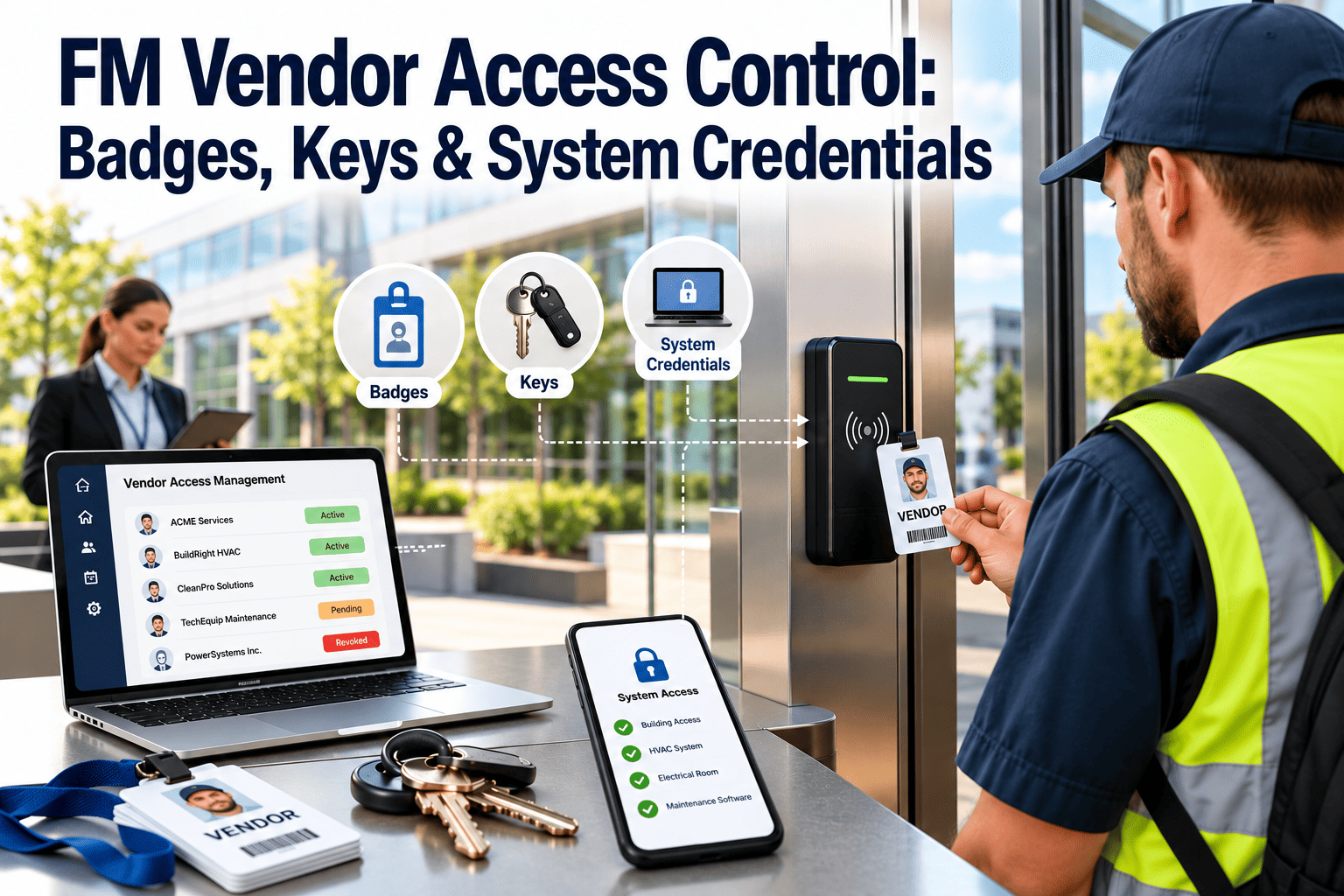
Vendor access rarely gets granted all at once. A badge is issued for the first job, a master key follows for an emergency call-out, a CMMS login is added for reporting, and a building management password gets shared to save time. Months later nobody can say who holds what, and the contract ends with a scramble to recover it all. This guide sets out an access control model for facility vendors, covering badges, keys and system credentials, and shows how a CMMS with role-based permissions keeps the record straight.
FM Vendor Access Control: Badges, Keys & System Credentials
Access should be requested, approved, issued, watched and revoked, in that order, every time. Oxmaint ties vendor roles and work to named people so exit day is a checklist instead of a hunt.
Four Layers of Vendor Access You Need to Track
Most access policies cover badges and stop there. Vendors in practice hold access at four layers, and each layer usually has a different owner.
Physical Entry
Badges, fobs, parking permits, loading dock passes and visitor registrations. Usually owned by security or the property office, and often issued per person with no end date.Mechanical Keys
Master and sub-master keys, roof hatch, riser room, electrical room and tenant space keys. Often copied informally and tracked on a spreadsheet, if at all.Building Systems
Building management system, access control software, CCTV, fire alarm panels and metering portals. Credentials here can change building conditions, so they carry the highest consequence.Business and Remote Systems
CMMS accounts, email, document portals, VPN and remote support tools. Easy to create, easy to forget, and frequently shared between technicians.Why Vendor Access Sprawls
Sprawl is almost never malicious. It builds up because granting access is quick, and removing it is nobody's job.
- Urgent call-outs lead to temporary access that is never withdrawn
- Technicians share one login because individual accounts take days to set up
- Badges are issued from the vendor's headcount at the time, not a current roster
- Keys are copied to avoid delays, and the copies are not recorded
- Security, facilities and IT each manage one layer and none sees the whole picture
- Contract end dates are not linked to credential expiry dates
The result is a growing number of active credentials held by people the facility team may never have met.
Access Tiers: Match the Credential to the Role
Defining a small number of tiers makes approvals faster and audits shorter. Start with the table below and adjust zones and durations to your building.
| Tier | Physical access | System access | Duration | Approver |
|---|---|---|---|---|
| Routine technician | Assigned floors and plant rooms during contracted hours | Own CMMS login, work orders for assigned assets only | Contract term, reviewed quarterly | Facility manager |
| Supervisor | Routine zones plus riser and electrical rooms | CMMS reporting, read-only BMS views | Contract term, reviewed quarterly | Facility manager |
| After-hours responder | Defined emergency routes and plant rooms | CMMS mobile, alarm notification only | Per roster period | Facility manager and security |
| Specialist or short-term | Single location for a named job | None, or time-limited work order access | Work order dates only | Work order approver |
| Account manager | Office areas and meeting spaces | CMMS dashboards and invoice approval views | Contract term | Facility director |
The Access Lifecycle: Joiner, Mover, Leaver
Every credential follows the same lifecycle. Treating it as a process with an owner at each step is what prevents orphaned access.
Know Exactly Who Holds Access to Your Buildings
Set vendor roles, assign work to named technicians and keep an auditable history in Oxmaint, so access always matches the work in progress.
Key Control vs Electronic Credentials
Electronic credentials can be disabled in seconds. Mechanical keys cannot be recalled remotely, so they need stricter rules or a plan to retire them.
| Control point | Mechanical keys | Electronic badges and fobs |
|---|---|---|
| Revocation | Physical return, or rekeying if lost | Deactivate in the access control system |
| Audit trail | Signed key register only | Time-stamped door events by credential |
| Copy risk | High unless restricted keyways are used | Low, with encrypted credentials |
| Time limits | Not possible without a key cabinet | Expiry date set at issue |
| Best practice | Key cabinet with sign-out, restricted keyway, minimal masters | Individual issue, zone limits, scheduled hours |
Where practical, move vendor access to electronic credentials and keep mechanical masters in a controlled cabinet signed out per job.
System Credentials: Practices to Enforce
System accounts deserve the tightest rules because a single login can change setpoints, silence alarms or export data.
- One shared login for the whole vendor team
- Full administrator rights by default
- Passwords stored in a shared sheet
- Permanent remote access with no expiry
- Accounts left active after staff leave
- Named account for every technician
- Read-only by default, write access by exception
- Multi-factor authentication where supported
- Remote sessions approved, time-limited and logged
- Accounts disabled on the roster change date
Exit Day: A Revocation Timeline That Works
Whether a single technician leaves or the entire contract ends, use the same sequence. The time windows below are starting points to set in your contract.
- Disable BMS and remote accounts
- Deactivate badges and fobs
- Remove CMMS write access
- Collect keys, tools and ID
- Reassign open work orders
- Rotate shared passwords
- Reconcile key register
- Review door and system logs
- Confirm parking and dock passes
- Rekey where keys are missing
- Archive vendor records
- Sign final access close-out
Auditing Vendor Access: What to Check and How Often
A control only works if it is tested. Keep the audit light enough that it actually happens on schedule.
| Check | Method | Frequency | Red flag |
|---|---|---|---|
| Active credentials vs roster | Compare access system export with vendor staff list | Quarterly | Credentials with no matching current employee |
| Dormant accounts | List accounts with no login or door use in a set period | Monthly | Active credentials never used |
| After-hours entries | Review door events outside contracted hours | Monthly | Entries with no linked work order |
| Key register | Physical count against register | Quarterly | Unaccounted masters or copies |
| Admin rights | List vendor accounts with elevated permissions | Quarterly | Admin rights without documented reason |
| Remote sessions | Review session logs against approvals | Monthly | Sessions with no change request |
Linking Access to Work Orders
The strongest control is a simple rule: no work order, no access. When entries and logins can be matched to assigned work, anomalies become obvious.
- Entries without a work order are reviewed and explained
- Work orders completed without a matching entry prompt a data check
- Specialist access expires automatically with the job end date
Special Cases That Break Simple Policies
Routine access is easy to govern. The exceptions are where control is usually lost, so decide the rules in advance.
Emergency and After-Hours Access
Emergencies cannot wait for a three-step approval. Pre-approve a short roster of after-hours responders, and require the call-out to be logged against a work order within a set time afterwards.
Subcontractors Under the Main Vendor
Specialist trades such as lift, fire and water treatment contractors often arrive through the main vendor. Treat each subcontractor employee as a named person with the same request, approval and expiry steps.
Multi-Tenant and Shared Buildings
Tenant spaces add a second approver. Define who may authorise entry to tenant areas, and require notice and escort rules in the vendor's procedures.
Remote Support and Manufacturer Access
Equipment suppliers may ask for remote connections to controllers. Approve each session, limit it to named equipment, and record who connected and why.
Contract Language That Makes Access Control Enforceable
Policies fail when the contract is silent. Write access duties into the agreement so the vendor carries them as obligations, not courtesies.
Failure Scenarios and the Control That Stops Each One
Walking through realistic failures helps teams see why each rule exists. The scenarios below are common patterns, not specific incidents.
| Scenario | What went wrong | Control that prevents it |
|---|---|---|
| Former technician still logs in | Account stayed active after the vendor replaced staff | Roster-linked account expiry and monthly dormant account review |
| Unlogged night entry | Badge used outside contracted hours with no job open | Time-restricted badges and after-hours entries matched to work orders |
| Setpoint changed remotely | Shared BMS login used to adjust schedules | Named accounts, read-only default and logged change approvals |
| Master key cannot be found | Key copied informally and never recorded | Key cabinet, restricted keyway and quarterly count |
| Subcontractor on the roof unannounced | Access granted through the main vendor without notice | Each subcontractor treated as a named request with approval |
A 60-Day Plan to Tighten Vendor Access
You do not need a new security program. Sequence the work so the highest-risk credentials are cleaned up first.
- Export every vendor badge, key and account
- Compare with current rosters and contracts
- Flag shared logins and admin rights
- Disable unmatched and dormant credentials
- Replace shared logins with named accounts
- Recover or rekey unaccounted keys
- Publish the tier table and request form
- Set expiry dates on all vendor credentials
- Add access clauses at contract renewal
- Run the first quarterly access review
- Match after-hours entries to work orders
- Report findings to the facility director
How Oxmaint Supports Vendor Access Control
Oxmaint is maintenance management software, not a door controller, but it holds the work context that makes access decisions defensible.
Access Control Metrics Worth Reporting
A few simple measures tell leadership whether vendor access is under control, and they can be pulled from systems you already run.
- Roster match rate: active vendor credentials that match a current named employee, with a target of every credential.
- Time to revoke: hours between a departure notice and the last credential being disabled.
- Dormant credential count: accounts and badges with no recorded use in the review period.
- Unmatched entries: after-hours door or system events with no linked work order.
- Key register accuracy: keys physically counted against keys recorded at each quarterly check.
- Shared login count: accounts used by more than one person, which should fall to zero.
Trend these quarter on quarter. A falling dormant count and shrinking revocation time show the process is working, and a rising unmatched entry count is an early warning worth investigating.
Frequently Asked Questions
End the Exit-Day Scramble for Good
Run vendor work, roles and records in one system, so every credential has an owner, a reason and an end date.