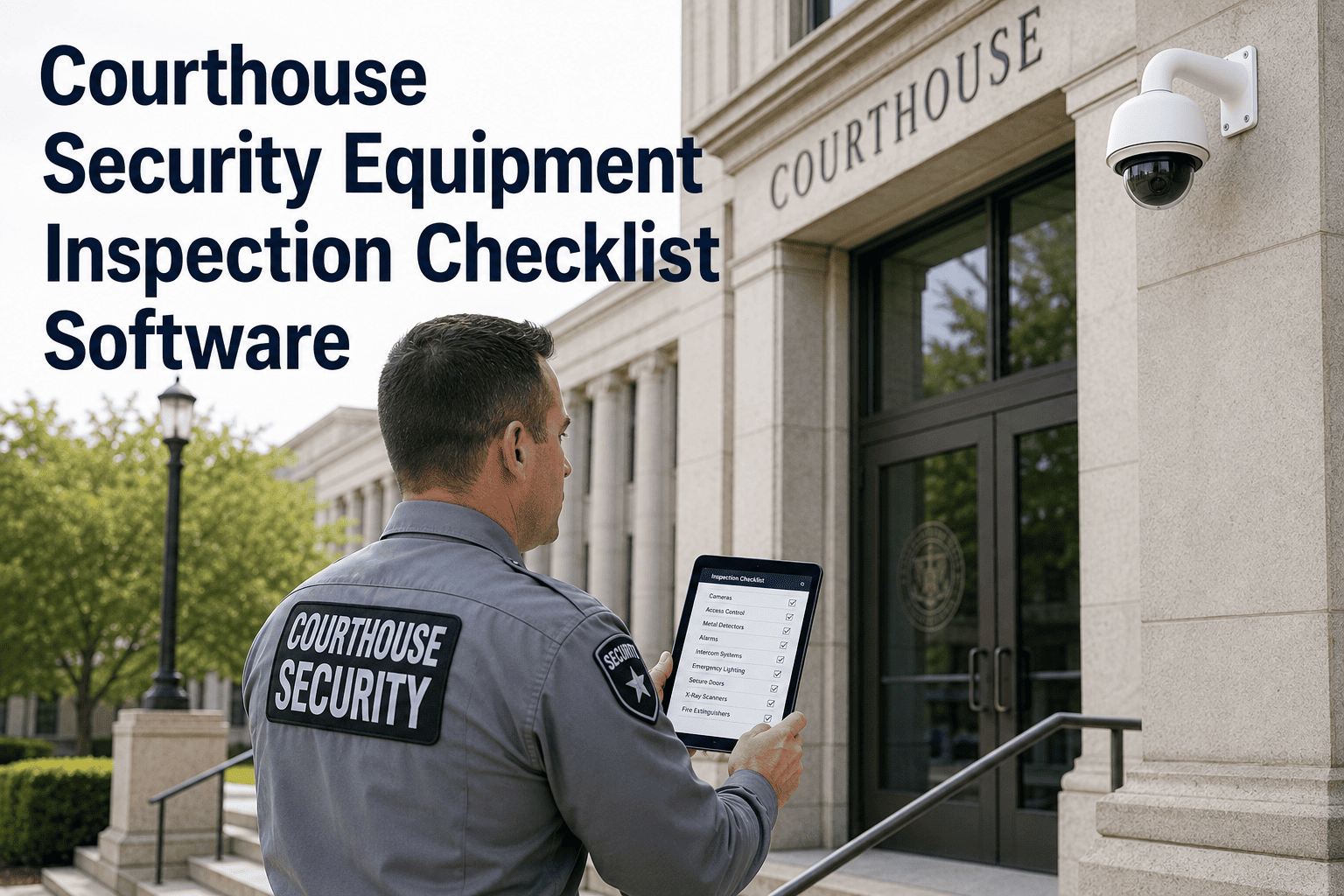
A courthouse is one of the most security-sensitive public buildings in any jurisdiction — housing judges, prosecutors, defendants, witnesses, and the public under one roof, often simultaneously. When a CCTV camera fails undetected, an access control reader goes offline without a work order, or a magnetometer is skipped during monthly calibration checks, the gap in the security envelope is real and the liability falls directly on the court facilities manager who signed off on maintenance records that don't reflect what actually happened. OxMaint's inspection management platform gives courthouse facilities teams structured digital checklists for every security asset — cameras, access control panels, duress alarms, X-ray systems, magnetometers, and intercoms — with timestamped photo evidence, automatic work orders for failing equipment, and an audit trail that satisfies courthouse security officers, court administrators, and insurance reviewers. This checklist covers the complete security equipment inspection framework every court facilities manager should be running today.
Courthouse Security Equipment Inspection Checklist
A field inspection and preventive maintenance framework for court facilities managers — covering CCTV systems, access control, magnetometers, X-ray units, duress alarms, and intercom systems. Built for facilities where security equipment failure is not an acceptable outcome.
Security Systems Covered by This Checklist
Field Inspection Checklist — Courthouse Security Equipment
Court facilities managers using OxMaint never face an audit asking "when was this camera last inspected?" — because every check is timestamped, every work order is traceable, and every piece of security equipment has a complete maintenance history in one platform.
Inspection Frequency Summary by System Type
| Security System | Daily | Weekly | Monthly | Quarterly | Annual |
|---|---|---|---|---|---|
| Magnetometer | Sensitivity test | Physical inspection | Full calibration | — | Manufacturer service |
| X-Ray Unit | Resolution test image | Curtain & belt check | Radiation survey | — | Certified vendor service |
| CCTV / IP Cameras | — | Feed + NVR review | Housing & PTZ check | Coverage audit | Full system review |
| Access Control | — | Door + lock test | Event log review | Panel firmware update | Full panel audit |
| Duress Alarms | — | — | Activation test all buttons | Battery replacement check | Full system test |
| Intercom / PA | — | — | Two-way audio test | Emergency override test | System certification |
Inspection frequencies follow GSA PBS guidelines for federal courthouse facilities and ASIS International Physical Security Standards. State court facilities should supplement with applicable state court administrative office requirements.
Every court security program I have reviewed that experienced a serious incident had one thing in common: equipment that had a fault history no one was tracking systematically. A camera that had been "blurry for a few weeks." A duress button that "sometimes didn't work." These are not random failures — they are deferred maintenance events that became security events. Digital CMMS platforms like OxMaint close that gap. When every fault is a work order and every work order has a closure date, the equipment stays at operational status because the system enforces it, not because someone remembers to check.
Courthouse Security Equipment Maintenance — Common Questions
What maintenance standards govern courthouse security equipment inspections?
Federal courthouses follow GSA Public Buildings Service (PBS) security standards and U.S. Marshals Service (USMS) guidelines for court security systems. State and county courthouses typically follow the respective state court administrative office requirements and ASIS International's Physical Asset Protection Standard (ASIS PAP-2012). All standards require documented inspection records with dates, findings, and corrective actions — exactly what OxMaint generates automatically for every inspection round.
How should courthouse security equipment failures be escalated and documented?
Any security equipment failure that creates an operational gap — offline camera, failed duress button, non-functioning access control on a restricted door — should be treated as a security incident, not just a maintenance issue. In OxMaint, these are flagged as Critical priority work orders that automatically notify the court security officer and facilities manager simultaneously. The work order tracks escalation time, response time, and resolution time — creating a defensible timeline if the incident is later reviewed by court administration or legal counsel. Book a demo to configure your escalation rules.
How long should courthouse security equipment inspection records be retained?
GSA guidelines for federal facilities recommend retaining security maintenance records for a minimum of 3 years. ASIS standards suggest 5 years for equipment with a role in incident response. For any facility that has experienced a security incident, records related to equipment in the affected area should be retained for the full statute of limitations period for potential litigation — which can extend to 6–10 years depending on jurisdiction. OxMaint stores all inspection records indefinitely in the cloud, with exportable reports available at any time for audits or legal discovery.
Can OxMaint manage inspection checklists for both in-house staff and contracted security vendors?
Yes. OxMaint supports multiple user roles — in-house facilities staff, contracted security technicians, and third-party equipment vendors can all be assigned inspection tasks and work orders within the same platform. Each user's completions are timestamped with their individual login, creating a clear record of who performed which inspection. Facilities managers maintain full visibility of all inspections regardless of who executed them, which is essential for courts using hybrid maintenance staffing models. Configure your team structure in OxMaint.
Every Camera Verified. Every Door Tested. Every Alarm Confirmed.
OxMaint gives court facilities managers structured digital inspection checklists for every security asset, automatic work orders for failing equipment, escalation workflows to court security officers, and complete audit-ready records — so your courthouse security equipment is provably operational, not assumed to be.