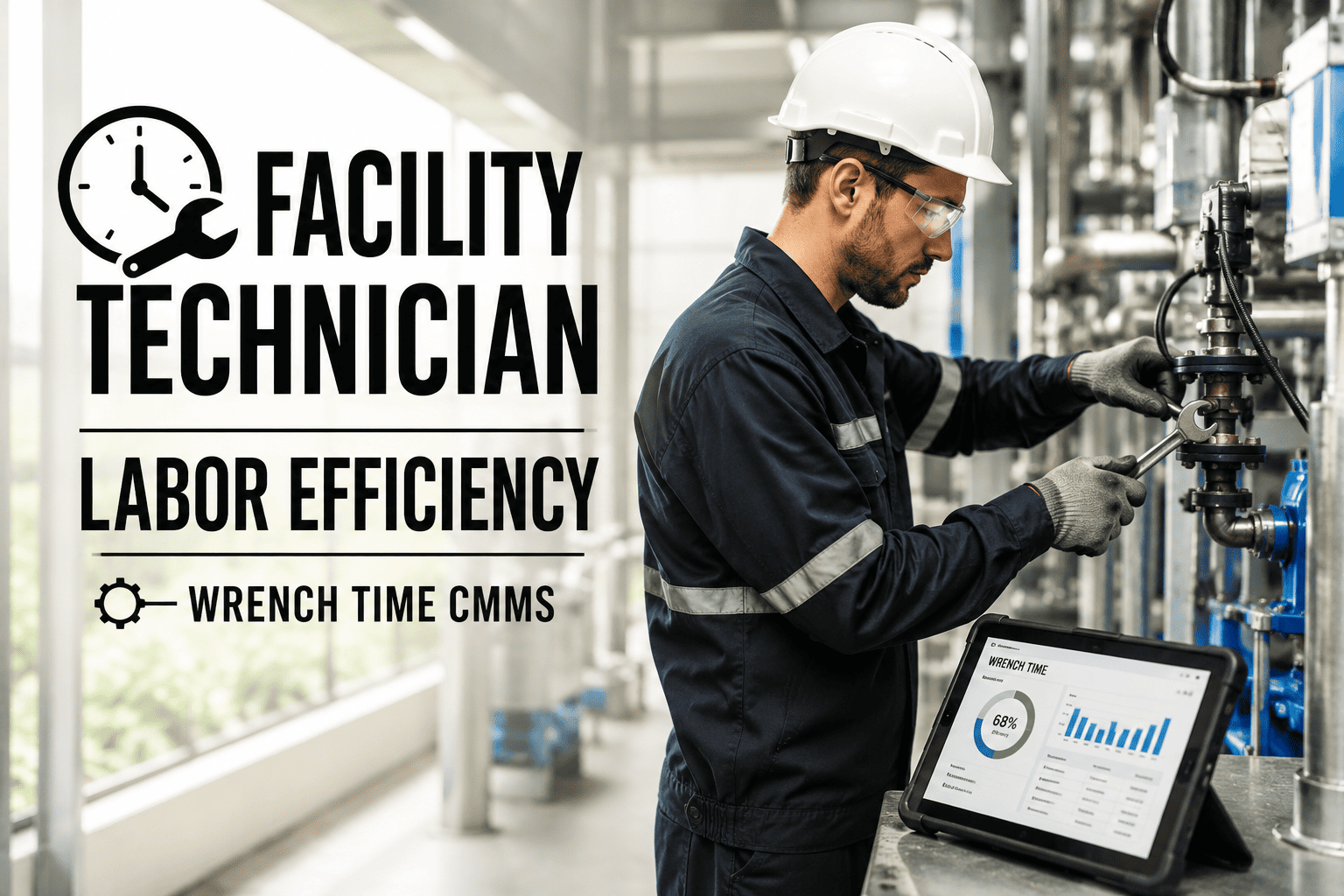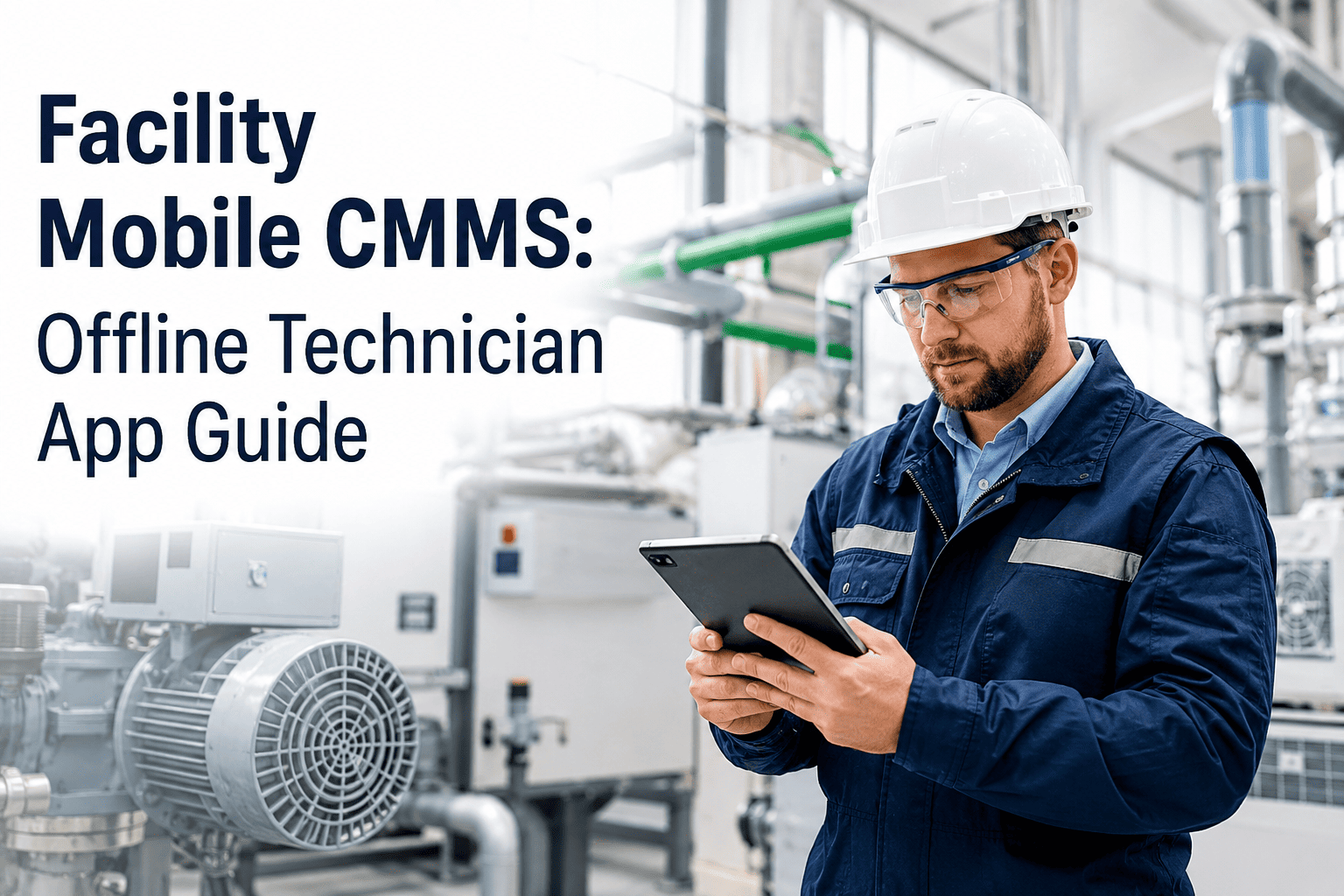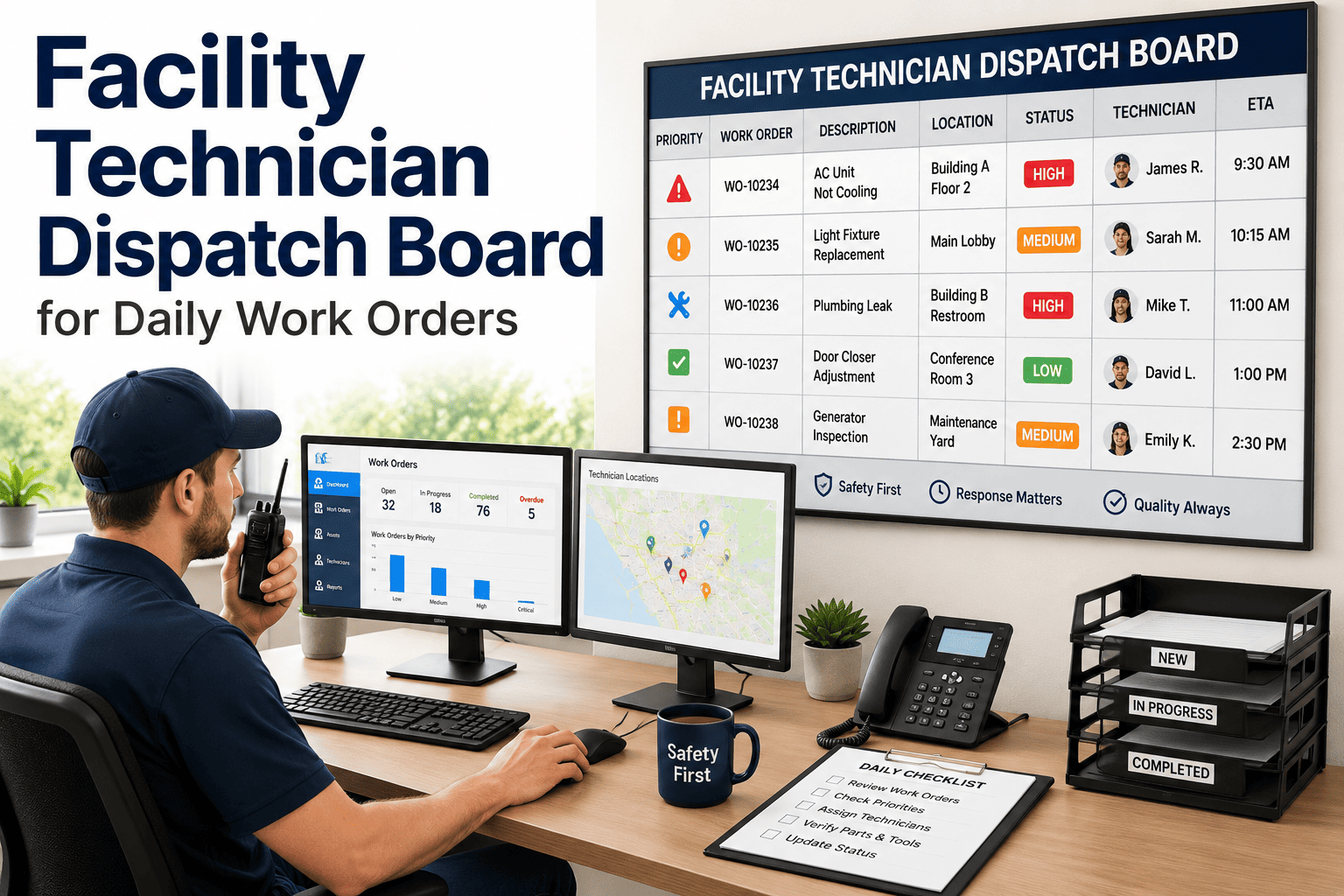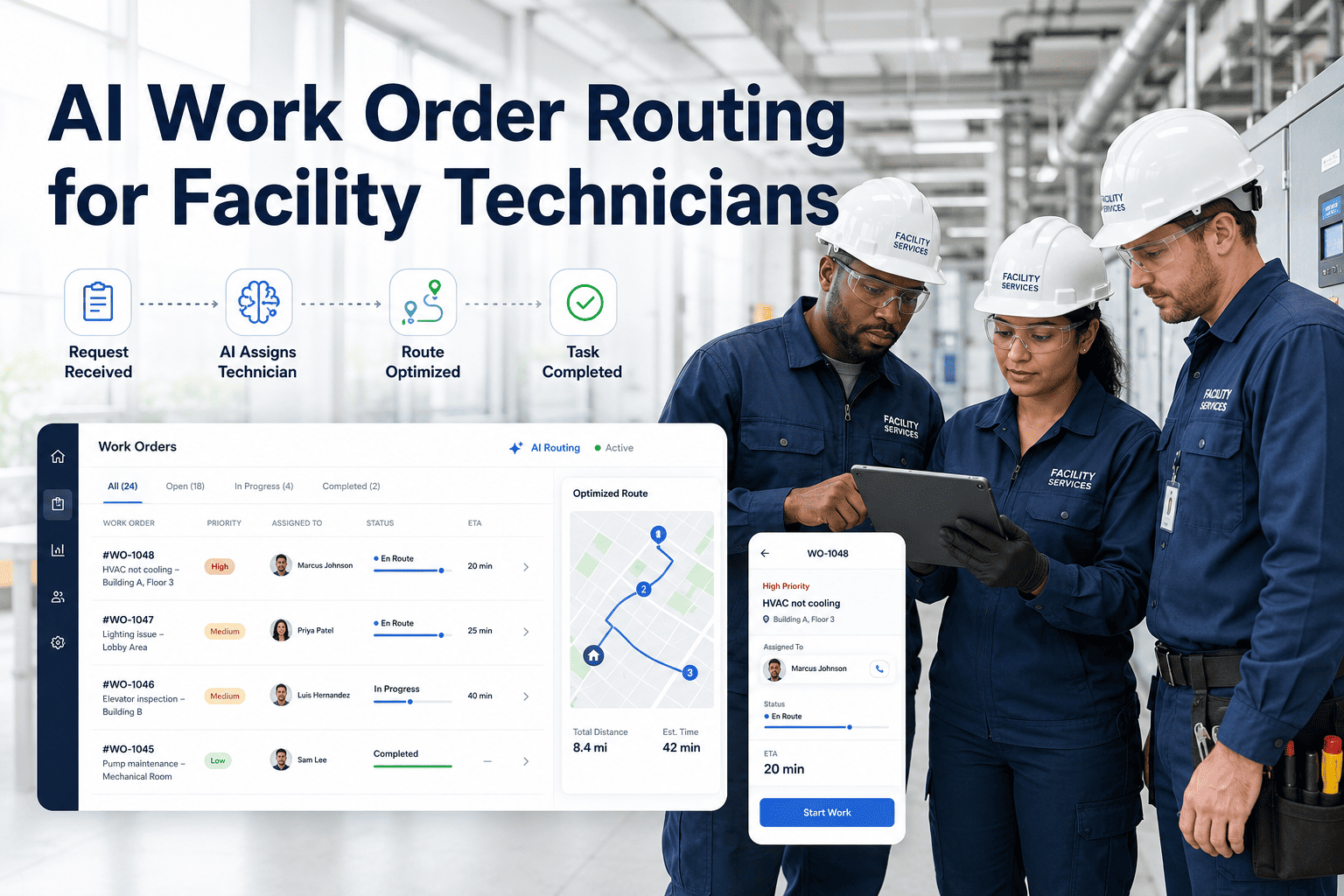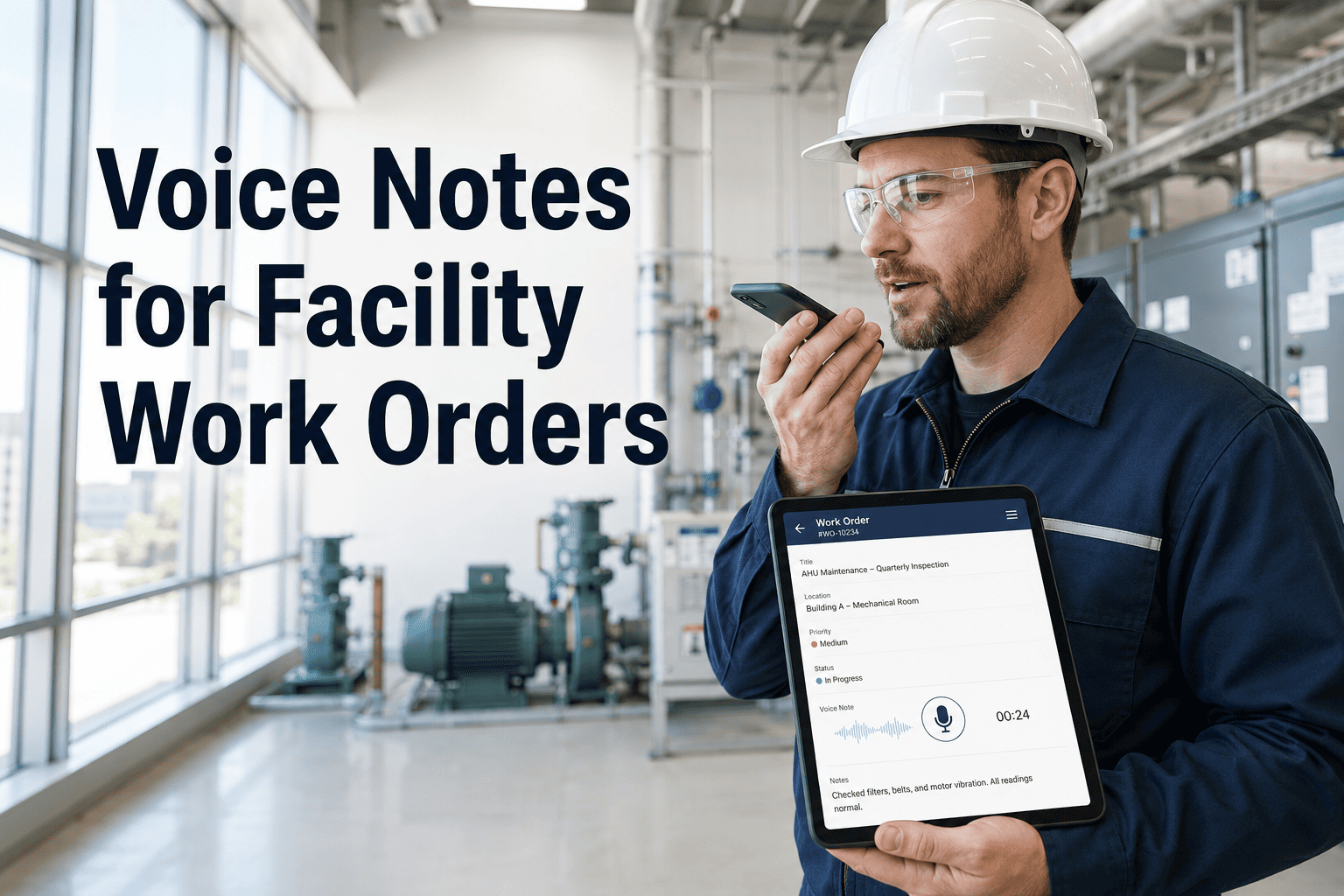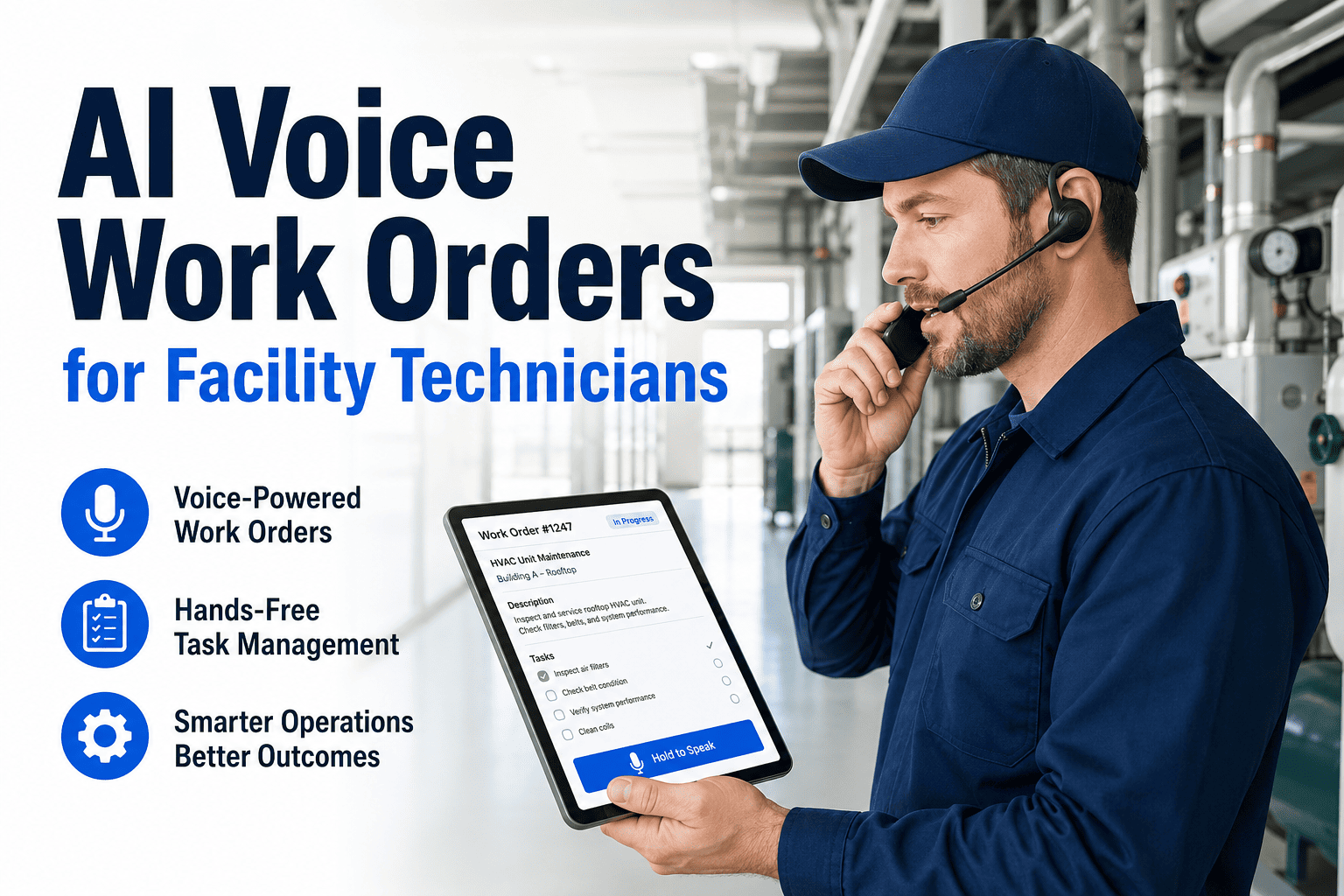
A facility technician's day should be mostly spent fixing things. In practice, a large share goes to walking back to a desk, retyping notes from paper, hunting for asset details and chasing parts information. None of that work fixes a single unit. A mobile CMMS moves the record to the technician's phone, so the job and the paperwork happen in the same place and at the same moment. This guide covers the mobile features that remove admin time, including voice, photo and offline use, and how Oxmaint mobile CMMS supports each step of the work order.
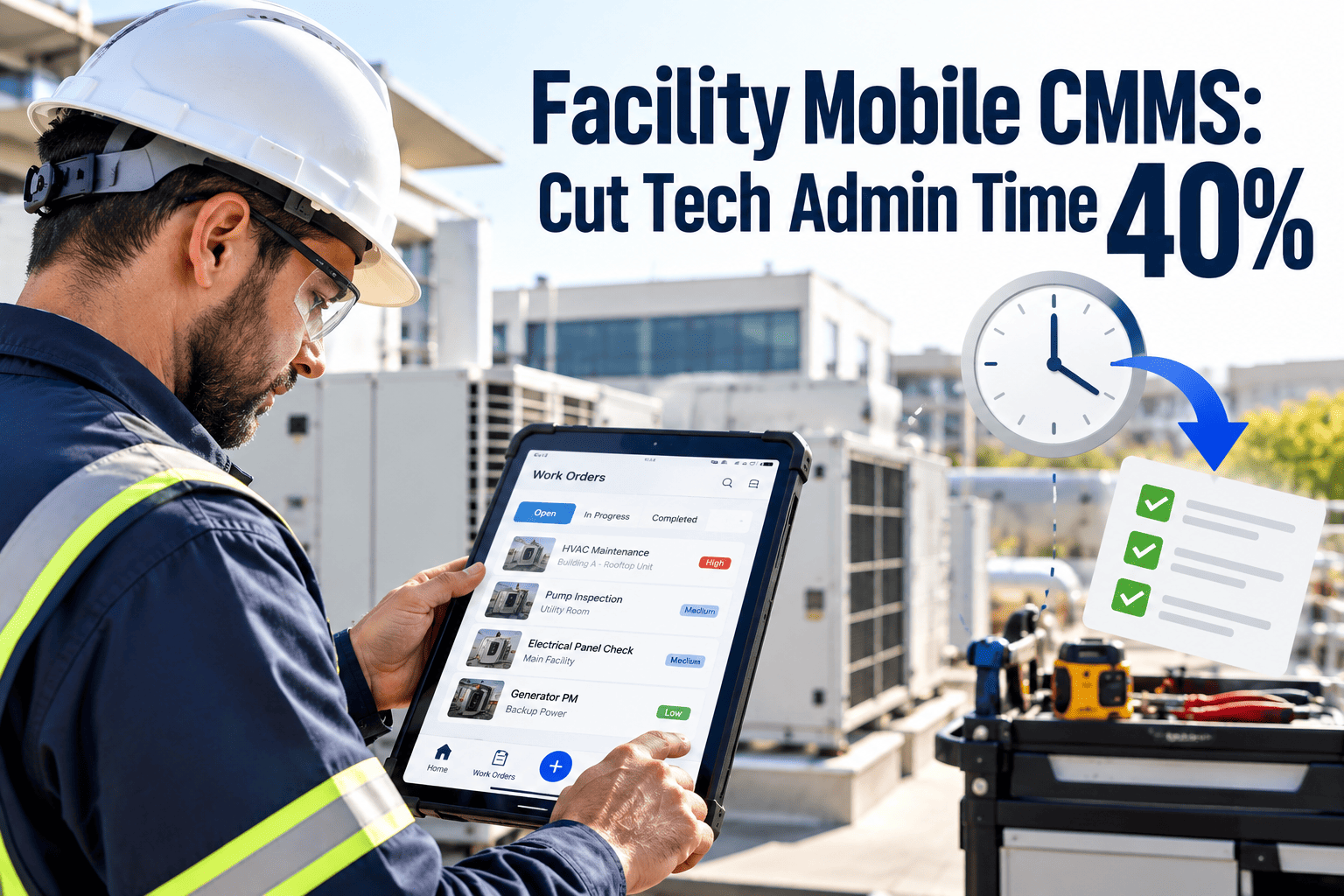
Facility Mobile CMMS: Cut Technician Admin Time by Up to 40%
Voice notes, photos and offline mode let technicians close work orders on the spot. The goal is simple: more wrench time from the same crew.
Where Technician Admin Time Goes
Admin time hides in small steps. Each takes minutes, but they repeat on every job.
The 40% figure in the title is a target to test, not a promise. Measure your own baseline before and after rollout.
One Repair, Two Ways
- Pick up ticket at the office
- Walk to the equipment
- Call for history and parts
- Repair the unit
- Write notes by hand
- Return and retype the record
- Receive the job on the phone
- Scan the asset tag
- Review history and parts on screen
- Repair the unit
- Speak notes and add photos
- Close the order on site
The Features That Save the Most Time
Put the Work Order in Every Technician's Pocket
See voice notes, photos, offline mode and asset scanning working on a real work order.
What "One Tech Doing the Work of 1.4" Really Means
The claim is arithmetic, not magic. If part of a technician's day is admin, shrinking it frees that time for repairs.
Plug in your own time study. A crew with heavy paperwork gains more than a crew that already records on the go.
Feature by Task
| Task | Mobile feature | Admin step removed |
|---|---|---|
| Receive a job | Push assignment | Picking up tickets, phone calls |
| Identify equipment | QR or barcode scan | Searching for the right asset |
| Diagnose | Asset history and manuals on screen | Binder and file lookups |
| Document | Voice notes and photos | Handwriting and retyping |
| Use parts | Parts lookup and logging | Storeroom trips and manual stock updates |
| Close out | One-tap status and time entry | Supervisor data entry |
Rollout Without the Resistance
Common Adoption Mistakes
- Copying every paper form field into the app, which makes mobile slower than paper.
- Skipping asset tagging, so scanning has nothing to open.
- Ignoring dead zones. Test offline sync in the worst room in the building.
- Leaving supervisors on spreadsheets, so technicians see no benefit.
- Not training for the first two weeks of use.
What Better Records Give Management
KPIs to Track After Launch
- Average time from job completion to work order closure.
- Work orders closed on site versus later.
- Wrench time share from a periodic time study.
- First-visit fix rate and repeat visits.
- Inventory accuracy for parts logged from the field.
Voice, Photo and Offline in Practice
Voice input
- Speak the finding as soon as the repair is done, while details are clear.
- Use short sentences with asset, symptom, cause and fix.
- Review the transcribed text before closing, especially part numbers.
- In loud plant rooms, dictate from a quieter spot nearby.
Photo capture
- Take a wide shot that shows the asset and its location, then a close-up of the fault.
- Photograph nameplates so asset data can be verified and corrected.
- Add an after photo that proves the repair, which supports warranty claims and audits.
Offline mode
- Download the day's work orders, asset history and checklists before heading into low-signal areas.
- Complete and close work as normal. The app queues changes locally.
- Sync happens when signal returns, so test it in your worst dead zone before rollout.
A Mobile PM Inspection, Start to Finish
Parts and Inventory From the Field
Parts trips are a hidden time cost. Mobile access to stock cuts them down.
- Check whether a part is in stock and where it is kept before leaving the equipment.
- Log parts used against the work order, so counts update the moment the job closes.
- Flag low stock from the field so reorders are not missed.
- Keep common spares on service carts and reconcile them during routine counts.
Devices, Security and Access
- Standard hardware and rugged cases
- Central control of updates and access
- Clear return process when someone leaves
- Lower hardware cost
- Needs a clear usage and security policy
- Varied screens and battery life
- Give each technician their own login and role-based permissions.
- Require screen locks and remove access promptly when someone leaves.
- Decide who can close work orders and who can only update them.
Working Through the ROI Worksheet
Use your own numbers instead of borrowed benchmarks. The calculation is short.
Time saved can fund more preventive work, shorter backlogs or less overtime. Decide in advance which outcome you want.
Training Technicians on the App
- Teach with real work orders from the technician's own buildings, not demo data.
- Start with the five actions used on every job: open, scan, note, photo and close.
- Name a champion on each shift who can answer quick questions.
- Collect feedback in the first two weeks and remove fields that nobody uses.
- Show supervisors how to use the new data, so the effort is visible.
What Supervisors and Managers Gain
- Live status of open work, without calling around for updates.
- Cleaner time and parts records for budgeting and charge-backs.
- Photo evidence for audits, insurance and vendor disputes.
- Reliable asset history to decide between repair and replacement.
- Less time chasing paperwork and more time planning the week.
Measure Your Own Admin Time Before You Decide
Start with a pilot crew, track the baseline and see how much time mobile work orders return.
Requests and Triage From the Phone
Not every job starts as a scheduled work order. Mobile access helps technicians and supervisors handle incoming requests quickly.
- Receive new requests as notifications with location and priority.
- Accept, reassign or add notes without returning to the office.
- Attach photos to the request so the next technician understands the problem.
- Convert a request into a work order when it needs planned effort.
Emergencies on the Move
- Mark urgent jobs clearly so they stand out in the technician's list.
- Show asset shutdown points, hazards and contact numbers in the record.
- Let technicians log what they found and did immediately, even when the repair is temporary.
- Create a follow-up work order for the permanent fix before leaving the site.
Compliance Records Captured at the Source
Inspections and safety checks are only useful when the evidence exists. Mobile forms create it as the work happens.
- Time-stamped checklists show when each inspection was completed and by whom.
- Photos prove the condition of fire equipment, backflow devices, lifts and other regulated assets.
- Required fields prevent a form from closing with missing results.
- Records stay linked to the asset, so audits take minutes instead of days.
Multi-Site Teams and Contractors
- Give contractors limited access to the work orders they need and nothing else.
- Use the same checklists across sites to keep records comparable.
- Route jobs to the nearest qualified technician.
- Require contractors to close orders with photos and notes, not just invoices.
A 30-Day Pilot Plan
A Simple Mobile Adoption Dashboard
- Percentage of work orders closed from the mobile app.
- Average time between finishing a job and closing the record.
- Share of closed work orders with photos and notes.
- Number of sync errors reported per week.
- Technician feedback score from a short monthly question.
Complaints Technicians Raise About Mobile Tools
- Too many required fields. Cut the form down to what is needed.
- Slow screens in poor signal. Use offline mode and cache the day's work.
- Tiny buttons when wearing gloves. Choose large controls and voice input.
- Feeling watched. Explain that the goal is less paperwork, not constant tracking.
- No answer when something breaks. Name a support contact for each shift.
How Mobile Records Improve Planning
Good field data feeds the schedule. Over time the records show what really takes effort.
- Actual repair times replace guesses, so schedules become realistic.
- Repeated failures show up in asset history and justify replacement or redesign.
- Parts consumption patterns guide stocking levels.
- Technician notes highlight procedures that need better checklists.
Keeping the Benefits Over Time
- Review forms quarterly and remove anything that has become routine noise.
- Check that photos and notes are still being captured, not skipped under pressure.
- Repeat the admin time study once a year to confirm the gains.
- Onboard every new technician with the same short training.
Choosing a Mobile CMMS: Questions to Ask
Not every mobile app is built for field conditions. Test these points with your own technicians before buying.
- Does it work fully offline, including closing work orders and adding photos?
- Can technicians dictate notes and scan asset tags without extra hardware?
- How many taps does it take to open, update and close a typical job?
- Can you control which fields are required for each work order type?
- Does inventory update from the field, or only after someone re-enters it?
- How are users, devices and permissions managed across sites?
- Can you export your data if you ever change systems?
Who Benefits Most
- Teams covering several buildings, where walking back to a desk costs the most time.
- Crews with heavy inspection and compliance paperwork.
- Organizations short of technicians, where recovered hours matter most.
- Facilities with large backlogs of unclosed work orders caused by late data entry.
Frequently Asked Questions
Give Your Crew Their Hours Back
Less paperwork, faster close-out and better records from a mobile CMMS built for facility teams.