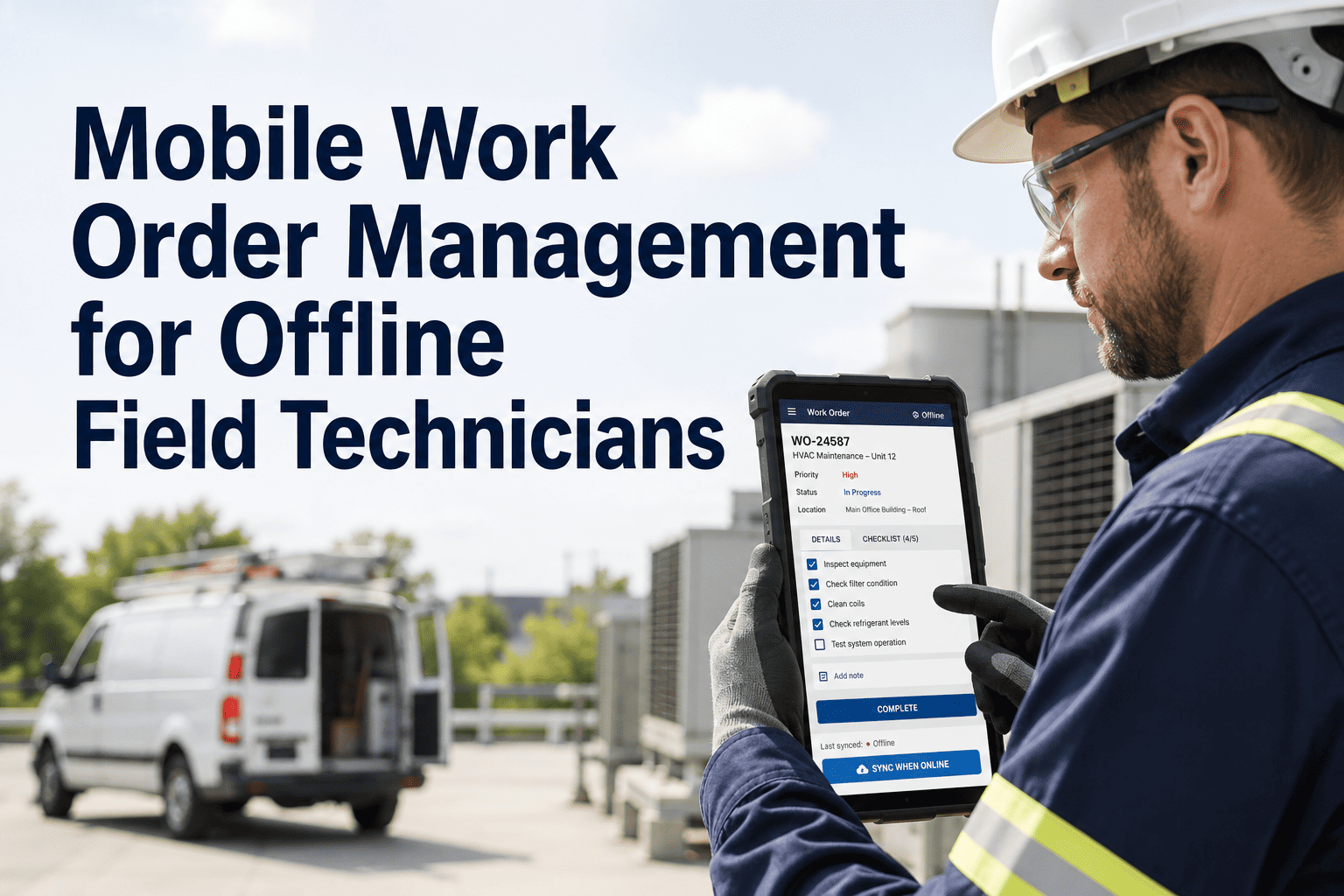
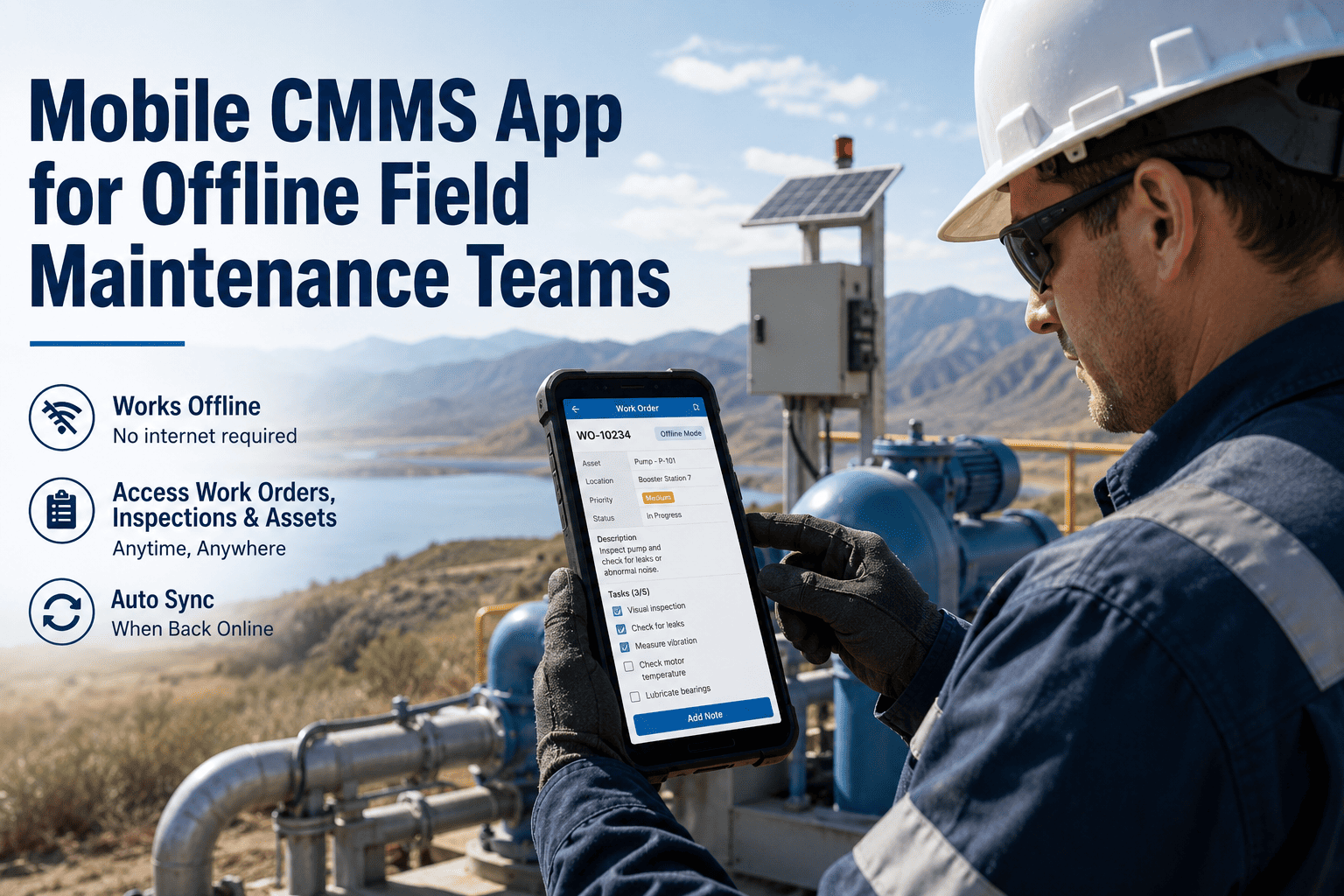
Desktop CMMS platforms fail in the field because technicians do not carry laptops to the boiler room. Sixty-eight percent of maintenance work orders are still documented on paper or verbally communicated because desktop systems require walking back to an office, logging in, and navigating multi-click workflows that take longer than just writing it down. Mobile-first CMMS reverses this — work orders, asset history, PM checklists, parts requests, and photo documentation all happen on the device already in the technician's pocket. The result is 78% higher work order completion rates, 45% faster response times, and real-time visibility into what is actually happening on the floor instead of what got entered hours later when someone finally sat down at a computer. This guide breaks down why desktop-first CMMS creates adoption resistance, what makes a mobile maintenance app actually usable in industrial environments, and the specific capabilities that separate marketing claims from field-tested reality. If your current CMMS has a mobile app that technicians refuse to use, start a free trial with OxMaint or book a demo to see what mobile-first design looks like in practice.
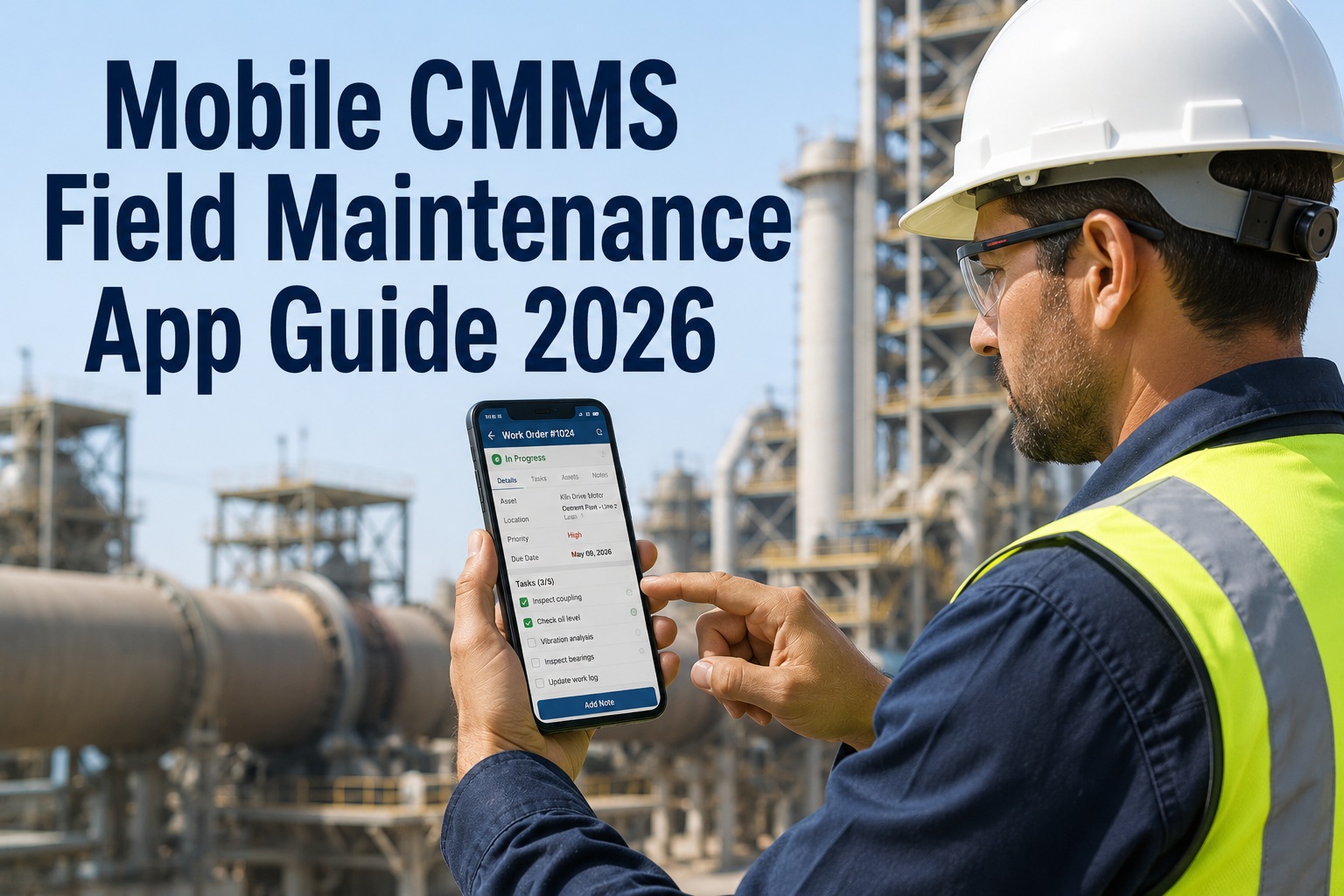
Mobile-First CMMS 2026
Technician Adoption Guide
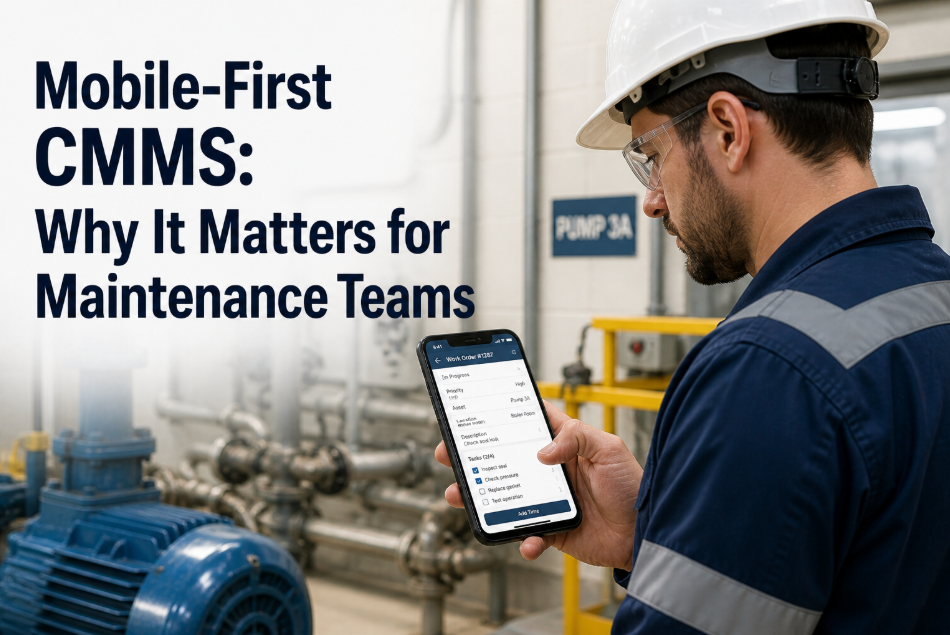
Mobile-First CMMS: Why It Matters for Maintenance Teams
Desktop CMMS creates data entry delays and adoption resistance. Mobile-first design puts work order management, asset history, and PM execution directly in technicians' hands — where maintenance actually happens.
68%
Of work orders still documented on paper due to desktop-only CMMS friction
78%
Higher work order completion rate with mobile-first platforms
45%
Faster response time when technicians can close work orders from the field
12 min
Average time saved per work order with mobile vs. desktop entry
Mobile CMMS Built for Technicians, Not Administrators
OxMaint's mobile app works offline, loads in under 2 seconds on 3G networks, supports photo capture and voice-to-text notes, and requires zero training. Technicians adopt it because it makes their job easier — not harder. Free for 30 days.
What Is Mobile-First CMMS — And Why Most CMMS Mobile Apps Fail
Mobile-first CMMS means the mobile experience is the primary interface — not an afterthought, not a stripped-down version of the desktop system, and not a web app wrapped in a mobile container that loads slowly and crashes on weak signals. The platform is designed from the ground up for smartphone and tablet use, with interfaces optimized for touch, workflows built for one-handed operation, and functionality that works offline when cellular or WiFi connectivity drops. Most CMMS vendors claim to have mobile apps. What they actually have are mobile browser views of desktop software or companion apps that require constant internet connectivity and only expose 30–40% of the platform's features. Technicians try these apps once, encounter a loading spinner that times out, or discover they cannot attach photos without switching apps, or realize the workflow requires 8 taps to do what should take 2 — and they go back to paper. True mobile-first design eliminates these friction points because the software was built for field use first and office use second. Teams frustrated with low adoption of their current CMMS mobile app can compare — start a free trial and watch how fast technicians adopt a system that actually works on their phones, or book a demo to see mobile-first workflows in action.
Why Desktop-First CMMS Creates Adoption Resistance
Desktop CMMS platforms were built in the 1990s and early 2000s when office PCs were the only practical interface for database software. Even modern platforms that launched in the smartphone era often carry legacy architecture optimized for mouse-and-keyboard workflows. These systems work for facility managers and maintenance planners sitting at desks — but they create massive friction for technicians working in the field. Understanding why desktop systems fail adoption is critical because the problem is not technician laziness or resistance to technology — it is bad interface design that makes their jobs harder instead of easier.
1
Physical Access Barriers
Desktop CMMS requires technicians to walk to an office, potentially remove PPE or gloves, log into a workstation, and navigate the system to document what they just did in the field. This adds 8–15 minutes per work order. When technicians are completing 6–10 jobs per day, that is 90+ minutes of non-productive travel and data entry time. The friction is so high that many techs batch-enter their work at the end of the shift from memory — introducing errors and eliminating real-time visibility.
Impact: 68% of work orders still documented on paper due to desktop access friction
2
Workflow Designed for Mouse, Not Touch
Desktop interfaces use dropdown menus, hover states, multi-window layouts, and small clickable targets optimized for cursor precision. When these same interfaces are accessed on a mobile browser or wrapped in a mobile app shell, they become unusable — buttons too small to tap accurately, text fields that require zooming, multi-step workflows that require scrolling and switching between screens. Technicians experience constant mis-taps, failed form submissions, and workflows that take 3x longer on mobile than on desktop.
Impact: Mobile apps with desktop-first design see under 25% technician adoption rates
3
Slow Load Times and Connectivity Dependence
Desktop web apps were designed for wired office networks with reliable high-speed internet. When accessed on mobile devices in industrial facilities — where WiFi is spotty, cellular signal weak, and thick concrete walls block connectivity — these systems timeout, fail to load asset histories, lose form data when connection drops, and force technicians to start over. A technician standing in front of a failed pump cannot afford to wait 45 seconds for an asset record to load or lose 10 minutes of notes because their connection dropped before they hit submit.
Impact: 52% of technicians report mobile CMMS apps that are too slow or unreliable to use in the field
4
Missing Core Field Capabilities
Many mobile CMMS apps are read-only or limited-function companions to the desktop system. Technicians can view work orders but cannot create new ones. They can see asset history but cannot update condition scores. They can attach photos but the upload fails on weak connections. Critical field tasks — barcode scanning, voice notes, offline access, parts requests, signature capture — are either missing entirely or so cumbersome that technicians default back to paper and manual processes.
Impact: 41% of CMMS mobile apps lack basic functionality technicians need to do their jobs
The Eight Must-Have Capabilities of True Mobile-First CMMS
Mobile-first is not a feature — it is an architecture decision. These eight capabilities separate platforms genuinely designed for mobile use from desktop systems with mobile afterthoughts. If your current CMMS mobile app lacks more than two of these, adoption will remain below 40% no matter how much training you provide.
01
Full Offline Functionality with Auto-Sync
Technicians can view work orders, access asset histories, complete PM checklists, capture photos, record labor hours, and create new work orders with zero internet connectivity. All data queues locally on the device and auto-syncs when connection is restored — no manual intervention, no lost data, no duplicate entries. The app works identically offline and online.
Why It Matters:
Industrial facilities, mechanical rooms, basements, and remote sites often have zero reliable connectivity. Offline mode is not optional — it is the baseline requirement for field use.
02
Sub-2-Second Load Times on 3G Networks
Work order lists, asset records, and PM checklists load in under 2 seconds even on weak 3G cellular connections. Native mobile app architecture with local caching and optimized data transfer ensures instant response regardless of network speed. No loading spinners that timeout. No blank screens waiting for server responses.
Why It Matters:
Technicians will not wait 30–45 seconds for an app to load when they can write it on paper in 5 seconds. Speed is the primary adoption driver for mobile tools.
03
One-Handed Operation with Large Touch Targets
All primary actions — opening work orders, marking tasks complete, capturing signatures, attaching photos — can be performed one-handed with gloved fingers. Touch targets are minimum 44x44 pixels. No precision tapping required. No horizontal scrolling. Common workflows complete in 3 taps or fewer. Interface designed for use while holding a flashlight, standing on a ladder, or wearing PPE.
Why It Matters:
Technicians in the field do not have both hands free or clean. Mobile UI designed for office workers sitting at desks fails in industrial environments.
04
Integrated Photo, Video, and Voice Capture
Technicians capture photos and videos directly within work orders without switching apps or losing context. Voice-to-text converts spoken notes into written documentation — faster than typing on a touchscreen keyboard and usable with gloves. All media auto-compresses for fast upload and attaches to the correct work order and asset record automatically.
Why It Matters:
Visual documentation and voice notes are 5–10x faster than typing detailed failure descriptions on a smartphone. If the app does not support native capture, technicians will not document thoroughly.
05
Barcode and QR Code Scanning for Asset Lookup
Camera-based barcode scanner built into the app — scan an asset tag and instantly pull up maintenance history, open work orders, PM schedules, parts lists, and manuals. No typing equipment IDs. No searching through dropdowns. Point camera, scan, view data in under 3 seconds. Works offline with locally cached asset registry.
Why It Matters:
Typing 12-character asset IDs on a smartphone keyboard is error-prone and slow. Barcode scanning reduces lookup time from 30–60 seconds to under 5 seconds.
06
Push Notifications for Work Order Assignments
Technicians receive instant push notifications when assigned a work order, when a PM comes due, when parts arrive, or when a manager adds notes to an active job. No need to refresh the app or check for updates manually. Notifications include work order summary and one-tap direct link to the job — from notification to work order open in 2 taps.
Why It Matters:
Technicians do not sit at computers checking for new assignments. Push notifications enable real-time dispatch and eliminate radio calls or verbal handoffs that never get documented.
07
Electronic Signature Capture with Timestamp
Touchscreen signature capture built into PM checklists and work order closeouts. Signatures include automatic timestamp, GPS location, and user authentication. Meets audit and compliance requirements without paper forms. Signatures sync with work order records and remain retrievable for regulatory inspections.
Why It Matters:
Regulated industries require documented proof of maintenance completion. Paper signature sheets create audit risk and data entry burden. Native digital signatures eliminate paper trails.
08
Real-Time Dashboard Sync — Changes Visible Instantly
When a technician closes a work order on mobile, the status updates instantly on the manager's desktop dashboard. When a manager assigns a new work order from the office, it appears on the technician's mobile device within 2–5 seconds. No batch syncing. No refresh delays. True real-time bidirectional sync between mobile and web interfaces.
Why It Matters:
Delayed sync creates confusion — managers dispatch work that is already done, technicians miss urgent assignments, and reporting dashboards show stale data. Real-time sync is essential for operational coordination.
Mobile-First vs. Mobile-Capable — The Critical Difference
CMMS vendors will claim their platforms are mobile-ready. The question is whether they are mobile-first or merely mobile-capable. This comparison shows the architectural and usability differences that determine whether technicians actually adopt the mobile app or continue using paper workarounds. If your current CMMS looks like the left column, start a free trial with OxMaint to see what the right column feels like, or book a demo for a side-by-side workflow comparison.
Mobile app is a companion to the desktop system
Requires internet connection for most features
Load times 10–45 seconds on 3G networks
Desktop UI squeezed onto mobile screen
Workflows require 6–12 taps to complete common tasks
Photo and voice capture requires switching apps
Data syncs in batches — delays 5–30 minutes
Limited offline mode — read-only or missing features
Technician adoption rate under 30%
Work orders still documented on paper then batch-entered
Mobile app is the primary interface — desktop is secondary
Full functionality offline with auto-sync on reconnect
Load times under 2 seconds even on weak connections
UI purpose-built for touch with large tap targets
Common workflows complete in 2–3 taps
Integrated camera, video, and voice-to-text capture
Real-time sync — changes visible in under 5 seconds
Offline mode identical to online — zero feature loss
Technician adoption rate above 75% within 30 days
Work orders documented in real time at point of work
How OxMaint Delivers Mobile-First Maintenance — Platform Architecture
OxMaint was designed mobile-first from the ground up — not adapted from legacy desktop software. The platform architecture prioritizes field technician needs above office administrator convenience because adoption happens at the wrench, not the desk. Here is how the mobile experience works in practice.
Step 01
Technician Opens App — Instant Load on Any Connection
App launches in under 1.5 seconds. Work order list cached locally loads instantly even with zero connectivity. Technician sees assigned jobs, upcoming PMs, and any urgent alerts without waiting for server response. Interface optimized for one-handed use with large touch targets designed for gloved operation.
Step 02
Barcode Scan or Search to Access Asset
Technician scans asset barcode or QR tag with phone camera — asset record, maintenance history, open work orders, and PM schedules load instantly. All data cached locally for offline access. No typing equipment IDs. No waiting for network requests. Scan to data in under 3 seconds.
Step 03
Complete Work Order with Photos and Voice Notes
Technician taps through PM checklist or repair steps. Captures before and after photos directly in the work order. Records voice notes that auto-convert to text. Logs parts used, labor hours, and completion status. All actions work offline. Data queues for sync when connection available.
Step 04
Signature Capture and Work Order Closeout
Touchscreen signature confirms completion. Signature includes automatic timestamp and GPS location. Work order status updates to complete. If online, sync happens instantly. If offline, closeout queues and syncs when connection restored — no manual intervention required.
Step 05
Manager Sees Completion in Real Time
Closed work order appears on manager's dashboard within 5 seconds of technician submission. Photos, notes, labor hours, and signature all attached and audit-ready. No data entry delays. No batch processing. True real-time visibility from field to office.
Step 06
Offline Data Auto-Syncs When Connection Restored
If technician worked offline in a connectivity dead zone, all queued work orders, photos, signatures, and updates auto-sync the moment WiFi or cellular connection is reestablished. Sync happens in background without user action. Zero data loss. Zero duplicate entries. Conflict resolution automatic.
Measured Impact — What Changes with Mobile-First Adoption
Mobile-first CMMS adoption creates measurable operational improvements within 30–60 days of deployment. These benchmarks represent documented outcomes from facilities that transitioned from desktop-first or paper-based systems to true mobile-first platforms.
78%
Higher Work Order Completion Rate
Technicians close work orders in real time instead of batch-entering at end of shift — completion rate jumps from 42% to 75%+ within 60 days
45%
Faster Response Time
Push notifications and mobile dispatch eliminate radio calls and verbal handoffs — time from work order creation to technician acknowledgment drops by nearly half
12 min
Time Saved Per Work Order
Mobile closeout at point of work eliminates walk-back time, desktop login, and data re-entry — 12 minutes per work order x 8 work orders per day = 96 minutes per technician per day recovered
68%
Increase in Photo Documentation
Integrated camera capture makes visual documentation frictionless — work orders with attached photos increase from 18% to 61% within 90 days
Industry-Specific Mobile CMMS Adoption Drivers
Mobile-first design benefits every industry — but the primary adoption driver varies by sector. Understanding which mobile capability delivers the highest value in your industry helps prioritize features during vendor evaluation and pilot testing.
| Industry |
Primary Mobile Adoption Driver |
Critical Mobile Feature |
Typical Adoption Rate at 90 Days |
| Manufacturing |
Real-time production line work orders |
Push notifications + offline mode |
82% technician adoption |
| Healthcare Facilities |
Regulatory compliance documentation |
Electronic signatures + photo capture |
76% technician adoption |
| Commercial Real Estate |
Multi-site technician dispatch |
GPS tracking + barcode scanning |
71% technician adoption |
| Food and Beverage |
GMP compliance checklists |
Offline PM execution + signature capture |
79% technician adoption |
| Oil and Gas |
Remote site operations without connectivity |
Full offline functionality + auto-sync |
88% technician adoption |
| Pharmaceuticals |
21 CFR Part 11 audit trails |
E-signatures + timestamp validation |
74% technician adoption |
Frequently Asked Questions
Can technicians really do everything on mobile that they can do on desktop?+
In a true mobile-first CMMS — yes. Technicians can create work orders, execute PMs, request parts, access asset histories, attach photos and videos, capture signatures, update inventory, and close jobs entirely from a smartphone or tablet. The limitation is not capability — it is interface design. Desktop-first systems that bolt on mobile apps typically restrict functionality because their workflows were not designed for touch interfaces. Mobile-first platforms like OxMaint build every workflow for mobile use first, then adapt to desktop. Result: 95%+ of daily technician tasks completable on mobile without ever touching a computer. The 5% that remains desktop-only — complex reporting, bulk data imports, system configuration — are administrator tasks, not field technician workflows. Want to test this claim —
start a free trial and try to find a technician task you cannot complete on the mobile app.
How does offline mode work if multiple technicians edit the same asset?+
Modern mobile-first CMMS platforms use conflict resolution algorithms that handle simultaneous edits automatically. When two technicians work offline on the same asset or work order, their changes queue locally. When both reconnect and sync, the system detects the conflict and resolves based on timestamp priority and field-level merging — not entire-record overwrites. Example: Technician A updates labor hours offline. Technician B adds a photo offline. When both sync, the system merges both changes into a single updated record. True conflicts — two technicians changing the same field to different values — are flagged for manual review, but these represent under 2% of sync events in typical operations. OxMaint's offline mode has been field-tested in oil and gas operations where technicians work offline for 8–12 hours at remote sites — conflict rate is under 1.5% and resolution is automatic for 98.5% of sync events.
Does mobile-first CMMS work on both iOS and Android?+
Any serious mobile-first CMMS must support both iOS and Android with feature parity — identical functionality, identical interface, identical performance on both platforms. OxMaint provides native apps for iOS (iPhone and iPad) and Android smartphones and tablets. Both apps support full offline mode, barcode scanning, photo capture, voice-to-text, electronic signatures, and real-time sync. Facilities with mixed device fleets — some technicians on iPhones, others on Android — experience no compatibility issues or feature gaps. Performance is optimized for devices as old as iPhone 8 and Android phones from 2018 — you do not need the latest hardware to run the platform effectively.
What happens if a technician loses their phone with uncompleted work orders on it?+
All work order data — even work completed offline that has not yet synced — is recoverable because mobile-first platforms use server-authoritative architecture with local caching, not local-only storage. Here is what happens: Technician loses phone. Administrator remotely deactivates that device from the CMMS platform — protecting data security. Technician logs into the app on a new device. All assigned work orders, asset data, and PM schedules download to the new device instantly. Any work orders completed on the lost device that successfully synced before loss remain in the system — no data loss. Work orders that were completed offline but never synced are lost from that device — but this is identical to losing a paper work order before turning it in. Best practice: technicians reconnect and sync at least once per shift to minimize unsynced data exposure. OxMaint's offline queue alerts technicians when they have unsynced work and prompts reconnection when WiFi or cellular becomes available. Want to see device management and remote deactivation in action —
book a demo and we will walk through security and data recovery workflows.
Mobile-First CMMS with OxMaint
Built for Technicians First. Office Managers Second.
OxMaint's mobile app works offline, loads in under 2 seconds on weak networks, supports one-handed operation with gloves, and requires zero training. Technicians adopt it within days because it makes their jobs easier — not harder. Free for 30 days on iOS and Android.
78%
Higher work order completion rate
12 min
Time saved per work order
100%
Offline functionality — zero feature loss