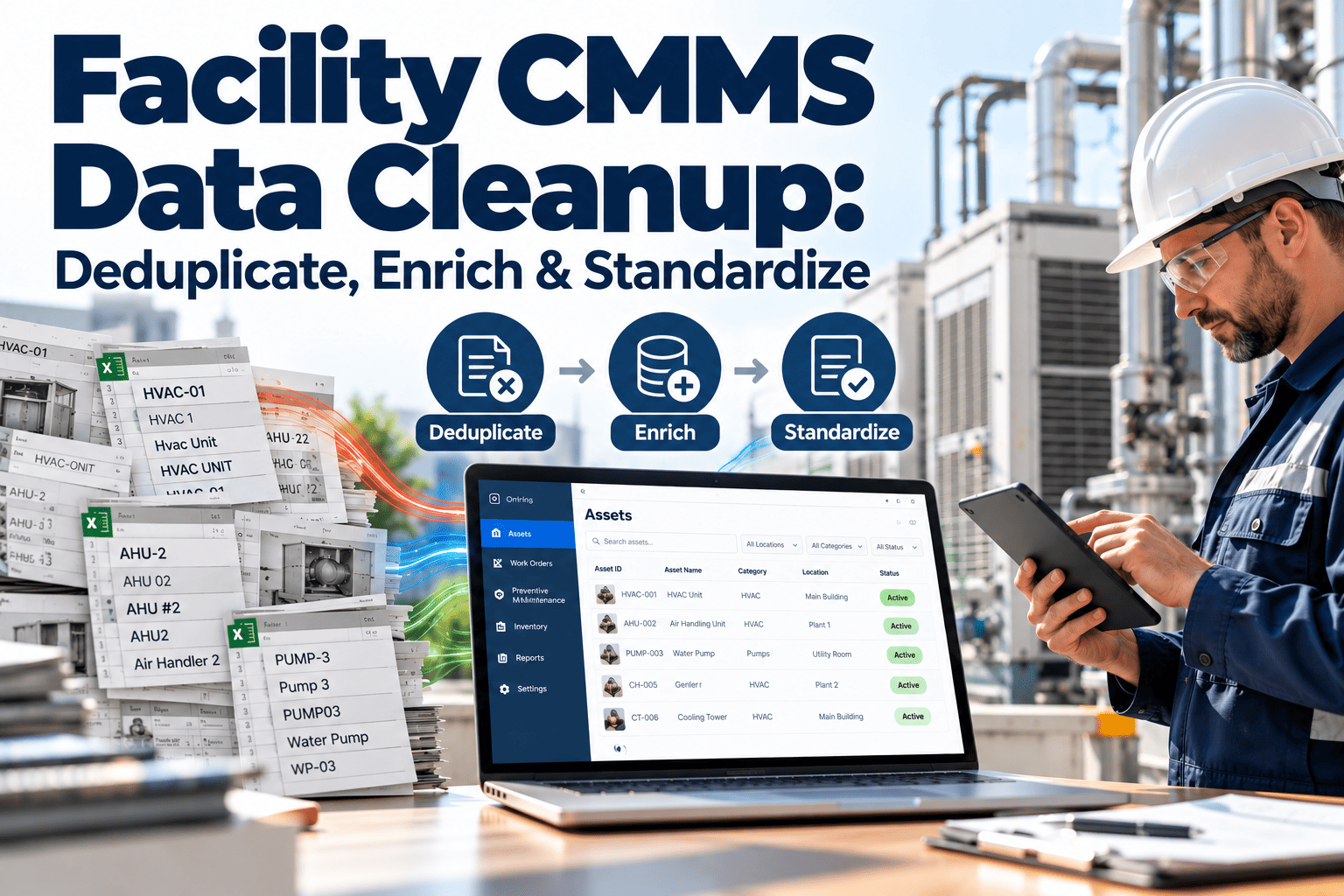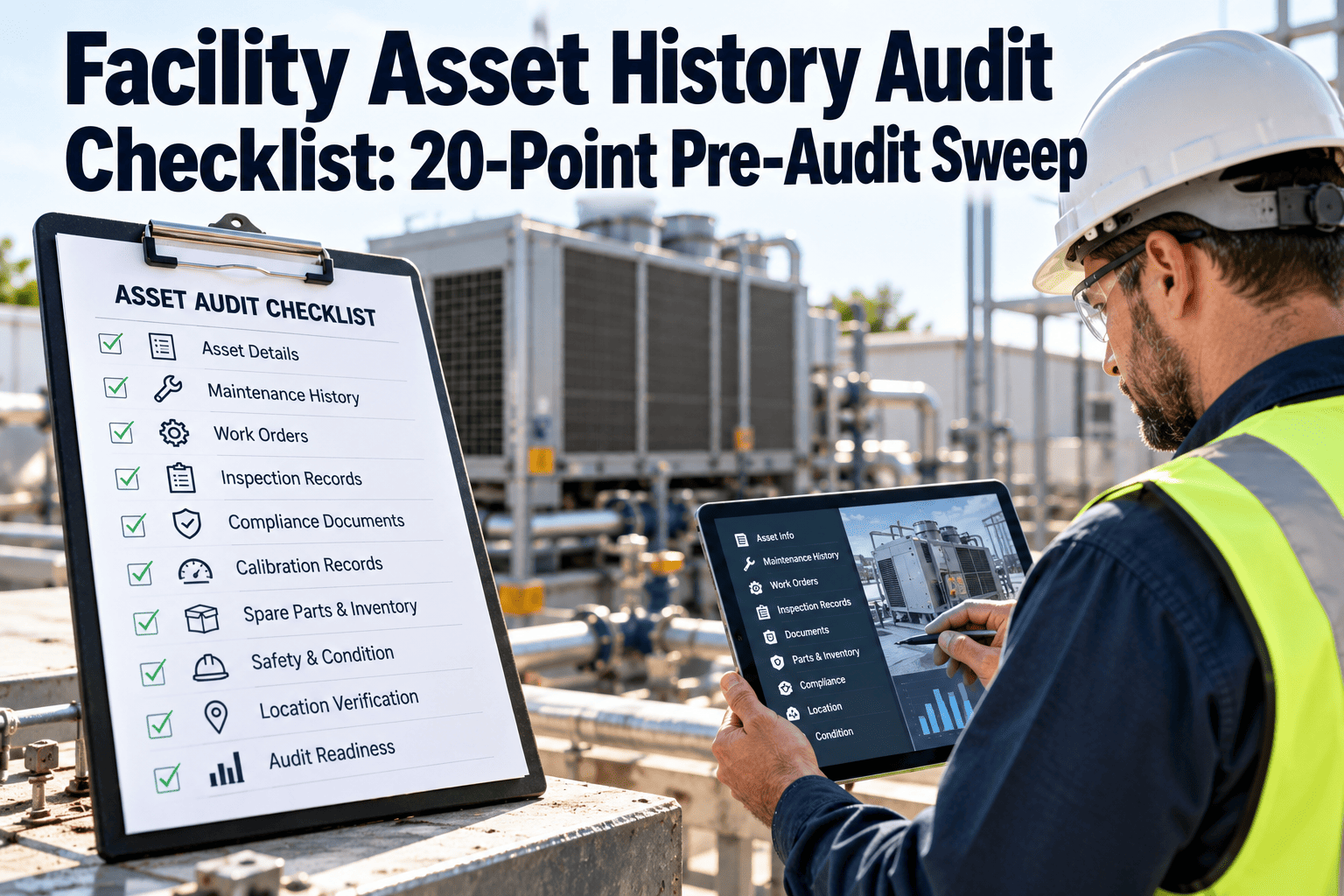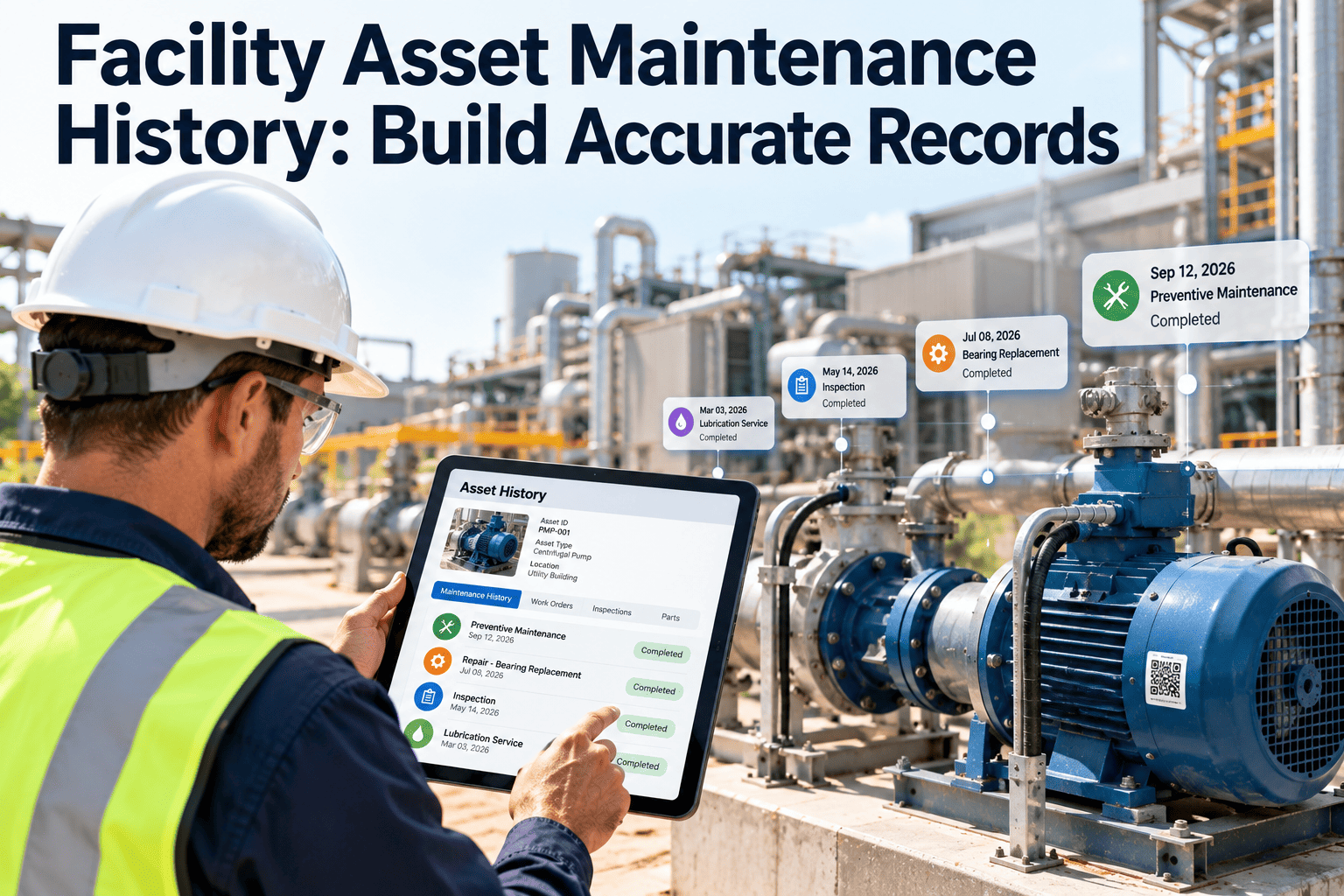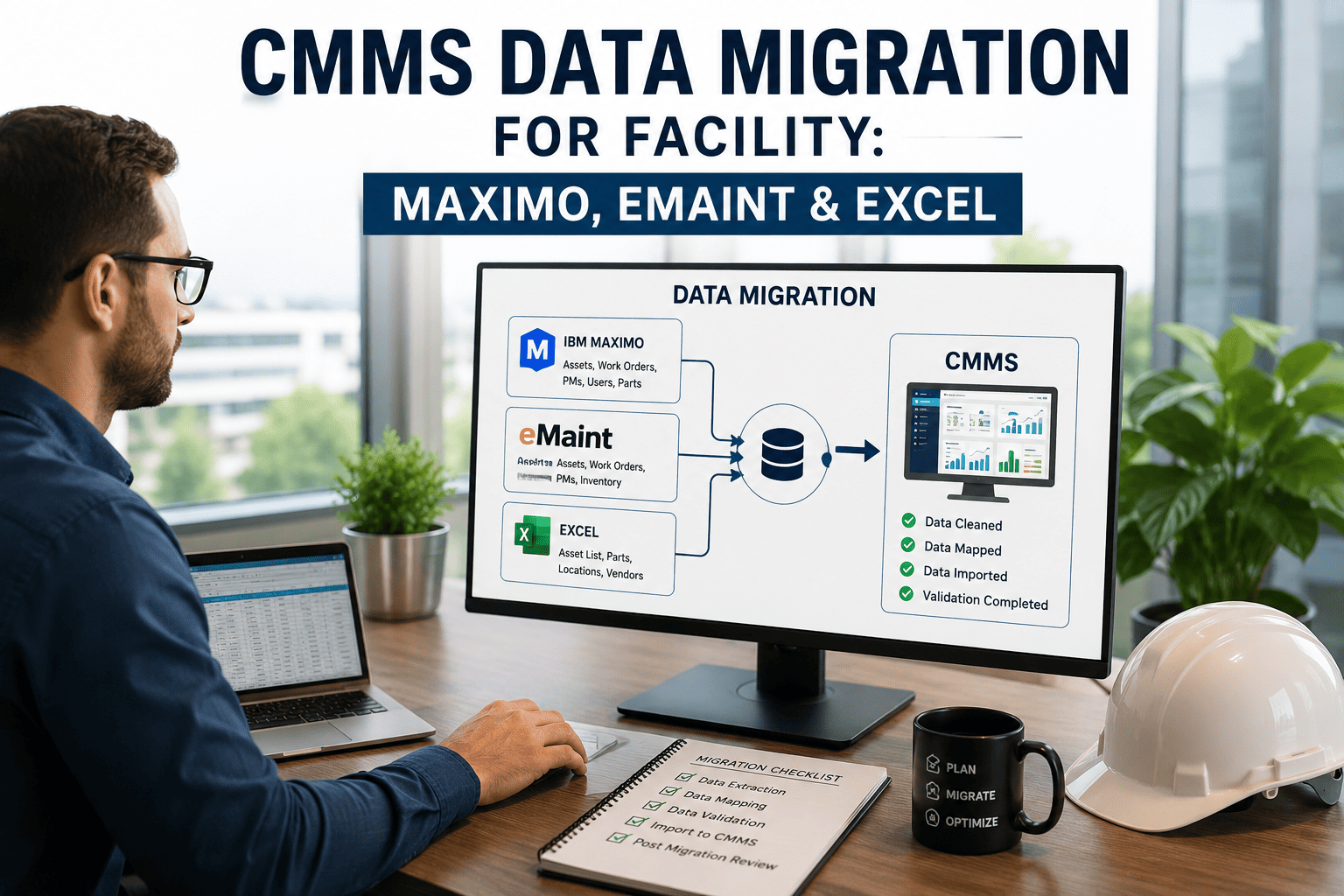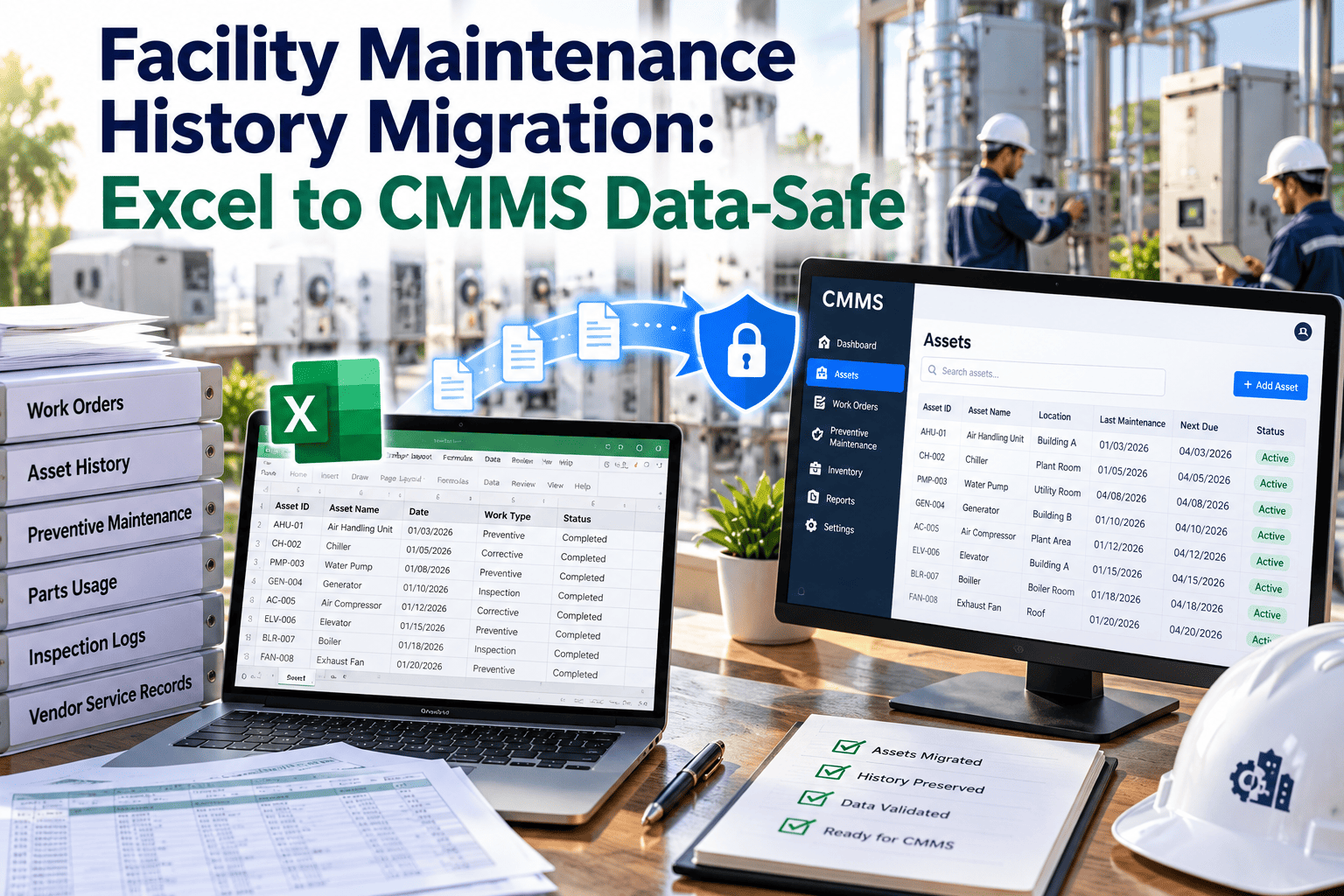
Years of maintenance history sit in spreadsheets: one tab per building, free-text notes, abbreviations only one technician understands. Moving that record into a CMMS is where most facility teams lose data, because rows are imported before anyone has checked what they contain. Duplicated assets, broken dates, and unmatched locations then follow the team into the new system. This playbook borrows from DAMA-DMBOK data management practice to show how to profile, clean, map, validate, and cut over every row. You can load the cleaned result into Oxmaint CMMS software once the checks below are complete.
Facility Maintenance History Migration: Excel to CMMS, Data-Safe
Migration succeeds or fails before the first import. Profile the sheets, fix the structure, map every column, and prove the totals match, so the history your technicians trust arrives intact.
Where Spreadsheet History Breaks During Migration
Spreadsheets allow anything in any cell. A CMMS does not, and that gap is where records disappear.
| Symptom after import | Typical cause in the spreadsheet | Prevention |
|---|---|---|
| Same chiller appears as three assets | Names typed differently: Chiller 1, CH-1, chiller #1 | Build one master asset list before loading history |
| Work orders dated in the wrong year | Mixed day-month and month-day formats, text dates | Convert to a single date standard and check ranges |
| History rows with no asset attached | Entries describing a room or a system, not a unit | Assign each row to a parent asset or location |
| Costs that do not add up | Labor and parts combined, or currency symbols in cells | Split into numeric fields and compare control totals |
| Technicians missing from reports | Initials, nicknames, and former staff | Create a technician lookup list |
| Preventive tasks lost | Schedules held in calendar tabs or color coding | Extract the frequency and last-done date into columns |
| Failure patterns unreadable | Free-text problem descriptions | Map to a short list of problem and cause codes |
The Six-Stage Migration Pipeline
Each stage has an exit test. Do not start the next stage until the current one passes.
Profile
Count rows, blanks, duplicates, and formats in every sheet.
Cleanse
Standardize names, dates, units, and categories.
Map
Assign each source column to a target field with a rule.
Trial load
Import a sample into a test environment and review results.
Reconcile
Compare control totals between source and target.
Cut over
Freeze the spreadsheet, load final data, go live.
Start by Inventorying Every Source of History
Maintenance records rarely live in one file. Find them all before you design the mapping.
Likely sources
- Building-level Excel workbooks and shared drives
- Calendar entries and whiteboard photos for preventive tasks
- Paper logbooks and inspection forms
- Contractor service reports and invoices
- Email threads that record repairs and approvals
Questions to answer for each
- Who owns it and who last edited it?
- What period and which assets does it cover?
- Is it the master record or a copy?
- Does it overlap with another source?
- Is it needed in the CMMS or only as an archive?
Stage 1 and 2: Profile and Cleanse Before Anything Moves
Profiling tells you how bad the data is. Cleansing fixes only what profiling proves is wrong.
Profile each sheet for
- Total rows and rows missing an asset reference
- Distinct asset names versus expected asset count
- Earliest and latest dates, and impossible dates
- Blank cost, technician, and completion fields
- Free-text columns that need coded categories
Cleanse by standardizing
- Asset naming convention, with a master register as the source
- Date format and time zone treatment
- Units of measure for meter readings and quantities
- Priority and work type labels
- Location names against the building hierarchy
Keep a log of every correction. When someone asks why a record changed, the cleansing log is the answer.
Stage 3: Field Mapping That Survives Review
A mapping document lists every source column, its target field, and the transformation rule.
| Source column | Common problem | Target field | Rule |
|---|---|---|---|
| Equipment | Inconsistent names | Asset ID | Match to master register; reject unmatched |
| Building and room | Typed variations | Location | Lookup against the location hierarchy |
| Date | Mixed formats | Completed date | Convert, then flag dates outside expected range |
| Description of work | Long free text | Work performed | Preserve full text; add a problem code |
| Technician | Initials and nicknames | Assigned to | Map through a staff lookup table |
| Type | Planned and repairs mixed | Work type | Classify as preventive, corrective, or inspection |
| Hours and cost | Combined values | Labor hours, labor cost, parts cost | Split; numeric only |
| Vendor | Name variations | Contractor | Merge duplicates into one vendor record |
| Notes | Mixed content | Comments | Carry over as-is for reference |
Move Your Maintenance History Without Losing a Row
Load clean asset registers and work history into one system, then see the full life of every asset from the first day.
Data Quality Tests Drawn From DAMA-DMBOK Dimensions
Quality dimensions turn a vague worry about messy data into pass or fail tests.
Decide What to Migrate in Full, Summarize, or Archive
Not every old row deserves a work order. Tier your history to protect effort for what matters.
Tier 1: Load as records
- Recent history on critical and regulated assets
- Open and recurring problems
- Warranty-period work
Tier 2: Summarize
- Older repairs on lower-risk assets
- One summary entry per asset per year
- Totals for cost and hours
Tier 3: Archive and attach
- Original spreadsheets stored as read-only files
- Linked to the asset or site record
- Kept for audit and retention needs
Stage 5: Reconciliation Checks That Prove the Load
Reconciliation compares the source with the target using numbers anyone can verify.
- Row counts. Source rows minus rejected rows should equal imported rows.
- Asset counts. Unique assets in the cleaned register must equal assets created.
- Cost totals. Sum of labor and parts cost by year should match within a stated tolerance.
- Date ranges. The earliest and latest dates per asset should match the source.
- Sample audit. Pull a set of records at random and compare against paper or invoices.
- Reject review. Every rejected row has a reason and an owner who fixes it.
Stage 6: The Cutover Timeline
Cutover is a short, controlled window. Two systems should never accept new work at once.
Announce the freeze date and train technicians on mobile work orders.
Stop edits in the spreadsheet and take the final extract.
Run the final load and repeat the reconciliation checks.
All new requests and work orders start in the CMMS.
Review errors daily, correct records, and collect user feedback.
Who Owns Which Part of the Migration
Clear ownership prevents the finger-pointing that follows a bad import.
| Role | Responsibility | Sign-off |
|---|---|---|
| Maintenance lead | Confirms asset list, naming, and work type definitions | Master register and mapping |
| Data steward | Runs profiling, keeps the cleansing log, manages rejects | Quality tests |
| IT or system administrator | Handles file preparation, access, and test environment | Trial and final load |
| Finance contact | Verifies cost totals and cost codes | Reconciliation of costs |
| Technician representative | Reviews sample records for real-world accuracy | Sample audit |
What Changes Once the History Is in a CMMS
The reason to migrate is better decisions, so check that the new system answers questions the spreadsheet could not.
In spreadsheets
- History split across files and tabs
- Searching one asset means scanning many sheets
- Repeat failures hard to see
- Costs rolled up by hand
In the CMMS
- One record per asset with full history
- Filters by location, type, vendor, and date
- Repeat failures visible in reports
- Labor and parts cost totals by asset and period
How Oxmaint fits into the migration
- Asset management holds the cleaned register, locations, and parent-child structure.
- Completed work orders carry migrated history, with dates, work performed, and costs.
- Preventive maintenance schedules can be rebuilt from the frequencies and last-done dates you extracted.
- Mobile work orders and inspection checklists keep new data in the same structure as the migrated records.
- Reports and dashboards show cost, downtime, and repeat failure patterns across the combined history.
Common Migration Mistakes to Avoid
Importing first, cleaning later
Errors become harder to find once they mix with new records.
Skipping the master asset list
History cannot attach to assets that were never defined.
Migrating everything equally
Effort spent on low-value rows delays go-live.
No reconciliation
Without control totals, nobody knows whether the load is complete.
Running two systems after go-live
Parallel entry splits history again within weeks.
Special Cases That Need Their Own Rules
Some spreadsheet content does not fit a standard work order import.
| Case | Risk | Handling approach |
|---|---|---|
| Preventive maintenance calendars | Frequency and last-done date are implied by color or position | Extract into explicit columns, then rebuild schedules in the CMMS |
| Meter and run-hour readings | Units differ or readings are typed as text | Convert to numbers and load as reading history |
| Decommissioned assets | Removed rows break history links | Keep as inactive assets so past work stays attached |
| Rooms and shared systems | Work logged against a space, not a unit | Create a location-level asset or assign to the parent system |
| Contractor work | Invoice detail held outside the sheet | Attach invoices to the work order or asset record |
| Multi-site workbooks | Same asset name repeated at different sites | Add a site prefix to asset IDs before loading |
Reviewing the Trial Load
Open a sample of imported records in the new system and read them like a technician would.
- Open the history of three assets you know well and confirm it reads correctly.
- Check that work orders sit under the right asset, location, and year.
- Confirm technician names and vendor names appear once each.
- Look for cost values that are zero, negative, or unusually large.
- Run a report for one building and compare it with the spreadsheet total.
- Ask a technician to find a recent repair and judge whether the record is usable.
Planning Factors That Drive Migration Effort
Effort depends on the state of your data, not just the number of rows.
Number of source files
More files mean more overlap and more reconciliation work.
Consistency of naming
A common naming convention removes most manual matching.
Amount of free text
Descriptions without codes need review to support failure analysis.
Availability of reviewers
Technicians who know the equipment resolve unclear rows fastest.
Keep the Data Clean After Go-Live
Migration fixes the past. These habits keep new records trustworthy.
- Use required fields. Make asset, work type, and completion details mandatory on work orders.
- Use pick lists. Replace free typing with controlled lists for problems, causes, and locations.
- Name one data owner. Someone approves new assets and changes to the register.
- Review monthly. Check for duplicate assets, orphaned work orders, and blank costs.
- Capture in the field. Mobile entry at the equipment prevents later transcription errors.
Questions to Settle Before You Build the Mapping
Agree on these decisions early. Changing them mid-migration forces rework.
- What is an asset? Decide whether a unit, a system, or a room is the level at which history is recorded.
- What is a work order? Define which spreadsheet entries become completed work orders and which become notes.
- How far back? Set a cutoff date for full records and a rule for older history.
- Which codes? Agree on problem, cause, and priority lists before any row is classified.
- Who approves exceptions? Name the person who decides what happens to rows that fail validation.
- What stays in the archive? List the files that remain read-only and where they are linked.
Reject Handling: Turning Failed Rows Into Fixed Rows
Every import produces rejects. A clear process keeps them from becoming lost history.
Record why each row failed: unmatched asset, invalid date, missing field, or duplicate.
Send each group of rejects to the person who knows the equipment.
Fix the source, reload only the corrected rows, and update the cleansing log.
Repeat reconciliation until rejected rows equal zero or are formally excluded.
Migration FAQs
How much history should I migrate?
Load recent history on critical assets in full, summarize older records, and archive originals as linked files.
What should I fix first in the spreadsheet?
Build one clean asset register. Every other record depends on matching to it.
Can I test the import before the final load?
Yes, and you should. A trial load shows mapping errors early, and you can book a demo to plan it.
How do I prove nothing was lost?
Compare row counts, asset counts, and cost totals between source and target, and audit a sample.
When should preventive schedules be rebuilt?
After the register loads and before go-live. You can sign up for Oxmaint to set them up.
Give Your Maintenance History a Home Technicians Trust
Start with a clean register, load what matters, prove the totals, and run every new work order from one system.