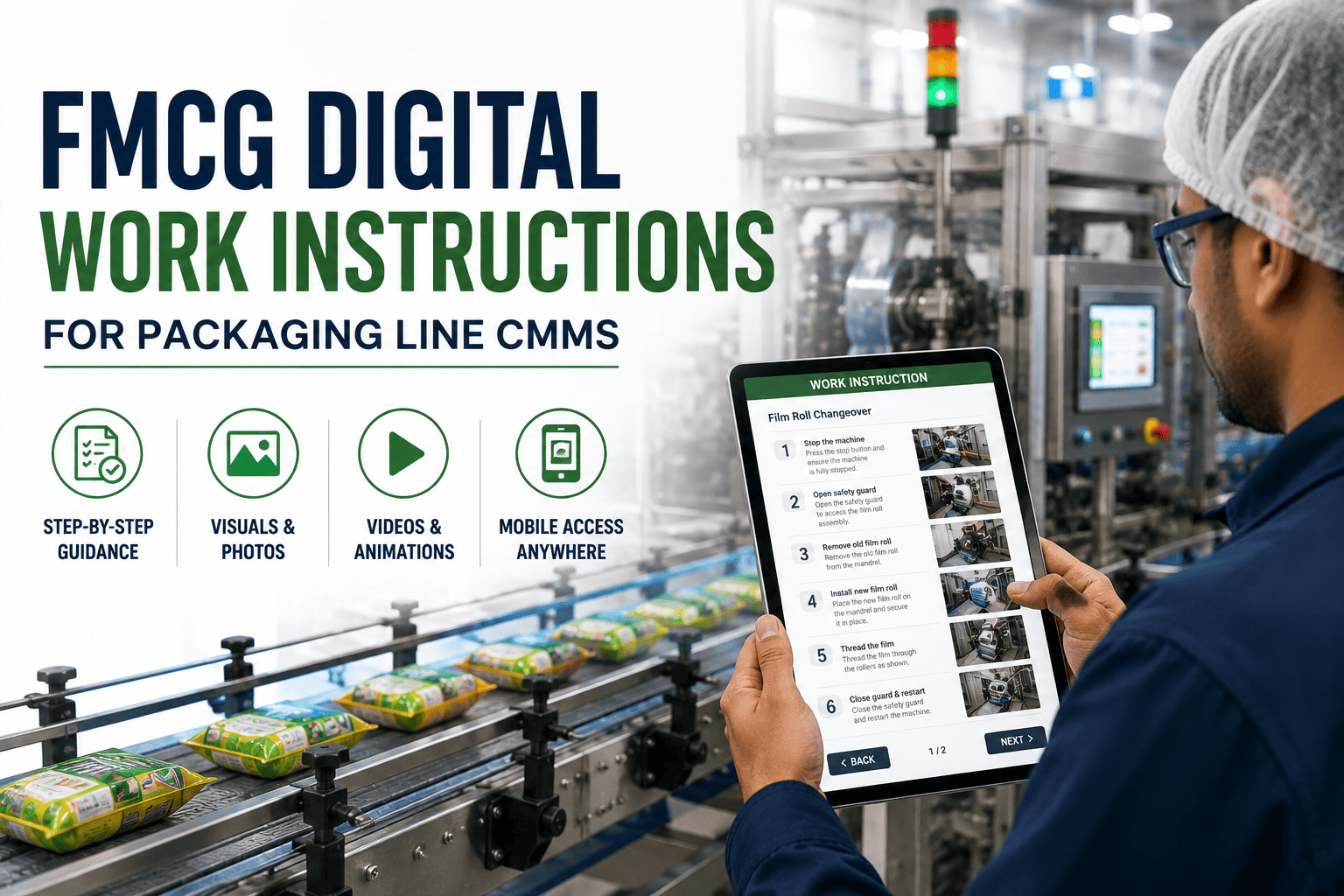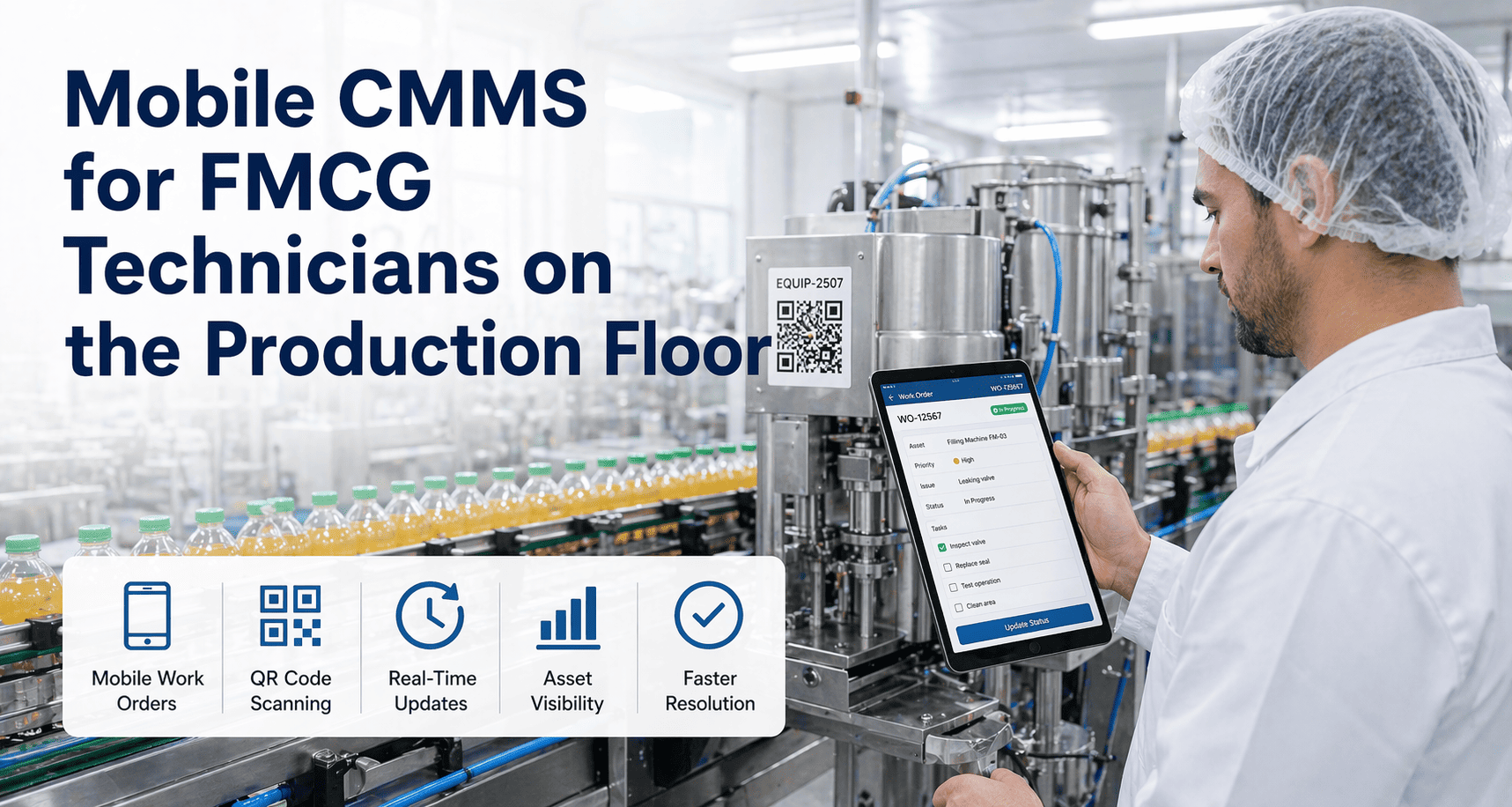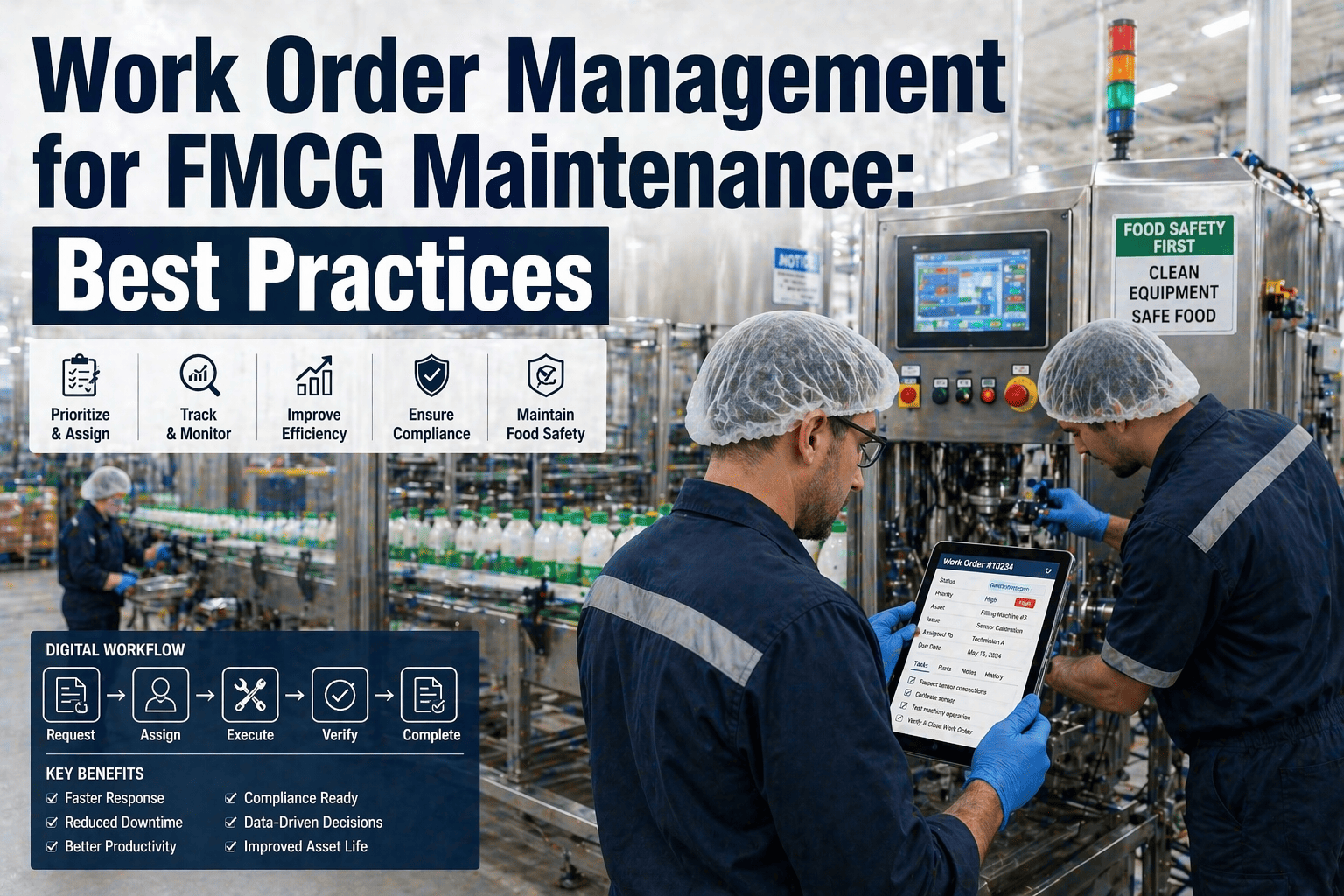
On an FMCG shop floor, a technician may walk from a packing hall to a cold room, a mechanical room, and a metal-clad utility building in a single shift. Wi-Fi coverage in those places is often patchy, yet work orders, checklists, and readings still need to be recorded at the machine. A mobile CMMS that works offline keeps the data accurate and the team moving. This guide explains what to look for, how to design shift-floor checklists, and how Oxmaint mobile maintenance workflows fit.
FMCG Mobile CMMS: Offline Work Orders for the Shift Floor
Capture checklists, readings, and repairs where the work happens, even in dead zones, and sync cleanly when the connection returns.
1
Work offline
Open assigned work orders and complete checklists in a dead zone.
2
Save on device
Entries, notes, and photos wait in a local queue.
3
Reconnect
The device finds a network in a corridor or office.
4
Sync to the CMMS
Records update the asset history and dashboards.
Why connectivity is a real maintenance problem in FMCG plants
Plant buildings are built for production, not radio signals. Several features of a typical FMCG site weaken coverage.
| Area | Why signal is weak | Maintenance impact |
|---|---|---|
| Cold rooms and freezers | Insulated panels and metal surfaces block radio waves | Inspections written on paper, entered later |
| Utility rooms and plant rooms | Thick walls and heavy equipment | Boiler, compressor, and chiller rounds not logged live |
| Washdown and hygienic zones | Access points kept outside, devices restricted | Checklists delayed until after cleaning |
| Warehouses and racking aisles | Tall racks and stored product absorb signal | Forklift and conveyor checks missed in the system |
| Outdoor and remote assets | Distance from access points | Tanks, silos, and effluent plant rounds recorded manually |
The cost is not only delay. Work written down later is more likely to be incomplete, wrong, or never entered.
Offline capability checklist: what to confirm before you buy
Not all mobile apps behave the same without a connection. Test each item with your own devices in your own dead zones.
Working offline
- Assigned work orders and asset details are available without a signal.
- Checklists can be completed, with notes and photos, offline.
- Meter readings and inspection results can be recorded and saved.
- Parts used and time spent can be logged on the job.
Syncing back
- Queued entries upload automatically when the connection returns.
- The app shows what is pending and what has synced.
- Timestamps reflect when the work happened, not when it synced.
- Conflicting edits are handled with clear rules and visible results.
Offline behavior varies by product, plan, and configuration. Ask for a live demonstration with the device off the network, and confirm which functions are available offline in your Oxmaint setup.
A day on the shift floor: where mobile work orders fit
Three shifts mean three different maintenance rhythms. Mobile workflows should match each of them.
Morning shift
- Review overnight breakdowns and open work orders
- Run planned PM during scheduled stops
- Close corrective jobs with cause and parts used
Afternoon shift
- Respond to production calls from the line
- Complete high-frequency checklists on key machines
- Hand over unfinished jobs with notes and photos
Night shift
- Work with fewer technicians and less supervision
- Use work order instructions to guide repairs
- Flag issues that need day-shift support
Offline workflows by role
Different people need different things from the device, even in the same dead zone.
Technician
- View assigned work orders and procedures
- Record readings, findings, and parts used
- Attach photos of faults and completed work
- Close jobs with cause and action
Operator
- Complete start-up and shift checklists
- Raise a fault request with a photo
- See whether the request is acknowledged
- Record cleaning and care tasks
Supervisor
- Review open and overdue work by shift
- Reassign jobs as priorities change
- Check checklist completion and failed items
- Approve closure of critical work
Required fields: capture enough data to be useful later
Mobile entry is quick, but quick entry can mean thin records. Make the important fields mandatory and keep the rest optional.
| Field | Why it matters | Mobile input style |
|---|---|---|
| Asset and location | Links the job to the right history | QR scan or searchable list |
| Failure cause and action | Enables repeat failure and root cause analysis | Short pick lists |
| Start and finish time | Supports downtime and labor analysis | Automatic timestamps |
| Parts used | Keeps inventory and cost accurate | Scan or select from the asset BOM |
| Photos and notes | Helps the next technician and audits | Camera and short text |
Parts and inventory on the move
- Let technicians look up part numbers and stock locations from the work order.
- Record parts consumed at the machine, so inventory counts stay right.
- Flag a part that is missing, so the planner can order it before the next shift.
Escalation and handover on the shift floor
Escalation rules to define
- Which faults stop the line immediately and who is notified.
- How long a high-priority job can wait before escalation.
- Who covers when the assigned technician is unavailable.
- When to involve engineering or an outside contractor.
Handover content to standardize
- Jobs in progress and their next steps.
- Machines running with temporary repairs.
- Parts on order and expected delivery dates.
- Safety issues or locked-out equipment still in place.
Common adoption barriers and practical fixes
| Barrier | What you hear on the floor | Fix |
|---|---|---|
| Fear of losing entries | "I will write it on paper in case it fails." | Demonstrate offline saving and show the sync status screen |
| Too many taps | "It takes longer than the clipboard." | Shorten checklists and use pick lists |
| Gloves and wet hands | "I cannot use the screen." | Use larger buttons, suitable gloves, and rugged devices |
| Unclear benefit | "Nobody reads these records." | Show how the data drives PM changes and spare parts decisions |
| Shared devices | "Someone else has the tablet." | Assign devices per shift and set charging routines |
Security and privacy basics
- Require a screen lock and role-based login on every device.
- Limit camera use in production areas according to site hygiene and confidentiality rules.
- Remove access promptly when someone leaves or changes role.
- Decide how lost devices are reported and wiped.
Labeling assets so scanning works every time
Step 1
Choose durable labels
Use labels that survive washdown, cold, and cleaning chemicals.
Step 2
Place them consistently
Put codes on the same side of each machine, where light and access are good.
Step 3
Match them to the asset list
Each code opens one asset record, with no duplicates or old numbers.
Step 4
Audit regularly
Replace damaged labels during PM so scans keep working.
An offline test protocol before go-live
- Put the device in airplane mode and open a work order on a real machine.
- Complete a checklist with a failed item, a reading, and a photo.
- Walk to a connected area and confirm the entries sync with the right timestamps.
- Check that the failed item created a follow-up work order with the photo attached.
- Repeat the test in a cold room, a plant room, and a washdown area.
Notifications that help rather than annoy
- Alert technicians about new high-priority jobs and overdue critical PM, not every minor update.
- Send supervisors a summary of failed checklist items at agreed times.
- Let each role choose which alerts they receive, within plant rules.
- Review alert volume monthly and remove those that nobody acts on.
A short huddle script for the first month
- Start each shift by reviewing which checklists were completed or missed the day before.
- Ask one technician to share a problem or a time saved with the app.
- Fix one small usability issue each week and tell the crew it was done.
Improving coverage where it is practical to do so
Offline mode is the safety net, not an excuse for poor coverage. Combine both.
Survey first
Map signal strength by area before buying equipment.
Add access points
Place them at corridors and doorways that technicians pass often.
Use cold-rated gear
Network equipment in freezers needs suitable ratings and enclosures.
Consider cellular data
Mobile data can cover yards, tanks, and outbuildings.
Plan sync points
Tell crews where devices reconnect quickly, such as the workshop door.
Faster entry with photos, templates, and standard text
- Use a photo of the fault instead of a long description, then add a short pick-list cause.
- Create templates for common jobs, such as seal replacement or sensor adjustment, so steps and fields are pre-filled.
- Offer standard phrases for common findings, which keeps data consistent for later analysis.
- Allow dictation on devices that support it, where hygiene and noise rules permit.
Checking whether mobile is paying off
- Compare the delay between finishing a job and the record appearing, before and after rollout.
- Count how many PM tasks are closed with readings and photos instead of a bare tick.
- Track how many failed checks became work orders on the same shift.
- Ask technicians what still slows them down, and fix one item each month.
Keeping records useful after they sync
- Review a sample of mobile work orders each week for missing causes or empty notes.
- Give crews quick feedback, so good habits spread and weak entries are fixed early.
- Check that photos are taken from helpful angles and show the part and the problem.
- Use the synced data to update PM tasks, so mobile checklists improve over time.
Test mobile work orders in your own dead zones
See how technicians open, complete, and close work orders from the line, the cold room, or the plant room.
Designing high-frequency checklists people will actually finish
Checklists done every shift or every hour fail when they are long, vague, or awkward on a small screen.
| Frequency | Typical purpose | Design guidance |
|---|---|---|
| Every shift or start-up | Line readiness, guards, sensors, lubrication points | Under ten items, clear pass or fail, photo only on fail |
| Hourly or per run | Seal checks, fill checks, coder and label verification | Fixed order, minimal typing, quick tap entries |
| Daily | Operator care, cleaning verification, leak checks | Tied to the asset and standard method |
| Weekly | Technician inspections of drives, belts, and utilities | Include reading fields and acceptable ranges |
| Monthly and beyond | Calibration, safety device tests, deeper PM | Detailed steps, parts, and sign-off |
Design rules that raise completion rates
- Use tap choices, toggles, and number fields instead of free text.
- Show the acceptable range beside each reading.
- Create a work order automatically when an item fails.
- Keep one checklist per asset or task, not one giant form.
- Write steps in the words technicians and operators use on the floor.
Making the device work in a food plant
Rugged and cleanable
Choose devices that tolerate washdown, drops, and approved sanitizers.
Easy to read
Large touch targets help with gloves, and bright screens help in dim plant rooms.
Quick asset lookup
QR codes or barcodes on machines open the right record in seconds.
Secure and controlled
Use device locks and role-based access, and follow site rules on cameras in food areas.
Charged and ready
Set charging points and shift handover habits so devices last the whole shift.
Before and after: paper rounds versus mobile work orders
Paper-based routine
- Readings written on sheets and typed in later
- Failed checks noticed only at the end of shift
- Photos kept on personal phones or never taken
- Handover depends on memory and handwriting
Mobile routine
- Readings entered at the machine and synced automatically
- Failed checks create work orders immediately
- Photos attached to the asset and the job
- Handover notes visible to the next shift
How Oxmaint supports shift-floor teams
- Work orders that technicians can open, update, and close from a phone or tablet.
- Inspection and PM checklists attached to assets, with recorded results.
- Asset records, history, and parts information available on the job.
- Dashboards for open work, overdue tasks, and downtime by line and shift.
Rolling out mobile CMMS across shifts
Step 1
Map dead zones
Walk each line and utility area with a test device, and note where signal drops.
Step 2
Start with one line
Convert the shift checklists and a short list of PMs for a single line.
Step 3
Train by shift
Include night and weekend crews, since they rely on the app most.
Step 4
Review and expand
Check completion rates and sync issues weekly, then add lines.
Metrics that show adoption
- Checklist completion rate by shift.
- Average time between job completion and record entry.
- Share of work orders closed with cause and parts recorded.
- Number of failed checks converted into work orders.
Mobile CMMS and offline work order FAQs
Will technicians lose data if the signal drops mid-job?
A properly designed offline mode saves entries on the device and syncs later. Confirm this in a live test.
Which checklists should go mobile first?
Start with start-up and shift checks on critical lines, since they are frequent and easy to measure.
Can operators use the same app as technicians?
Yes, with role-based access so each person sees only the tasks and fields they need in Oxmaint.
How do we handle two edits to the same work order?
Ask the vendor how conflicts are resolved and displayed, and test the case before rollout.
What is a good first step?
Walk your plant to map dead zones, then book a demo to test offline use.
Put maintenance records where the work happens
Give every shift mobile work orders and checklists that keep working when the signal does not.