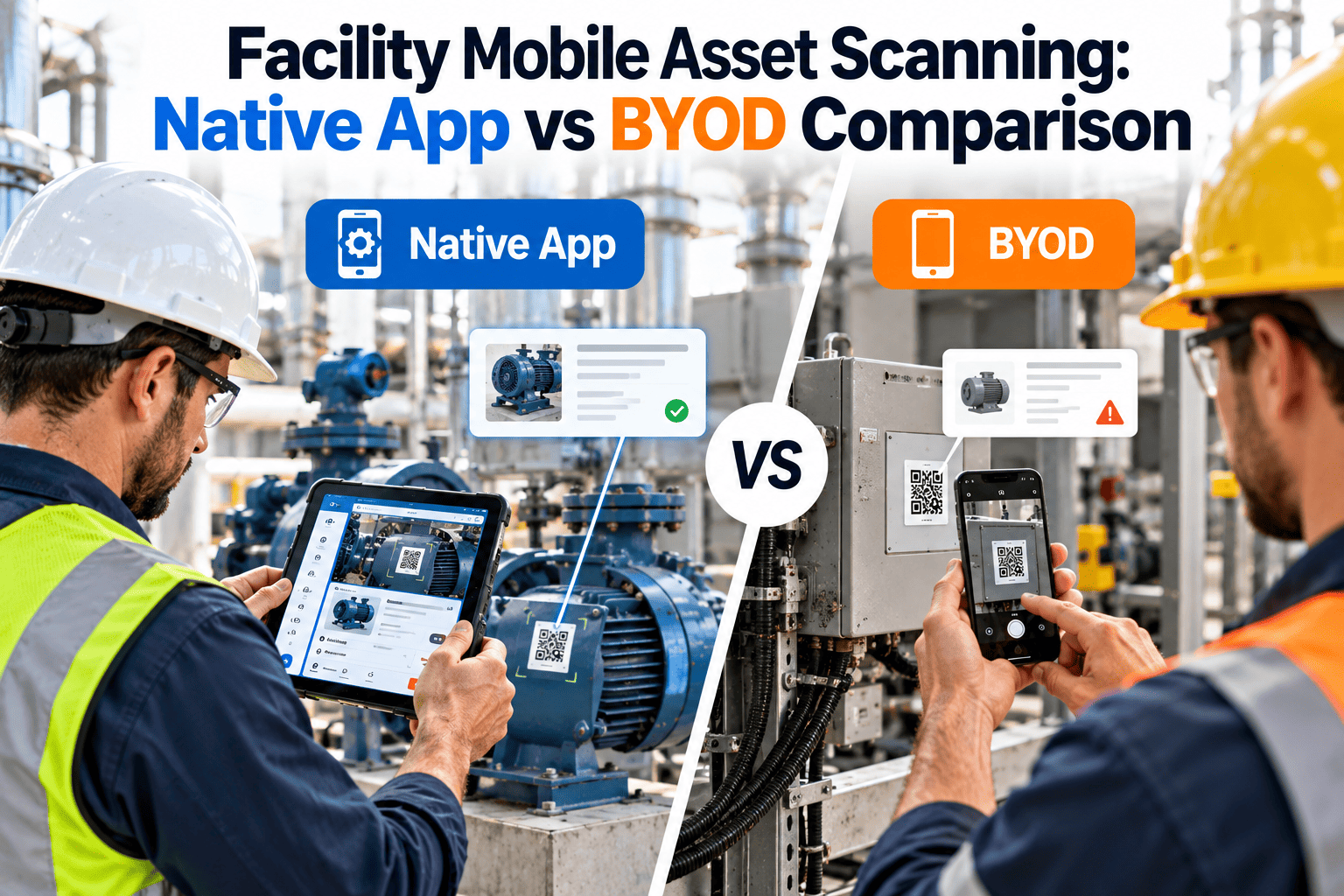
Every facility scanning program eventually hits the same argument: buy rugged handhelds and a dedicated native app, or let technicians scan with the phones already in their pockets. Both models work, and both fail when chosen for the wrong reasons. The real question is which one keeps asset records accurate, keeps work orders moving and stays affordable across a multi-building portfolio. This comparison covers capabilities, security, total cost of ownership and a decision framework, and shows where a mobile-first platform like Oxmaint's mobile CMMS fits either path.
Facility Mobile Asset Scanning: Native App vs BYOD Comparison
Scanning is only as reliable as the device, the app and the policy behind it. Compare issued devices running a native app with bring-your-own-device programs, then choose the model that fits your buildings, your technicians and your risk profile.
What a Facility Scan Has to Accomplish
A scan that only opens a record is a shortcut. A scan that starts, updates or closes maintenance work is a control. Any device strategy should be judged against the full chain below.
Where Facility Scanning Programs Break Down
Three Deployment Models, Not Two
Native App vs BYOD: Side-by-Side Comparison
| Factor | Issued Device + Native App | BYOD (Native App or Browser) |
|---|---|---|
| Upfront cost | Hardware purchase for every technician | Minimal, often a stipend or nothing |
| Scan performance | Dedicated imagers read damaged or small codes better | Depends on each phone camera and lighting |
| Hardware consistency | One or two models to support | Many models and operating system versions |
| Durability | Rugged cases and drop-rated options available | Consumer phones, technician bears breakage risk |
| Security control | Full device management, remote wipe, enforced settings | App-level and data-level controls only |
| Onboarding speed | Slower, needs procurement and enrollment | Fast, same day if policy is in place |
| Shift handoff | Shared devices risk login and battery issues | Personal phone stays with one named user |
| Contractor use | Extra devices needed for short engagements | Easy to add, harder to govern |
| Support burden | IT owns hardware faults and replacements | Support triage across unfamiliar devices |
| Privacy and labor concerns | Low, work-only device | Higher, needs consent, stipend and clear limits |
Issued Devices with a Native App
- Uniform testing: one hardware profile means fewer surprises
- Better scanning in dark plant rooms and on worn labels
- Remote lock, wipe and policy enforcement
- Clean separation of work and personal data
- Easier to standardize training and job aids
- Capital outlay and replacement cycles
- Devices get lost, damaged or left uncharged
- Technicians may carry a second device they resent
- Procurement delays slow new-hire and contractor onboarding
- Someone must own device management long term
BYOD Scanning
- Near-zero hardware spend and quick pilots
- Technicians already know their own phones
- Devices are replaced by owners on their own cycle
- Personal ownership tends to mean the phone is charged and present
- Scales easily across sites and seasonal staff
- Uneven camera quality causes scan failures in poor light
- Wider range of operating systems to test against
- Privacy, stipend and data-usage questions need answers
- Limited control if a phone is lost or an employee leaves
- Harder to demand rugged or intrinsically safe hardware
See Scanning Work on Your Own Assets
Total Cost of Ownership Beyond the Sticker Price
Run the same formula for both models using your own numbers. The line items below show where each model puts its cost.
| Cost Line | Issued Devices | BYOD |
|---|---|---|
| Hardware | Organization pays and depreciates | Technician pays, sometimes offset by stipend |
| Device management | Licenses and admin time per device | Lighter, app-level controls |
| Loss and breakage | Replacement budget needed | Owner absorbs, but scanning gaps still cost time |
| Connectivity | Data plans or Wi-Fi provisioning | Often a monthly stipend |
| Support | Predictable, few device types | Variable, many device types |
| Failed-scan rework | Lower with imagers, if tags are in good shape | Can rise with weak cameras and poor lighting |
| Security incident exposure | Reduced by enforced controls | Depends on policy discipline |
Security, Privacy and Record Integrity
Regulated buildings such as healthcare, education and data centers should involve IT security and legal review before choosing BYOD, and confirm any record-retention duties for inspection and maintenance evidence.
A Decision Framework You Can Score
| Question | Leans Issued Device | Leans BYOD |
|---|---|---|
| Are tags in dark, dusty or damaged conditions? | Yes, frequently | Rarely |
| Is a regulator or auditor reviewing your records? | Yes, strict evidence rules | Light oversight |
| Are there restricted or hazardous areas? | Yes, device approval needed | No special limits |
| How large is the technician pool? | Small, stable team | Large, seasonal or contracted |
| Is IT ready to manage devices? | Yes, already do it | No capacity today |
| Can you fund hardware up front? | Yes | Capital is tight |
| Do staff accept using personal phones? | Resistance expected | Broadly comfortable |
| Do you need a fast pilot? | Timeline is flexible | Need results this quarter |
Match the Model to the Building
| Facility Type | Typical Constraint | Common Starting Point |
|---|---|---|
| Hospital and healthcare | Privacy, infection control, restricted areas | Issued devices |
| Data center | Strict access and device rules | Issued devices |
| K-12 and campus | Many buildings, mixed staffing | Hybrid, issued for leads and BYOD for others |
| Commercial office portfolio | Distributed sites, vendor techs | BYOD with strong app controls |
| Retail and restaurant chains | Many small sites, limited IT | BYOD or store-level shared device |
| Industrial and warehouse | Harsh environments, dim aisles | Issued rugged devices |
A Hybrid Rollout in Four Phases
Pilot Evaluation Checklist
- Scan a full sample of tags in the worst lighting you have
- Test capture and sync in a known dead zone
- Confirm each user logs in with an individual credential
- Time a start-to-close work order on both device types
- Walk through lost-device and offboarding steps
- Collect technician feedback after two full weeks
- Compare support tickets by device type
Offline Capture and Sync: The Test Most Pilots Skip
Plant rooms, parking structures, roof access points and mechanical basements are exactly where facility work happens and where signal disappears. A scan that fails silently in those places trains technicians to stop scanning.
- Ask what happens when a scan is captured without a connection, and where the data waits.
- Confirm the technician can see clearly whether an entry has synced or is still pending.
- Test what occurs if two people edit the same work order before sync completes.
- Check how photos and attachments behave on slow connections, since they are the heaviest items.
- Repeat the test on both device types, because background sync rules differ by operating system and by phone settings.
Tag Condition Often Decides the Winner
- Large QR codes on clean, matte labels
- Well-lit corridors, offices and mechanical rooms with fixed lighting
- Tags placed at reachable height with clear line of sight
- Small, scratched or paint-splattered labels
- Reflective surfaces, curved pipes and hot equipment
- Dim, dusty or outdoor locations with glare
Adoption Decides Whether Scanning Sticks
Contractors, Vendors and Temporary Staff
- Short engagements rarely justify issuing a device, yet unmanaged access to asset records is a risk.
- Give outside technicians a limited role that shows only the work orders assigned to them.
- Set an expiry date on every temporary account so access ends when the contract does.
- Keep vendor completions in the same asset history so warranty and repeat-failure reviews stay complete.
- Decide in advance whether vendors may scan from personal phones or must sign in through a site-provided tablet.
Metrics That Prove the Model Is Working
| Metric | What It Tells You | Warning Sign |
|---|---|---|
| Scan success rate | Whether tags and devices work together | Repeated failures on the same assets or devices |
| Work orders closed with a scan | Adoption and data trust | Falling share after the first weeks |
| Time from completion to sync | Reliability of offline handling | Long delays clustered in certain buildings |
| Preventive tasks completed on time | Whether mobile access speeds execution | Backlog unchanged after rollout |
| Support tickets per device type | True support burden | One model generating most of the tickets |
How Oxmaint Supports Either Model
Before committing, ask any vendor, including us, to demonstrate offline behavior, user permissions and scan speed on the devices your team will actually carry.