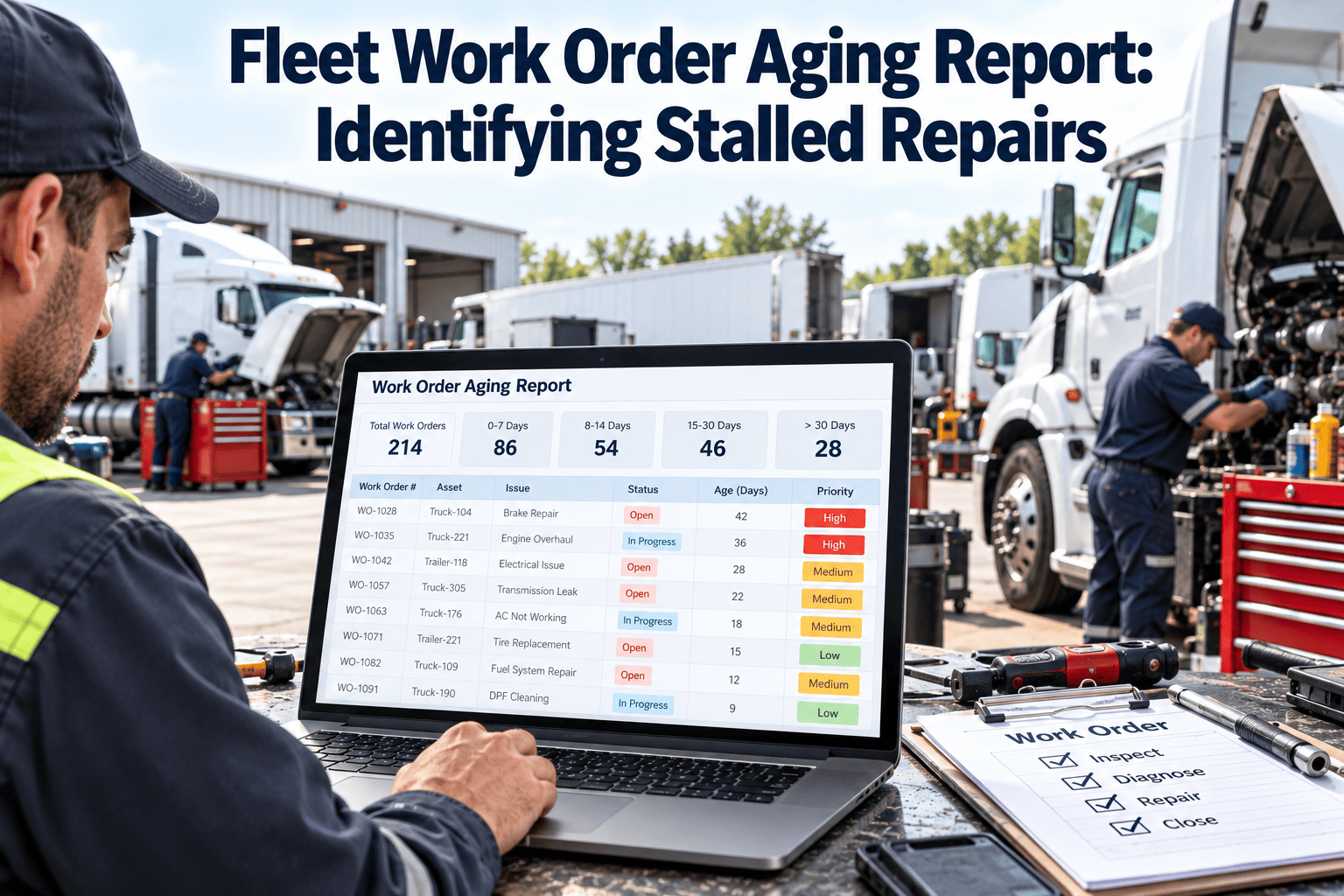
Every fleet shop has repairs that were opened with good intentions and then drifted. The vehicle sits in a corner, the work order shows a status nobody has updated, and the driver keeps asking when it will be back. A work order aging report puts every open repair on a timeline and makes stalled jobs impossible to overlook. This guide covers how to build the report, set response rules by priority, and use Oxmaint work orders to move stalled repairs again.
Fleet Work Order Aging Report: Identifying Stalled Repairs
See which repairs are aging, why they stopped, and who needs to act. Group open work orders by age and priority, then clear the oldest and most critical first.
Illustrative aging buckets showing how a healthy shop queue usually narrows with age. Your own thresholds will differ.
Why repairs stall without anyone noticing
A stalled repair rarely announces itself. It looks like normal work until someone checks how long it has been open.
Status never changes
A work order marked in progress for weeks gives no sign of whether anyone is working it or waiting on something.
Blocking reasons are invisible
Parts, approvals, and vendor delays are known to one person but not recorded where managers can see them.
Priority drifts
Urgent items are handled first, so medium and low priority jobs quietly age until they become urgent themselves.
Ownership is unclear
When a job is handed between technicians, planners, and buyers, nobody feels responsible for the whole repair.
Age buckets and priority: a response matrix
Age alone is not enough. A five-day-old safety repair is a problem, while a five-day-old low-priority job may be normal. Combine both to set the response.
| Priority | 0 to 3 days | 4 to 7 days | 8 to 14 days | Over 14 days |
|---|---|---|---|---|
| Safety critical | Confirm plan today | Escalate to manager | Escalate to director | Review vehicle status |
| Revenue impacting | Confirm assignment | Check blocking reason | Escalate to manager | Escalate to manager |
| Routine corrective | No action | Confirm assignment | Check blocking reason | Escalate to supervisor |
| Preventive maintenance | No action | Check schedule | Check blocking reason | Reschedule or escalate |
| Low priority | No action | No action | Review in weekly meeting | Close, merge, or reschedule |
Why work orders stall: the blocking reasons
The most useful field in an aging report is the reason a job is waiting. Standardize these reasons so patterns show up quickly.
Waiting for parts
The part is ordered, not ordered, or delivered but not matched to the job. Each case needs a different action from a different person.
Waiting for approval
The estimate is complete but nobody with authority has signed off. This is often the easiest delay to clear.
Waiting for diagnosis
The fault has not been isolated, so parts and labor cannot be planned. Complex electronic faults often sit here.
Waiting for a bay or technician
Capacity is tied up. Aging in this status points to scheduling or staffing issues, not individual jobs.
Waiting for the vehicle
The unit is in service and has not been released to the shop. Dispatch and maintenance need a shared schedule.
Waiting for a vendor
The job is at an outside shop or needs outside input. Promised dates should be recorded and checked.
Designing the aging report
A useful report is simple to read and specific enough to assign action. These fields and filters cover most fleet needs.
Fields to include
- Work order number and vehicle
- Priority and repair category
- Open date and age in days
- Current status and blocking reason
- Assigned technician or owner
- Last update date and promised completion date
Filters and groupings
- Age bucket with priority
- Shop location or technician team
- Blocking reason
- Vehicle class or critical asset flag
- Work order type, corrective or preventive
- Last update older than a set number of days
Find the repairs that have stopped moving
Group open work orders by age, priority, and blocking reason so supervisors know exactly where to step in each morning.
Escalation rules that make the report actionable
A report only helps if someone acts on it. Define who is told, what they must do, and how the response is recorded.
| Trigger | Who is notified | Expected action | What to record |
|---|---|---|---|
| Safety repair open beyond its limit | Maintenance manager | Decide on out-of-service status and resources | Decision and date |
| No update for several days | Assigned owner and supervisor | Update status and blocking reason | New status note |
| Waiting on approval beyond its limit | Approver and backup | Approve, decline, or request changes | Approval decision |
| Waiting on parts beyond expected delivery | Parts coordinator | Confirm delivery date or find an alternative | Revised delivery date |
| Vehicle at vendor beyond promised date | Fleet manager | Contact vendor and set a firm date | Vendor response |
| Preventive job overdue and aging | Planner | Reschedule with a due date and owner | New schedule |
A weekly stalled repair review in six steps
A short, consistent meeting works better than occasional cleanup. Keep it to the oldest and most critical jobs.
Start with safety and critical units
Review the oldest safety and critical-asset repairs before anything else.
- Confirm each has an owner and a plan
- Decide whether the vehicle should stay in service
Review by blocking reason
Handle all parts delays together, then approvals, then vendor jobs.
- Assign one person to each reason group
- Record the next action and date
Check for stale updates
Find work orders with no recent notes and ask the owner for status.
- Update status or close if the work is done
- Flag unclear jobs for diagnosis
Look at capacity
If many jobs wait for bays or technicians, plan labor or sublet options.
- Review the schedule for the week
- Move low-priority jobs to protect urgent ones
Clean up duplicates
Merge or close duplicate and obsolete work orders so the report stays trustworthy.
- Record the reason for closing
- Confirm no safety item is dropped
Record decisions
Capture decisions in the work order, not only in the meeting notes.
- Set follow-up dates
- Report results at the next review
KPIs to track alongside the aging report
The report shows the current queue. These measures show whether the queue is improving over time.
Average work order age
Mean age of open corrective jobs by priority. Falling averages show better flow.
Share of jobs over threshold
Percent of open work orders older than the limit for their priority.
Time in blocked status
Days spent waiting on parts, approval, or vendors before work resumes.
Close rate
Work orders closed compared with work orders opened in the same period.
Stale update count
Open jobs with no update beyond a set window. Shows ownership gaps.
Repeat reopen rate
Work orders reopened after closure. Signals rushed or incomplete repairs.
Aging report compared with related reports
Several reports touch work order flow. Each answers a different question, so use them together instead of replacing one with another.
Data quality problems that distort aging
If the data is unreliable, the report will mislead. Fix these issues first.
Common data problems
- Work orders left open after the repair was completed
- Open dates reset when a job is reassigned or reopened
- Free-text status notes that cannot be grouped
- Preventive jobs mixed with corrective jobs in one count
Practical fixes
- Require a blocking reason when a job is placed on hold
- Keep the original open date and show a separate last-update date
- Use a short, fixed list of statuses and reasons
- Report preventive and corrective work separately
Ownership rules
- Every open job has one named owner at all times
- Handoffs record the new owner and the next action
- Closed jobs require final labor, parts, and findings
Operational impact of stalled repairs
A stalled work order is more than an old record. It affects availability, cost, safety, and morale.
Availability and service
- Vehicles that cannot return to service reduce route and delivery capacity
- Spare units cover gaps and increase cost
- Customers and drivers experience delays first
Cost and compliance
- Deferred repairs can grow into larger failures
- Overdue inspections and preventive work increase compliance risk
- Shop bays and parking space stay occupied by waiting vehicles
People and process
- Technicians lose focus switching between waiting and urgent jobs
- Supervisors spend time searching for status instead of removing blockers
- Drivers lose trust when answers about vehicle return keep changing
Setting aging thresholds that fit your fleet
There is no universal limit for how long a repair should stay open. Set thresholds from your own history and adjust them as the process improves.
Review closed jobs
Look at how long different repair types took to close over the past year to find realistic ranges.
Group by priority
Set shorter limits for safety and revenue-critical work and longer ones for routine jobs.
Test for a month
Run the report with draft limits and note jobs that look wrongly flagged or missed.
Adjust and publish
Share final limits with technicians and supervisors, and review them each quarter.
How aging reports differ by fleet type
The same report adapts to different operations. Priority and threshold choices should follow how each fleet uses its vehicles.
Delivery and route fleets
Vehicle availability drives revenue, so aging limits for route-critical units are short and escalation is quick.
Construction and heavy equipment
Jobs often wait for specialized parts or field service. Track vendor and parts reasons closely.
Public works and municipal fleets
Seasonal demand, such as winter equipment, makes preventive aging and readiness dates especially important.
Passenger and service vehicles
Safety inspections and compliance repairs carry strict limits, so overdue items are escalated immediately.
Common mistakes when using aging reports
Most problems come from how the report is used, not from the report itself.
| Mistake | Effect | Fix |
|---|---|---|
| Using one age limit for every job | Urgent jobs are missed and minor jobs create noise | Set limits by priority |
| Reviewing only at month end | Problems age for weeks before anyone acts | Review daily for critical jobs and weekly for the rest |
| Allowing jobs without owners | No one is accountable for movement | Require an owner on every open job |
| Closing old jobs to clean the report | Real problems disappear from view | Record a reason and review before closing |
| Ignoring preventive work in the report | Overdue service builds quietly | Show preventive jobs in their own view |
How Oxmaint supports stalled repair visibility
Oxmaint work orders give each repair a status, owner, history, and linked parts so aging can be reviewed from live records.
- Work orders record priority, status, assignment, and notes with dates
- Asset records show repair history and open jobs on each vehicle
- Scheduling and preventive maintenance show overdue planned work
- Inventory visibility helps confirm whether a part is in stock
- Mobile workflows let technicians update status at the vehicle
- Dashboards and reports group open work by age, priority, and location
What managers can do
- Open the oldest jobs first each morning
- Assign owners and next actions directly on the work order
- Review recurring blocking reasons each month
Before and after using an aging report
The report shifts the shop from reacting to complaints toward managing the queue.
Without an aging report
- Stalled jobs surface when a driver complains
- Status updates depend on who you ask
- Blocking reasons are known informally
- Priority and age are not compared
- Cleanup happens before audits or crises
With an aging report
- Stalled jobs appear daily in a ranked view
- Status and owner are visible on the record
- Blocking reasons are recorded and grouped
- Priority and age drive the response
- Review is a weekly habit, not a cleanup project
What to expect in the first month
- Many old jobs will be closed, merged, or rescheduled as the report is cleaned
- Blocking reasons will reveal one or two recurring causes worth fixing
- Technicians will update statuses more often once they see the report used
Frequently asked questions
What is a fleet work order aging report?
It lists open repairs by how long they have been open, with priority, status, owner, and blocking reason.
What counts as a stalled repair?
A job with no progress or update beyond the limit for its priority, often waiting on parts, approval, or a vendor.
How often should we review the report?
Check critical jobs daily and review all open work weekly. You can book a demo to see the work order views.
What blocking reasons should we track?
Use a short list such as parts, approval, diagnosis, capacity, vehicle availability, and vendor.
How do we start?
Standardize statuses and owners first, then set up work orders for one shop and review the oldest jobs.
Keep every repair moving toward done
Use live work order data to spot stalled jobs early, assign clear owners, and return vehicles to service sooner.