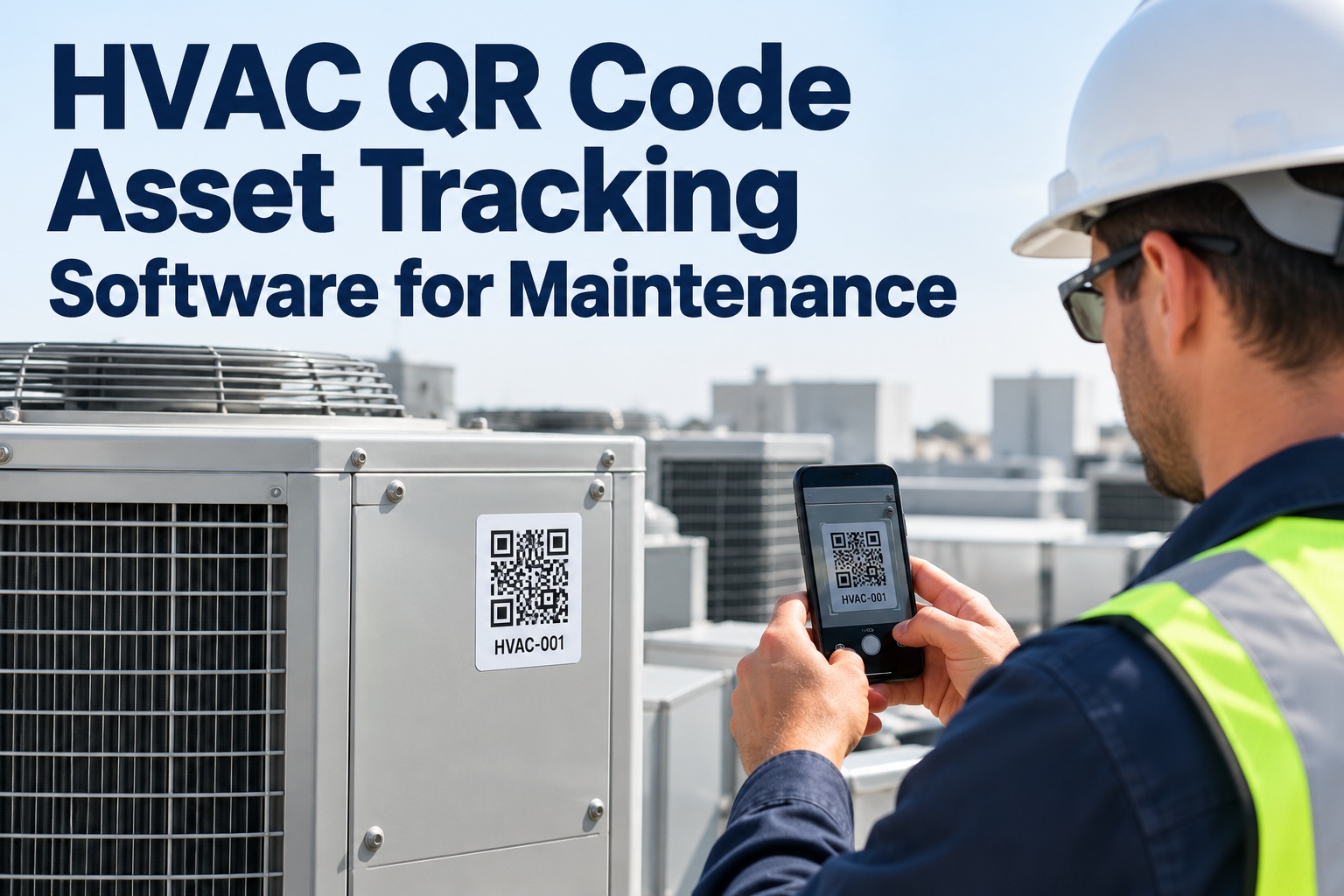
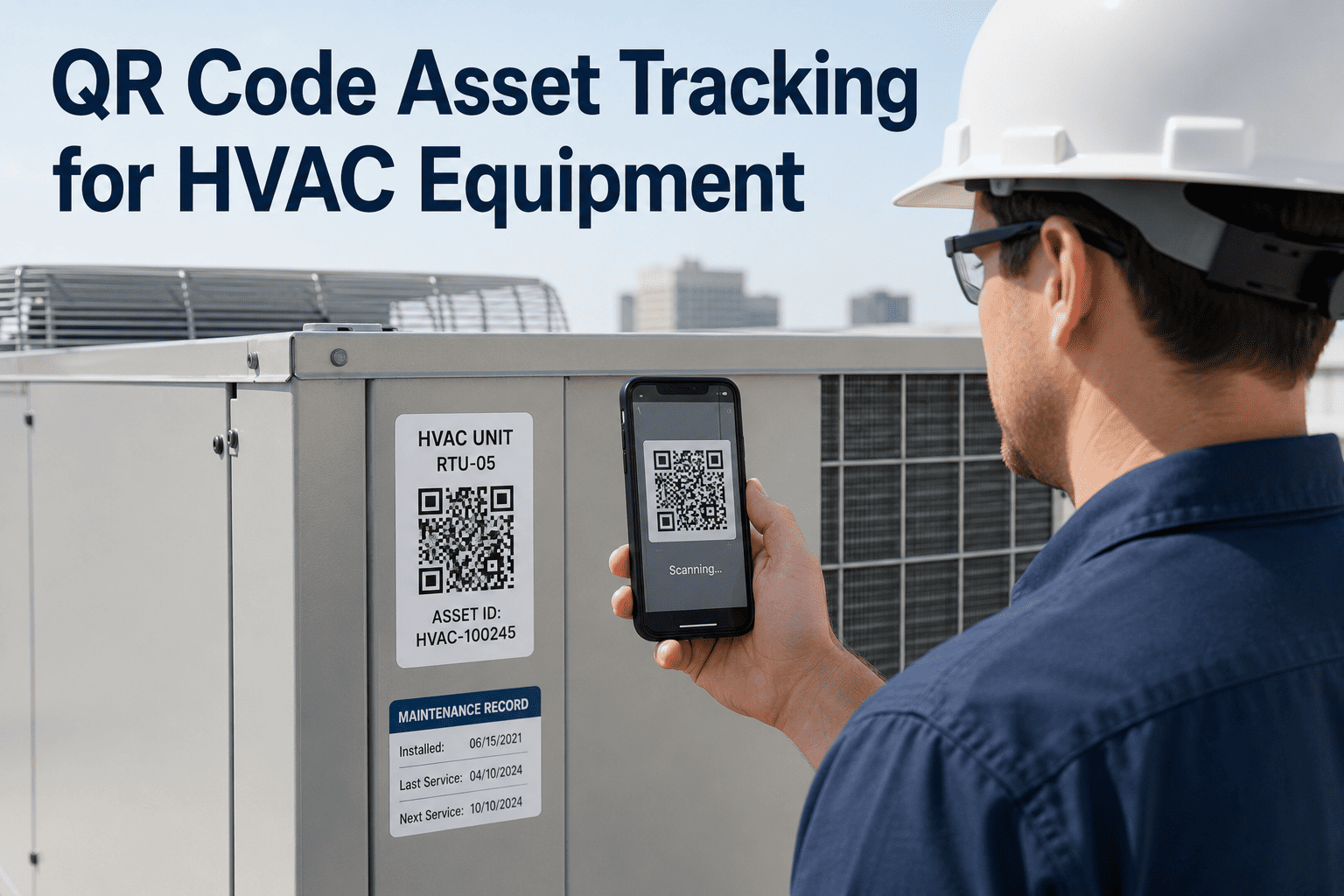
Ask a technician on a rooftop what they need most, and the answer is rarely a tool. It is information: which unit is this, what was done last time, is a work order already open, and what do I need to bring? On paper or in a spreadsheet, that answer sits in an office, a binder or someone's memory. A QR code on the equipment puts the answer in the technician's hand with one scan. This guide explains how HVAC QR code asset tracking works, what to put behind each code and how to roll it out across a building or portfolio, using OXMAINT AI, the AI-powered CMMS for HVAC and facility maintenance teams.
HVAC Asset Tracking · QR Codes · Maintenance Workflow
HVAC QR Code Asset Tracking Software for Maintenance.
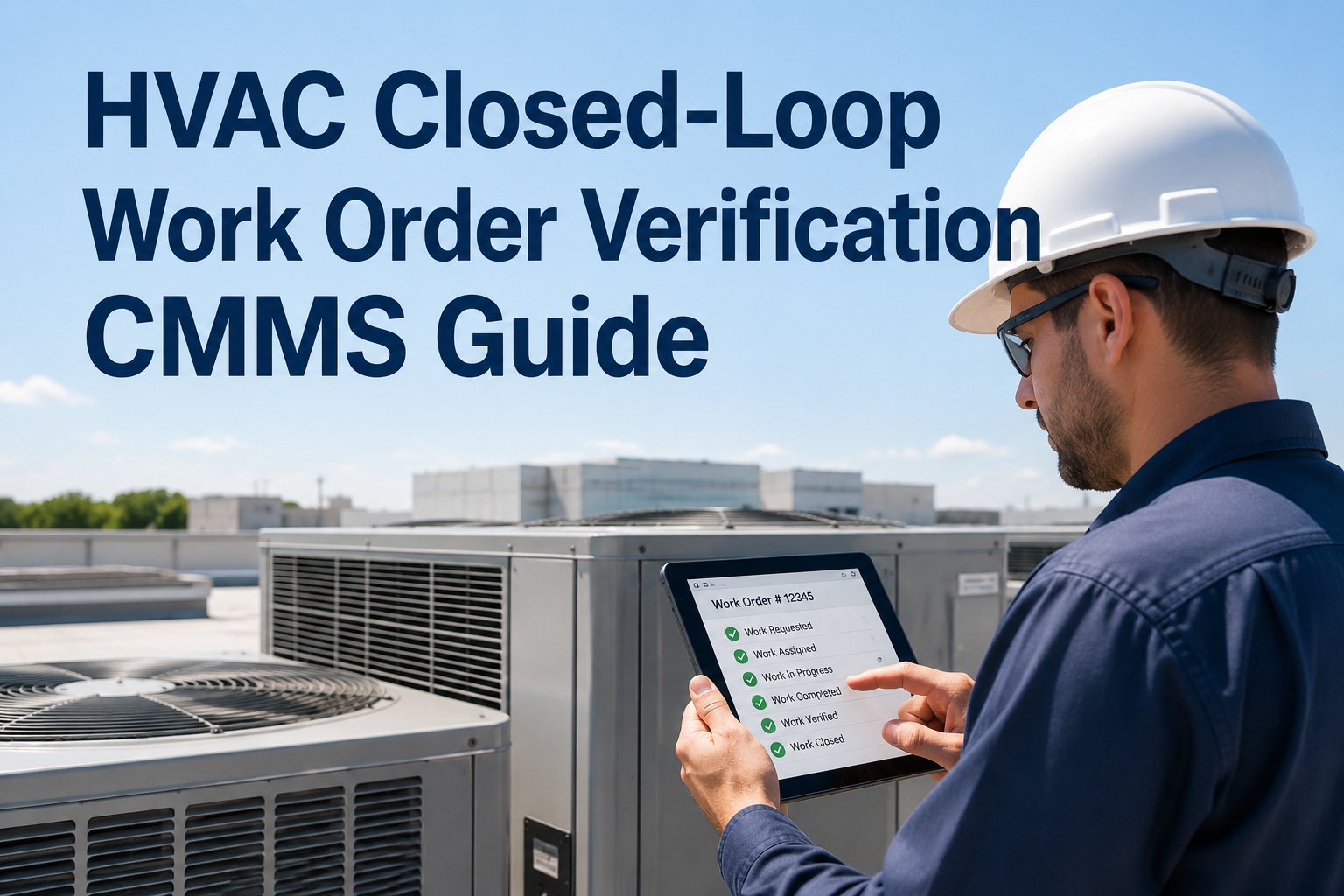
When equipment records live away from the equipment, every visit starts with a search. OXMAINT AI puts a QR code on each unit and connects the whole workflow in one CMMS: a scan or inspection raises an issue, the issue becomes a work order on the right asset, the repair is recorded in its history, and preventive maintenance keeps the next visit planned.
1QR Scan or Inspection
→
2Issue Logged
→
3Work Order
→
4Repair Recorded
→
5PM Scheduled
QR Code Asset Tracking
Maintenance Requests
Work Order Management
Preventive Maintenance
What Happens When You Scan: The Asset Record in Your Hand
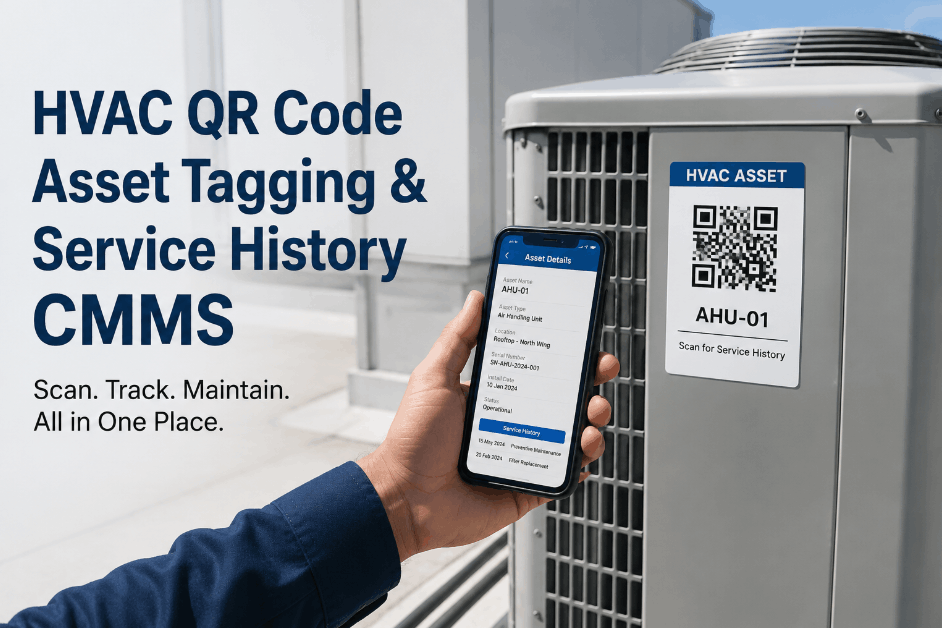
One scan opens the record for that exact unit: its service history, open work orders, PM schedule and parts. No searching by name, no guessing which "AHU-2" you are standing next to. The screen below is an illustration of the idea. Sign up free and see a live asset record.
● ● ●
SCANNEDRTU-04 · Rooftop Unit
Level 5 roof · Zone North
HService history›
WOpen work orders›
PPM schedule›
SParts & spares›
DManuals & documents›
Report an issue
Know the unit
Identity, location and documents are attached to the asset, not to a person.
See the history
Past repairs and PM visits show what was done and what keeps returning.
Act on the spot
Start or update a job, or report a fault, from the same screen.
Illustrative screen. Layout and fields will vary by setup.
Three People, Three Scans
A QR label is useful because different people use it for different reasons. Each scan feeds the same asset record. Book a demo to see each view.
THE OCCUPANT OR STAFF MEMBER
"This unit is making a noise."
Scans with a phone camera, describes the issue and adds a photo. The request is linked to the right unit, with no need to know a department or email address.
THE TECHNICIAN
"What did we do here last time?"
Scans on arrival to see history, open jobs and PM tasks. After the work, the record updates, so the next visit starts better informed.
THE MANAGER OR PLANNER
"Is this a one-off or a pattern?"
Reviews requests and repairs per unit, links duplicates to an existing work order and spots repeat faults before they become failures.
One Label, Everything Connected
The QR code does not store the data. It points to the asset record in the CMMS, so the label stays valid as the history grows. If a label is damaged, it can be reprinted and reapplied without losing the record. Start free and build your first asset records.
Maintenance requests
Work orders
PM schedule
▣
QR Label
→ one asset record
Inspection checklists
Parts & documents
Repair history
Put the Records Where the Equipment Is.
Generate print-ready QR labels from your equipment list and give every HVAC unit a scannable, always-current record.
Setting Up a QR Program in 4 Steps
You do not need to tag the whole portfolio on day one. Start with one building or one equipment type, then widen. Book a demo to plan your first rollout.
1
List the Equipment
Register units with a clear ID, type, location and key details such as model and serial number.
→
2
Print the Labels
Generate QR labels from the equipment list, using weather-resistant stock for outdoor units.
→
3
Link the Work
Attach PM tasks, checklists, documents and parts so each scan opens something useful.
→
4
Scan & Improve
Train the team on one habit: scan on arrival. Review requests and history to refine PM.
Where to Put the Label on Common HVAC Equipment
A label that cannot be reached or read does not get scanned. Choose a visible, stable, weather-appropriate spot, and keep the position consistent for each equipment type. These are general suggestions, so always follow site safety rules and avoid hazardous or heated surfaces. Sign up free and print your first labels.
Equipment
Good label position
Tip
Rooftop unit
On the service panel near the access door
Use weather-resistant stock and avoid peeling edges
Air handling unit
On the access door or side panel at eye level
Keep clear of insulation and moving parts
Chiller or boiler
Near the control panel, away from hot surfaces
Place at a safe, reachable standing height
Fan coil or VAV box
On a fixed surface near the unit, not a movable ceiling tile
Match the label to the physical unit, not the room
Pump or fan motor
On the baseplate or guard where it is visible and safe to scan
Never place it where a guard must be removed
Label Rules That Keep Scans Working
A few habits make the difference between a program people use and one they ignore. Book a demo to see labelling best practice.
Do
Add a short prompt such as "Scan to report" next to the code
Print the asset ID in text beside the QR code as a fallback
Test-scan every label before leaving the unit
Reprint damaged labels, the history stays with the asset
Avoid
Placing labels on removable covers or ceiling tiles
Using indoor paper labels in outdoor or wet areas
Tagging assets before they have a clean register entry
Leaving the same unit with two different codes
Paper and Spreadsheets vs a Scan
The aim is not to add a step. It is to remove the searching. Start free and compare it with your current process.
Without QR tracking
With QR tracking
Finding the unit
Search by name, location or memory
Scan the label on the unit
Service history
Binder, invoice or spreadsheet
Opens on the asset record
Reporting a fault
Phone call or email with a vague description
Scan, describe and attach a photo
Duplicate reports
Several jobs for the same fault
Duplicates flagged and linked to the open job
PM visits
Checklist printed or recreated each time
Task and checklist waiting on the unit's record
How OXMAINT AI Supports HVAC QR Code Asset Tracking
OXMAINT AI keeps asset records, requests, inspections, PM and work orders in one mobile-first CMMS, so the scan opens the real thing. Start free and add your first units.
QR Label Generation
Create print-ready QR labels from your equipment list.
Scan-to-Request
Let staff and occupants report faults from a phone camera, with the unit already identified.
Asset Records & History
Keep service history, documents and parts against each unit.
Preventive Maintenance
Schedule recurring HVAC tasks that appear on the asset when due.
Inspection Management
Run digital checklists on a phone, with photos and notes attached.
Work Order Management
Assign, track and close jobs, and notify the person who reported the fault.
Frequently Asked Questions
What is HVAC QR code asset tracking?
It means attaching a QR code to each HVAC unit that opens that unit's record in your maintenance software, including history, work orders, PM tasks and documents.
Sign up free and try it.
Do people need an app to scan the code?
For basic fault reporting, a standard phone camera can open the request form in the browser. Teams that want request history and status tracking can use the mobile app.
Book a demo to see both options.
What if a label is damaged or lost?
Can we control who can submit requests?
Where should we begin?
Start with one building or one equipment type, such as rooftop units, tag them, link their PM tasks and expand once the scanning habit is established.
Sign up free and start small.
Scan. Know the Unit. Fix It Right.
Give every HVAC unit a QR code and a living record in OXMAINT AI, and make the right information available at the equipment, every time.