Oxmaint AI + SAP S/4HANA Integration: Step-by-Step Technical Guide 2026
Integrating Oxmaint AI with SAP S/4HANA turns two powerful systems into a single, unified maintenance engine — where AI-generated work orders appear instantly in SAP PM, predictive alerts trigger PM plans before breakdowns happen, and technicians in the field interact with SAP asset data without ever opening a SAP GUI. This guide walks through the complete technical integration: API architecture, data synchronization configuration, workflow automation setup, and real-time maintenance triggers — step by step, from first connection to fully operational AI-driven maintenance. According to IDC 2024, enterprises that connected AI-powered CMMS platforms directly to SAP S/4HANA reduced unplanned downtime by 34% and cut work order processing time by 52% within the first year. Start your free trial today and connect Oxmaint AI to your SAP S/4HANA environment — most teams complete the core integration in under two weeks.
34%
Less unplanned downtime
After Oxmaint + SAP integration
52%
Faster work order processing
AI vs. manual SAP entry
2 wks
Core integration time
RFC + OData setup to go-live
100%
Bi-directional sync
SAP PM, MM & EAM
Zero
Custom ABAP needed
Standard APIs only
What This Integration Achieves
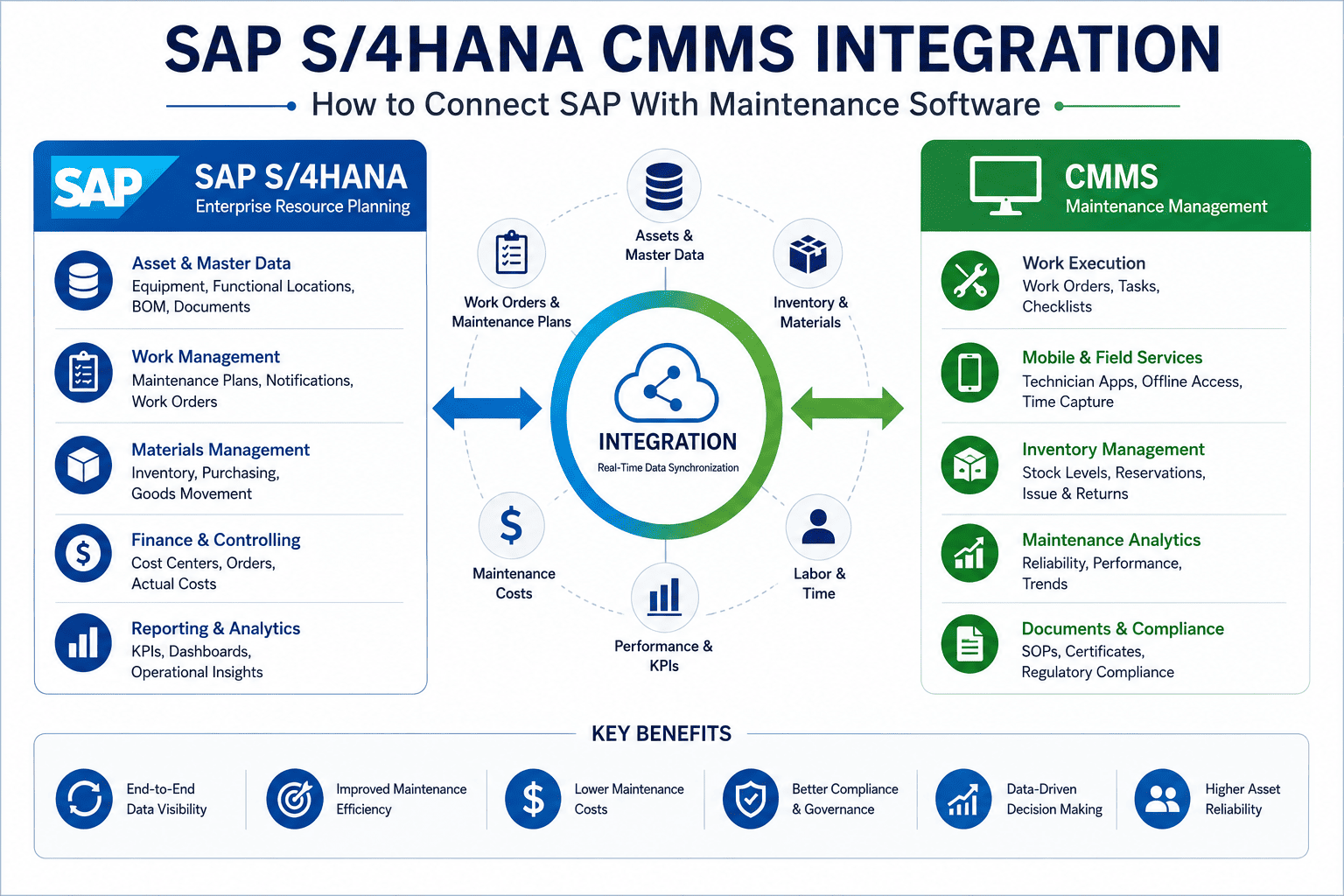
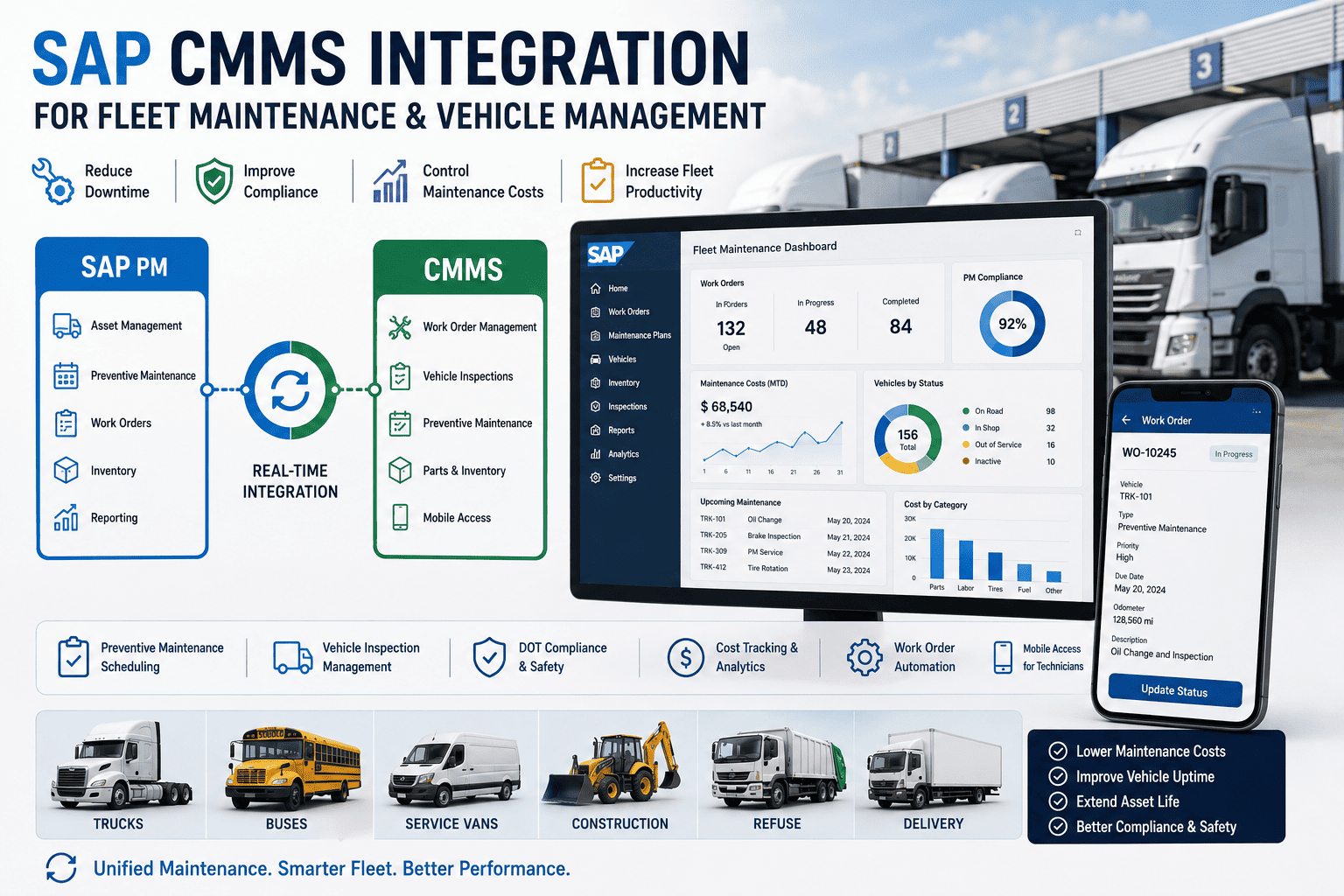
Before diving into technical steps, it helps to understand exactly what the Oxmaint AI + SAP S/4HANA integration delivers — and why connecting these two systems produces results that neither achieves alone. SAP S/4HANA is the system of record: it holds your asset master data, PM plans, functional locations, material stocks, and cost centers. Oxmaint AI is the operational intelligence layer: it understands failure patterns, generates natural-language work orders, guides technicians through repairs, and predicts failures before they occur. Together, they close the loop — AI insight flows into SAP actions, and SAP data enriches AI decisions. Schedule a demo to see the live Oxmaint AI and SAP S/4HANA data flow in action.
Auto-generated SAP PM orders
Oxmaint AI converts voice notes, fault codes, and sensor alerts into fully structured SAP PM orders — with functional location, equipment number, work center, and priority — in seconds.
Predictive maintenance triggers
AI models trained on your SAP equipment history detect anomalies and automatically create SAP PM notifications before failure occurs — with root cause, recommended action, and urgency pre-filled.
Real-time SAP MM parts sync
When a technician needs a part, Oxmaint checks SAP MM stock live, creates a material reservation or purchase requisition directly in SAP — without leaving the mobile interface.
Mobile-first technician interface
Technicians use Oxmaint's mobile app — not SAP GUI — to access work orders, asset history, manuals, and parts. All actions write back to SAP S/4HANA in real time via standard APIs.
Compliance audit trail in SAP
Every AI-assisted decision, work order update, and inspection record is timestamped and written into SAP — giving compliance teams a single, unbroken audit trail without parallel record-keeping.
SAP cost center posting
Labor hours, parts consumption, and maintenance costs captured in Oxmaint post automatically to the correct SAP cost centers and internal orders — keeping maintenance financials accurate with no manual entry.
Architecture Overview: How Oxmaint AI Connects to SAP S/4HANA
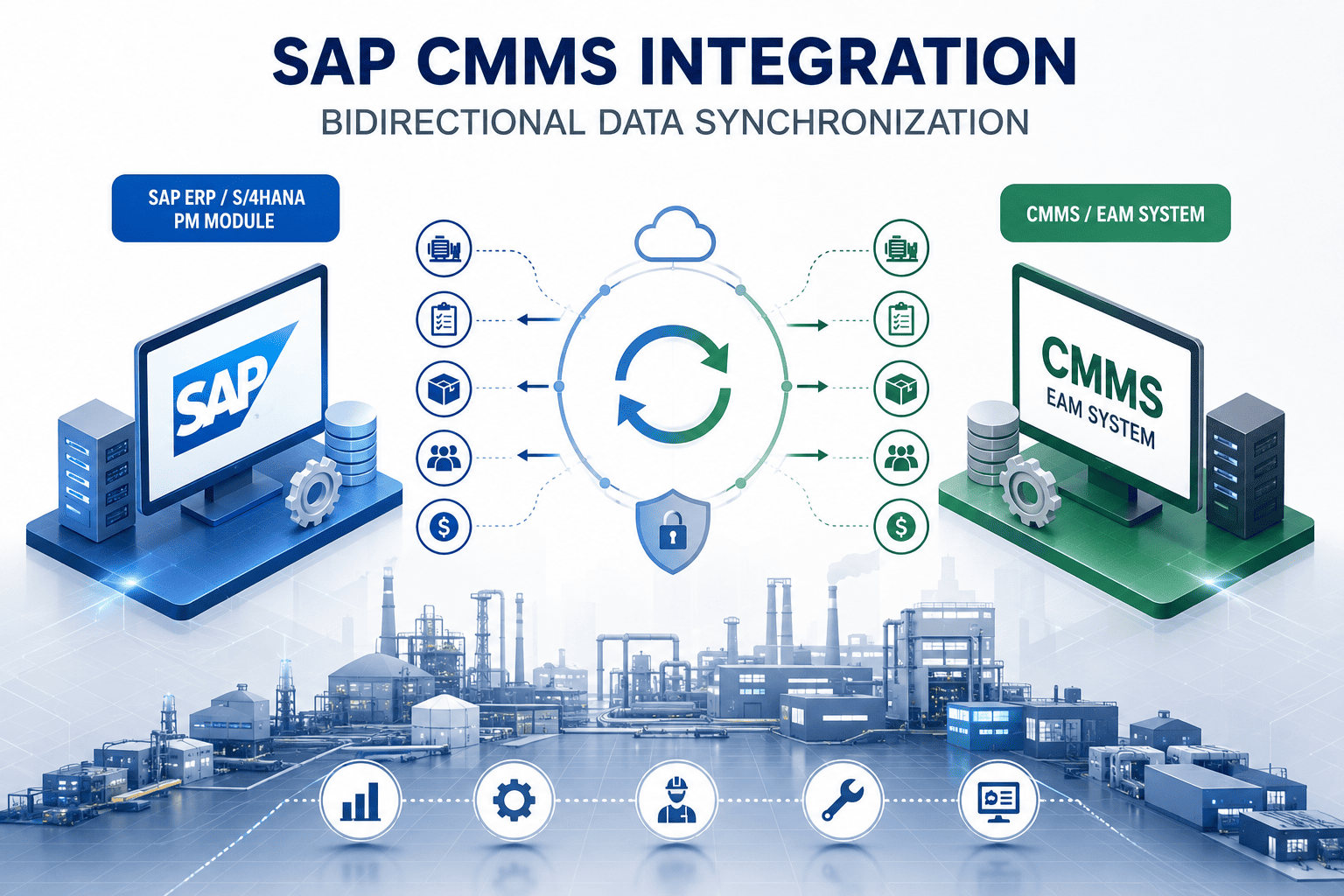
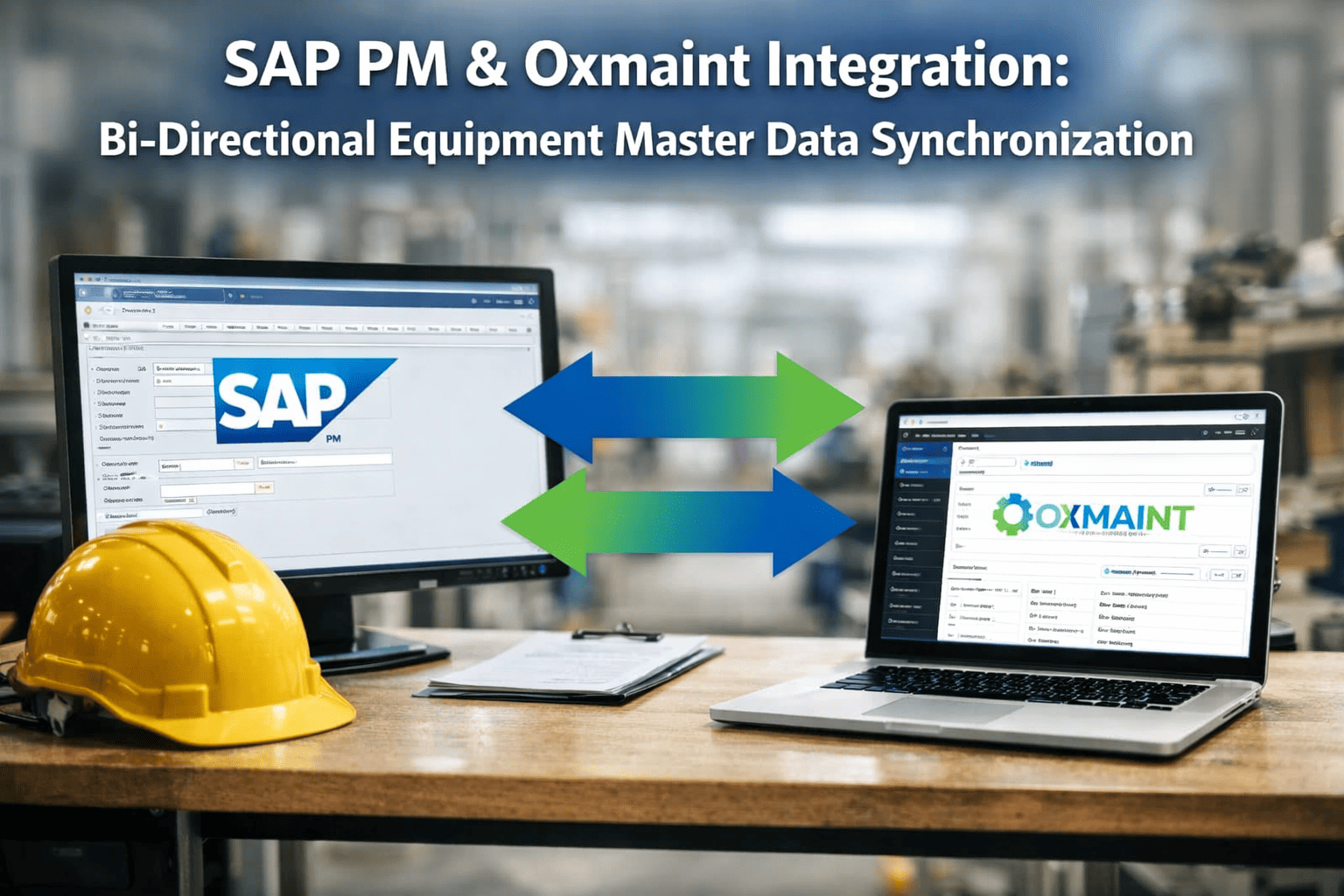
The Oxmaint AI + SAP S/4HANA integration uses two native SAP connectivity protocols — RFC (Remote Function Calls) for transactional operations and OData services for real-time data access. No middleware platform, no custom ABAP development, and no third-party integration broker is required. The connection runs entirely within your network for on-premise deployments, or through encrypted API channels for cloud-connected environments.
Oxmaint AI Platform
AI Inference Engine
Work Order Manager
Mobile Technician App
Predictive Analytics
RFC — Transactional Sync
↑Bi-directional · Encrypted · Real-time↓
OData — Master Data & Read
SAP S/4HANA
SAP PM (Plant Maintenance)
SAP MM (Materials Mgmt)
SAP EAM (Asset Mgmt)
SAP FI (Cost Postings)
Step-by-Step Integration Guide
Follow these five phases to go from zero connection to fully automated, AI-driven maintenance workflows synchronized with SAP S/4HANA. Each phase builds on the previous — complete them in order for the smoothest path to go-live. Most enterprises complete all five phases within two to three weeks.
Phase 1
SAP System Preparation & RFC Configuration
⏱ 1–3 days
Before any API calls can be made, your SAP S/4HANA system needs a dedicated RFC destination and service user configured for Oxmaint. This is standard SAP Basis work — no custom development required.
1
Create a dedicated SAP service user
In SAP transaction SU01, create a service-type user (e.g. OXMAINT_SVC) with dialog-off access. Assign roles: SAP_PM_MAINTENANCE_PLANNER, SAP_MM_INVENTORY_MANAGER, and read access to SAP_EAM_ASSET_VIEWER. Do not use a dialog user — service users cannot be used for interactive logins, reducing your attack surface.
2
Configure the RFC destination
Open transaction SM59 and create a new ABAP connection type (Type 3). Set the target host to your SAP application server hostname, system number, and client. Enter the service user credentials. Test the connection — you should see "Connection test OK" before proceeding.
3
Activate required OData services
In transaction /IWFND/MAINT_SERVICE, activate the following services: API_MAINTENANCEORDER_SRV (PM orders), API_EQUIPMENT_SRV (equipment master), API_MATERIAL_SRV (material master), and API_GOODSMVT_SRV (goods movement). Assign each to the System Alias for your S/4HANA system.
4
Set network access rules
Whitelist the Oxmaint server IP (on-premise) or Oxmaint's static egress IPs (cloud) in your SAP network ACL or firewall rules. For on-premise deployments, this is an internal routing rule only — no traffic leaves your network perimeter.
Phase 2
Oxmaint Connection Setup & SAP Data Import
⏱ 2–4 days
With SAP prepared, configure Oxmaint to connect to your SAP system and perform the initial master data import. This seeds Oxmaint's AI knowledge base with your actual equipment hierarchy, PM structure, and materials catalog.
1
Add SAP connection in Oxmaint Admin
In Oxmaint's Admin Portal, navigate to Integrations → SAP S/4HANA. Enter your SAP host, system number, client, and the service user credentials created in Phase 1. Select your SAP version (2021, 2022, or 2023). Click Test Connection — a successful ping confirms RFC and OData endpoints are reachable.
2
Run initial master data sync
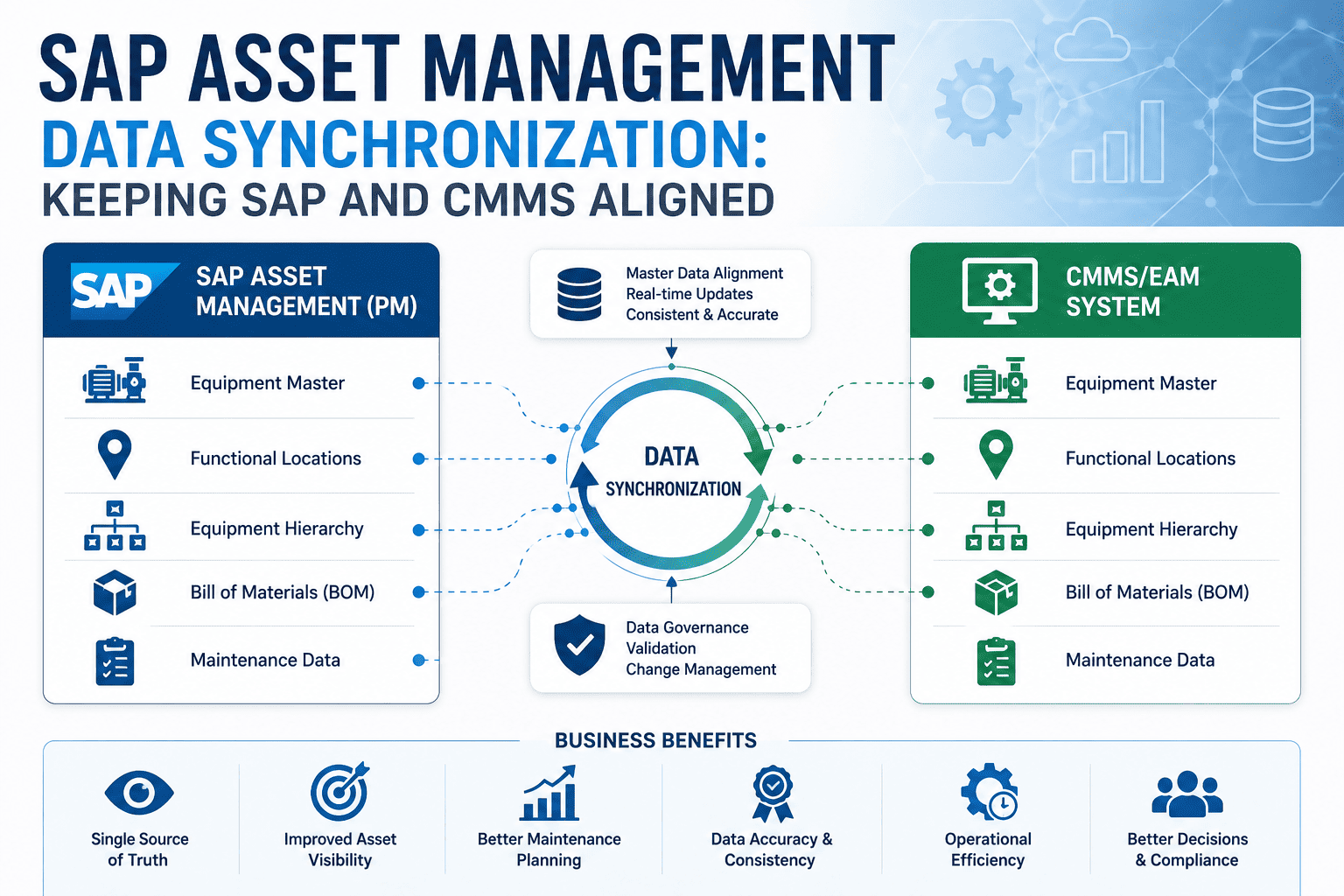
Trigger the initial import from Integrations → SAP → Sync Now. Oxmaint pulls: equipment master records (EQUI/EQUZ tables), functional location hierarchy (IFLOT), PM task lists (PLKO/PLPO), and material master records (MARA/MAKT). Depending on your asset count, this takes 15 minutes to 4 hours. You will see a progress bar and record count in real time.
3
Map SAP plant codes to Oxmaint sites
In Integrations → SAP → Plant Mapping, match each SAP plant code (e.g. 1000, 1100) to the corresponding Oxmaint site. This mapping determines where SAP work orders and notifications are routed within Oxmaint's site hierarchy — critical for multi-plant enterprises.
4
Configure work order type mapping
Map SAP PM order types (PM01 corrective, PM02 preventive, PM03 inspection) to Oxmaint work order categories. This ensures that work orders created in Oxmaint appear in SAP with the correct order type, and that SAP-originated PM plans trigger the matching Oxmaint workflow templates.
Phase 3
Real-Time Data Sync Configuration
⏱ 1–2 days
Configure the ongoing sync rules that keep Oxmaint and SAP S/4HANA in continuous alignment — covering work orders, inventory, asset status, and cost data. This is where the integration moves from one-time import to live operational connectivity.
Data object
Direction
Sync method
Frequency
PM Orders & Notifications
↔ Both
RFC function call
Real-time (event-driven)
Equipment master data
← SAP to Oxmaint
OData API pull
Every 15 minutes
Material stock levels
← SAP to Oxmaint
OData MMBE service
Real-time on query
Material reservations
→ Oxmaint to SAP
RFC BAPI_RESERVATION_CREATE
On technician request
Time confirmation (IW41)
→ Oxmaint to SAP
RFC PM_ORDER_CONFIRM
On work order close
Cost postings (FI/CO)
→ Oxmaint to SAP
RFC BAPI_ACC_DOCUMENT_POST
On work order close
Phase 4
AI Workflow Automation Setup
⏱ 3–5 days
This phase activates Oxmaint's AI capabilities against your SAP data — configuring the automation rules that turn sensor readings, fault codes, and technician voice inputs into SAP PM actions without human intervention.
1
Enable AI work order generation
In Oxmaint's AI Settings → Work Order Automation, enable auto-generation from: voice input (NLP parser), fault code lookup (maps error codes to SAP equipment + failure mode), and sensor threshold breaches. Configure the minimum confidence threshold (recommended: 85%) below which the AI flags for human review before creating a SAP PM order.
2
Configure predictive maintenance triggers
Under Predictive Maintenance → SAP Integration, map each sensor stream (vibration, temperature, pressure, current) to its corresponding SAP equipment record. Set alert thresholds and select the SAP PM notification type to create when a prediction fires (M1 for malfunction, M2 for damage). Configure priority escalation rules — critical predictions create SAP PM orders directly, bypassing the notification stage.
3
Build SAP PM plan automation rules
In PM Plans → SAP Sync Rules, configure how SAP maintenance plans (IP10) trigger Oxmaint workflows. When SAP releases a PM order for a scheduled task, Oxmaint automatically assigns it to the right technician, attaches the relevant equipment manual sections, pre-fills the parts checklist from SAP's task list, and sends a push notification to the technician's mobile device.
4
Set up AI troubleshooting knowledge base
Upload equipment manuals, maintenance SOPs, and historical repair notes under Knowledge Base → Documents. Oxmaint's AI indexes these alongside your SAP equipment history. When a technician queries the AI chatbot about a fault, it cross-references the manufacturer documentation, your SAP repair history for that specific equipment, and resolved work orders — giving contextual answers, not generic responses.
Phase 5
Testing, Validation & Go-Live
⏱ 2–3 days
Before go-live, validate that every data flow and automation rule behaves exactly as expected in your SAP environment. Run the checklist below in a SAP quality system before cutting over to production.
RFC connection test: Confirm ping returns "OK" from Oxmaint to SAP production system via SM59
Work order round-trip: Create a test work order in Oxmaint → verify it appears in SAP IW33 with correct order type, equipment, and functional location
PM notification test: Trigger a simulated sensor alert → confirm SAP PM notification (IW21) is created with correct priority and failure code
Parts reservation test: Request a material from Oxmaint mobile → verify reservation appears in SAP MB25 against the correct storage location
Work order close & confirmation: Close a test work order in Oxmaint → verify IW41 time confirmation and goods movement post correctly in SAP
Cost posting test: Close order with labor hours and parts → verify cost posting in SAP CO03 against the correct cost center and internal order
Offline sync test: Disconnect device from network, complete a work order, reconnect → verify all data syncs to SAP within 60 seconds of reconnection
AI troubleshooting test: Query the Oxmaint AI chatbot for a known fault code → verify it returns equipment-specific history from SAP alongside document-based guidance
Ready to connect Oxmaint AI to your SAP S/4HANA system?
Oxmaint's integration team has completed SAP S/4HANA connections across manufacturing, energy, pharma, and defense environments — typically live within two weeks. Start with a guided demo or deploy immediately on a free trial.
Common Integration Challenges — and How to Resolve Them
Even with standard SAP APIs, a few configuration issues come up consistently across enterprise deployments. Here are the most common problems Oxmaint's integration team encounters and exactly how to fix them.
RFC Error
Connection test fails with "SYSTEM_FAILURE"
Cause: SAP message server port (typically 3600+system number) is blocked at the network layer, or the system number in the RFC destination is incorrect.
Fix: Confirm the SAP instance number in transaction SM51. Ensure ports 33NN and 36NN (where NN = instance number) are open between Oxmaint server and the SAP application server. Test with telnet or nc from the Oxmaint host to SAP host on the relevant port.
OData Error
OData service returns 403 Forbidden on equipment read
Cause: The service user lacks authorization for the OData service endpoint or the ICF node is inactive.
Fix: Activate the ICF node in transaction SICF for path /sap/opu/odata/sap/API_EQUIPMENT_SRV. Run SU53 as the service user after a failed call to see the exact missing authorization object — typically I_EQUI with activity 03.
Data Sync
Equipment records import but functional locations are missing
Cause: Functional location authorization object I_IFLOT is not assigned to the service user, or the functional location structure type is non-standard.
Fix: Add authorization object I_IFLOT with plant and functional location type to the service user role. For non-standard FL structures, use Oxmaint's Custom Hierarchy Mapper under Integrations → Advanced → Functional Location Override.
Work Orders
PM orders created in Oxmaint appear in SAP with wrong work center
Cause: Work center mapping was not completed during Phase 2, so Oxmaint is defaulting to the plant-level default work center.
Fix: Complete the work center mapping in Integrations → SAP → Work Center Mapping. Map each Oxmaint maintenance team to the corresponding SAP work center code. Existing orders can be retroactively corrected in SAP using IW32.
What Changes Day-to-Day After Integration
The technical setup is complete in a few weeks — but the operational impact is felt every single shift. Here is what maintenance teams actually experience once Oxmaint AI and SAP S/4HANA are fully connected.
06:00
Shift start — AI briefs the supervisor
Oxmaint AI pulls overnight SAP PM notifications, open work orders, and predictive alerts. Supervisor receives a priority-ranked briefing on mobile — no logging into SAP, no manual report generation.
07:30
Technician receives SAP PM order on mobile
SAP releases a scheduled PM plan. Oxmaint instantly pushes it to the assigned technician's mobile with the task list pre-populated from SAP, relevant manual sections attached, and parts availability confirmed from SAP MM.
09:15
Unexpected fault — AI guides diagnosis
Technician speaks fault description into Oxmaint. AI identifies the failure pattern from SAP repair history, surfaces the three most likely causes with fix sequences, and creates a SAP PM notification — all in under 10 seconds.
10:40
Part needed — SAP MM reservation in one tap
Technician confirms the required bearing. Oxmaint shows SAP stock level, storeroom location, and compatible alternatives. One tap creates the SAP MM reservation — storeroom receives the pick request automatically.
11:55
Work complete — SAP updated automatically
Technician closes the work order in Oxmaint. IW41 time confirmation, goods movement, and cost posting fire to SAP simultaneously. The PM order is technically completed in SAP — no back-office data entry required.
14:00
Predictive alert fires — SAP notification auto-created
Oxmaint AI detects a vibration anomaly on a compressor. Before any alarm triggers, it creates a SAP M1 notification, pre-fills the failure code and recommended action, and assigns the next available technician — stopping a breakdown before it starts.
Your SAP S/4HANA system is already half the integration — Oxmaint provides the other half
No middleware. No custom ABAP. No re-implementation. Connect Oxmaint AI to your existing SAP environment and give every technician AI-powered maintenance intelligence that writes directly back to SAP in real time.
Does Oxmaint support SAP S/4HANA Cloud as well as on-premise?
Yes. Oxmaint integrates with both SAP S/4HANA on-premise and SAP S/4HANA Cloud (public and private editions). For cloud editions, Oxmaint uses SAP's standard REST-based OData v4 APIs rather than RFC connections. The integration setup is slightly different but follows the same five-phase approach — your Oxmaint integration specialist will select the correct protocol based on your SAP deployment type during Phase 1.
Can Oxmaint integrate with older SAP versions like ECC 6.0?
Yes. Oxmaint supports SAP ECC 6.0 (EhP5 and above), SAP S/4HANA 1709 through 2023, and SAP Business One for smaller environments. For ECC, Oxmaint uses RFC-based BAPIs rather than OData services. Functionality is equivalent — the integration covers PM orders, notifications, equipment master, materials, and cost postings. The setup guide for ECC follows Phases 1–5 with ECC-specific transaction codes noted at each step.
How does Oxmaint handle SAP data when there is no internet connection?
Oxmaint's mobile app caches all active work orders, equipment data, task lists, and parts information locally on the device. Technicians complete full workflows — including closing work orders, capturing readings, and attaching photos — while fully offline. When connectivity is restored (to either the local network for on-premise or internet for cloud), all changes sync to Oxmaint and then to SAP in the correct order, preventing duplicate records or sequence errors.
What SAP authorization objects does Oxmaint's service user require?
The minimum required authorization objects are: I_EQUI (equipment master, activity 01/02/03), I_IFLOT (functional locations, activity 03), I_AUFK (PM orders, activity 01/02/03), C_AFVC_VGS (operations on orders), M_MSEG_BWA (goods movements), and F_BKPF_KOA (cost postings, account type K). Oxmaint provides a pre-built SAP role file (ZOXMAINT_INTEGRATION) that can be imported directly into your SAP system via SU01/PFCG to assign all required authorizations in one step.
How long does the full integration take from start to production go-live?
Most enterprises complete all five phases and go live on SAP production within 10–15 business days. Phase 1 (SAP preparation) is typically the longest single dependency — it requires SAP Basis involvement and internal change approval. Phases 2–4 can overlap once Phase 1 is complete. Oxmaint's integration team is available for remote support throughout and can accelerate timelines by running configuration sessions in parallel with your SAP Basis team.
Will this integration affect SAP system performance?
No measurable impact on SAP performance has been observed in any production deployment. Oxmaint's API calls are lightweight, event-driven reads and writes — not bulk data operations. The master data sync in Phase 2 runs during off-peak hours by default. Ongoing sync for work orders and notifications is triggered only by actual events (a work order being created or closed), not by polling. RFC connections use standard SAP work process resources identical to any other connected system.