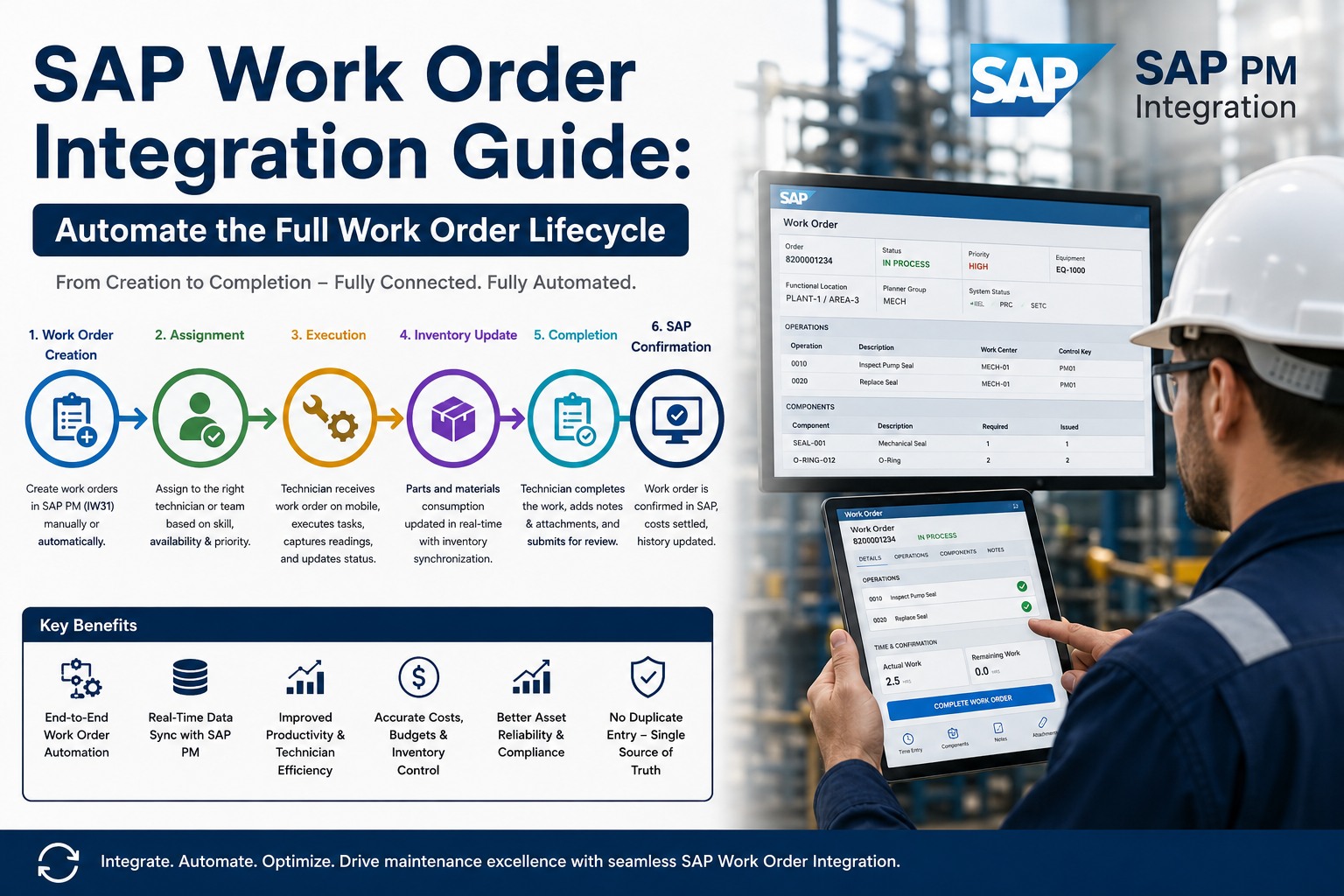
Closing a SAP PM work order takes five minutes. Closing it correctly — labor hours confirmed in IW41, materials posted, failure codes entered, and technician notes that support future analysis — takes seven minutes and determines whether your maintenance history is useful or full of blanks. LNS Research found that 61% of SAP PM work orders are closed with incomplete data, making failure analysis unreliable across most organizations. This checklist standardizes every required field for accurate SAP PM closure. Sign up free to use Oxmaint's guided work order completion workflow that enforces these steps automatically.
Every annotated field below is required for accurate PM reporting and failure analysis
Step 1 — Labor Hour Confirmation (IW41 / IW42)
Labor confirmation is the most skipped step in SAP PM work order closure, and the most damaging to data quality. When actual hours go unrecorded, your maintenance cost reports understate true labor cost, your capacity planning is wrong, and your equipment cost history cannot support credible replacement decisions. Every technician who worked on the order must confirm their hours before TECO status is set. Teams looking to eliminate skipped confirmations can sign up free for Oxmaint's one-tap labor confirmation that posts directly to SAP IW41 from any mobile device.
- Confirm actual work hours for each technician who worked on the order — no estimated or rounded hoursBlocking
- Verify activity type is correctly assigned per work center — determines cost rate applied to the orderBlocking
- Confirm work center assignment matches the crew or trade that performed the work — not the planning work centerBlocking
- Enter actual finish date and time — not system date if work was performed on a prior dayBlocking
- Check that total actual hours do not exceed planned hours by more than the allowable variance threshold for your plantRecommended
- For multi-day jobs, confirm partial confirmations were posted daily — do not post all hours retroactively at closureRecommended
- If actual hours exceed planned by more than 20%, add a short-text explanation in the confirmation long text fieldDoc Required
Step 2 — Materials and Spare Parts Confirmation
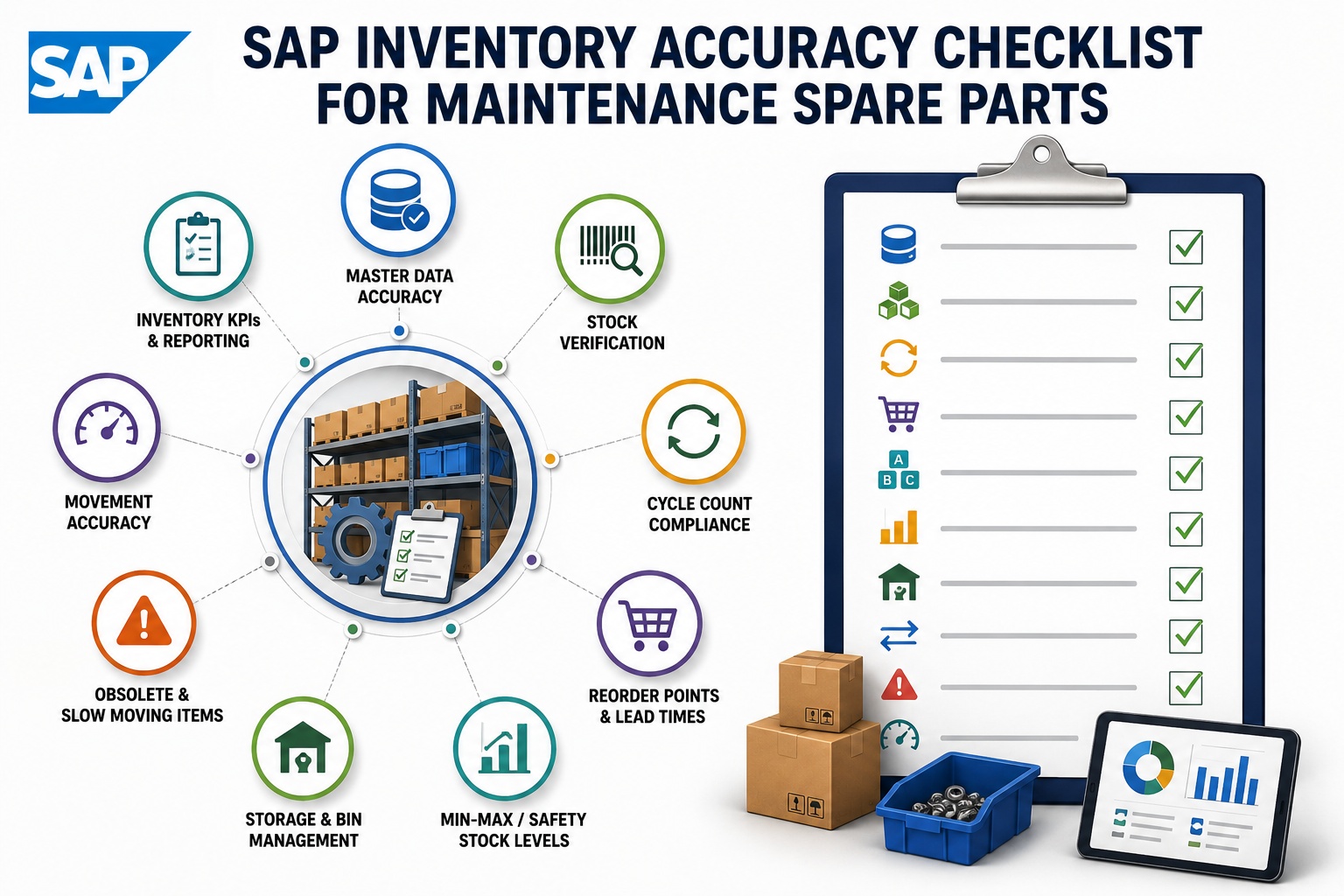
Materials confirmation links what was physically consumed to the SAP order cost object. Without a goods issue (movement type 261), your spare parts inventory stays inflated in SAP MM, your order actual costs are understated, and your equipment repair cost history is incomplete. Conversely, posting a goods issue for parts that were returned to stock creates inventory discrepancies that take weeks to reconcile. The checklist below ensures every materials transaction is accurate before closure.
- Confirm goods issue (movement type 261) posted for every material reserved against the PM orderBlocking
- Verify quantity issued matches quantity actually consumed — no rounding to reservation quantity if partial useBlocking
- Confirm all unissued materials have been returned to stock (movement type 262) before order closureBlocking
- Check that non-stock materials procured via purchase order (PR/PO) have goods receipts posted and invoice verifiedBlocking
- Verify serial number or batch number recorded for any safety-critical or tracked spare parts replacedRecommended
- For vendor-supplied services, confirm external service entry sheet (SAP transaction ML81N) is posted and acceptedRecommended
- If additional unplanned materials were used, document material number, quantity, and reason in PM order long textDoc Required
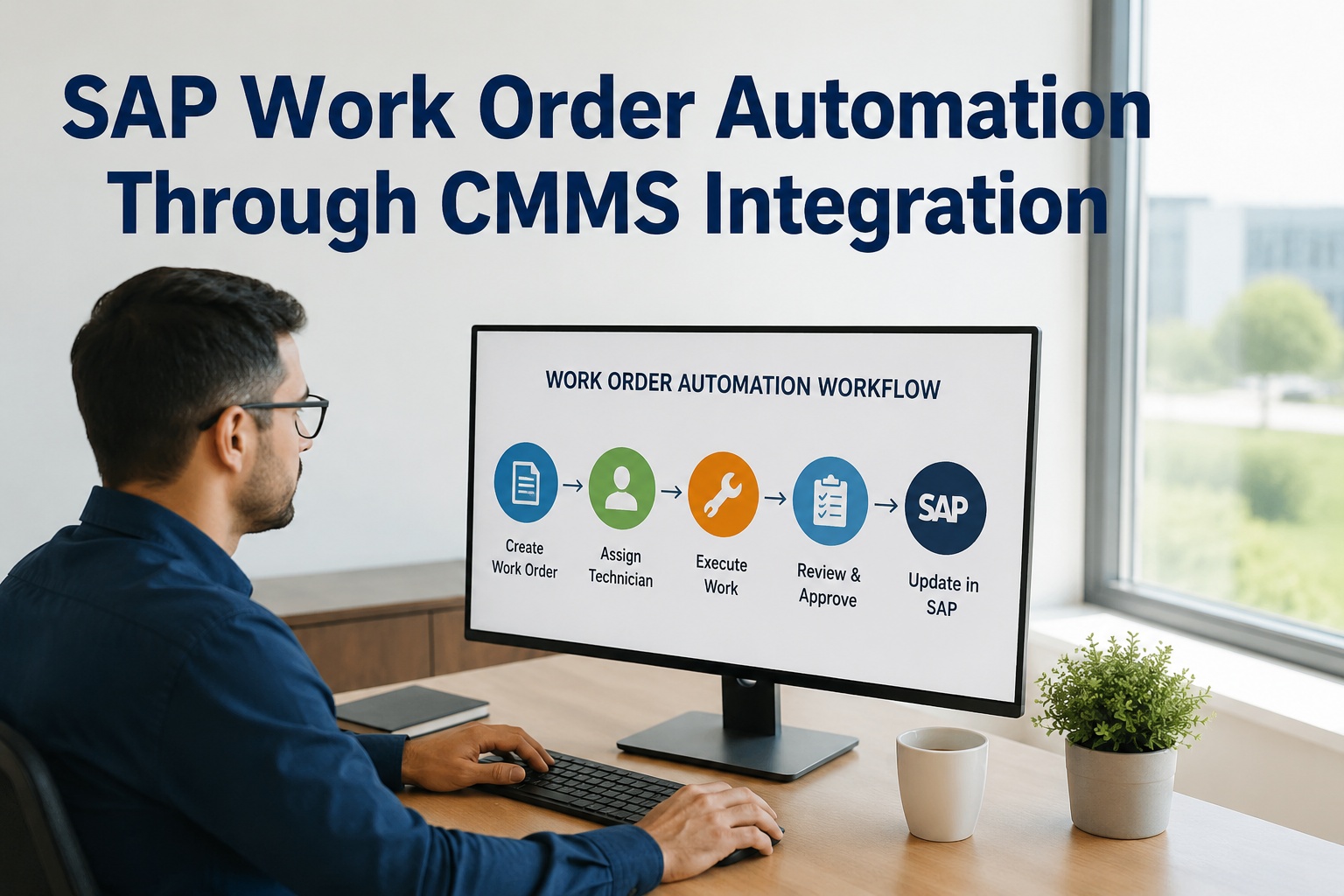
Automate SAP PM Work Order Closure From the Field
Oxmaint's mobile-to-SAP workflow enforces every step in this checklist at closure — labor, materials, failure codes, and TECO — without technicians logging into SAP.
Step 3 — Failure Code Entry (PKZM Catalog)
Failure codes are the most underutilized data field in SAP PM — and the most valuable for reliability engineering. The four-level PKZM catalog (Object Part, Damage, Cause, Activity) encodes exactly what broke, how it broke, why it broke, and what was done about it. When entered consistently, this data enables Pareto analysis of failure modes, targeted PM interval optimization, and equipment design defect detection. When left blank, it makes failure analysis impossible. The taxonomy below shows the correct structure for SAP failure code entry at work order closure.
All four levels must be entered for failure analysis to be statistically valid
- Enter Object Part code (P) — the specific component or sub-assembly that failed, not the whole equipmentBlocking
- Enter Damage code (K) — the type of failure or defect observed on the object part identified aboveBlocking
- Enter Cause code (Z) — the root cause of the damage, not the symptom. If unknown, use "Undetermined" — do not leave blankBlocking
- Enter Activity code (M) — what maintenance action resolved the failure (replaced, repaired, adjusted, cleaned, etc.)Blocking
- Verify failure codes are selected from the catalog specific to this equipment class — do not use generic codes for class-specific failuresRecommended
- For PM-originated orders (preventive), enter Activity code for the maintenance type performed — failure codes may not applyRecommended
- Add notification long text with a 2–3 sentence description of conditions found — failure codes are not a substitute for written contextDoc Required
Step 4 — Technician Notes and Documentation
Failure codes classify what happened. Technician notes explain why it matters. A technician who writes "bearing replaced — signs of lubrication starvation present, check lube interval on this pump class" has provided intelligence that can prevent the next three failures. A technician who writes "done" has created a maintenance record with no analytical value. The four documentation fields below transform a closed work order into institutional knowledge. To see how Oxmaint structures these fields at mobile closure, book a free demo and review the guided documentation workflow.
What each field should contain — and what makes an entry analytically useless
Step 5 — Setting TECO Status and Order Settlement
TECO (Technically Complete) is the SAP PM status that signals the maintenance work is finished and the order is ready for cost settlement. It is not the same as saving and closing the order — it is a deliberate business decision that triggers financial posting. Setting TECO before labor confirmations are complete posts incorrect costs to your cost center. Setting it before goods issues are posted leaves reservations open in SAP MM. The sequence matters. For organizations working to make this sequence automatic rather than manual, book a free demo of Oxmaint's SAP PM guided closure workflow that enforces correct sequencing from mobile to SAP.
- Confirm all labor confirmations (IW41) are posted — no operation lines in status CNF partial or unconfirmedBlocking
- Confirm all material reservations are either issued (261) or returned (262) — no open reservations remainingBlocking
- Verify all failure codes and notification data are entered and saved before setting TECO — cannot edit after settlementBlocking
- Check for any open purchase orders or service entry sheets linked to this order — all must be goods-receipted before TECOBlocking
- Set order system status to TECO in IW32 — confirm system status changes from REL to TECO without errorBlocking
- Verify actual cost total is posted to the correct cost center or WBS element after TECO — run IW38 cost report to confirmBlocking
- Run KO88 individual order settlement if plant runs period-end settlement — confirm no settlement errors generatedRecommended
- Set SAP notification to status NOCO (notification completed) — confirms all findings documented and order linked correctlyRecommended
- For orders with significant cost variance (>15% over budget), document explanation in order long text before TECODoc Required
Closure Quality Score: How Complete Is Your Average Work Order?
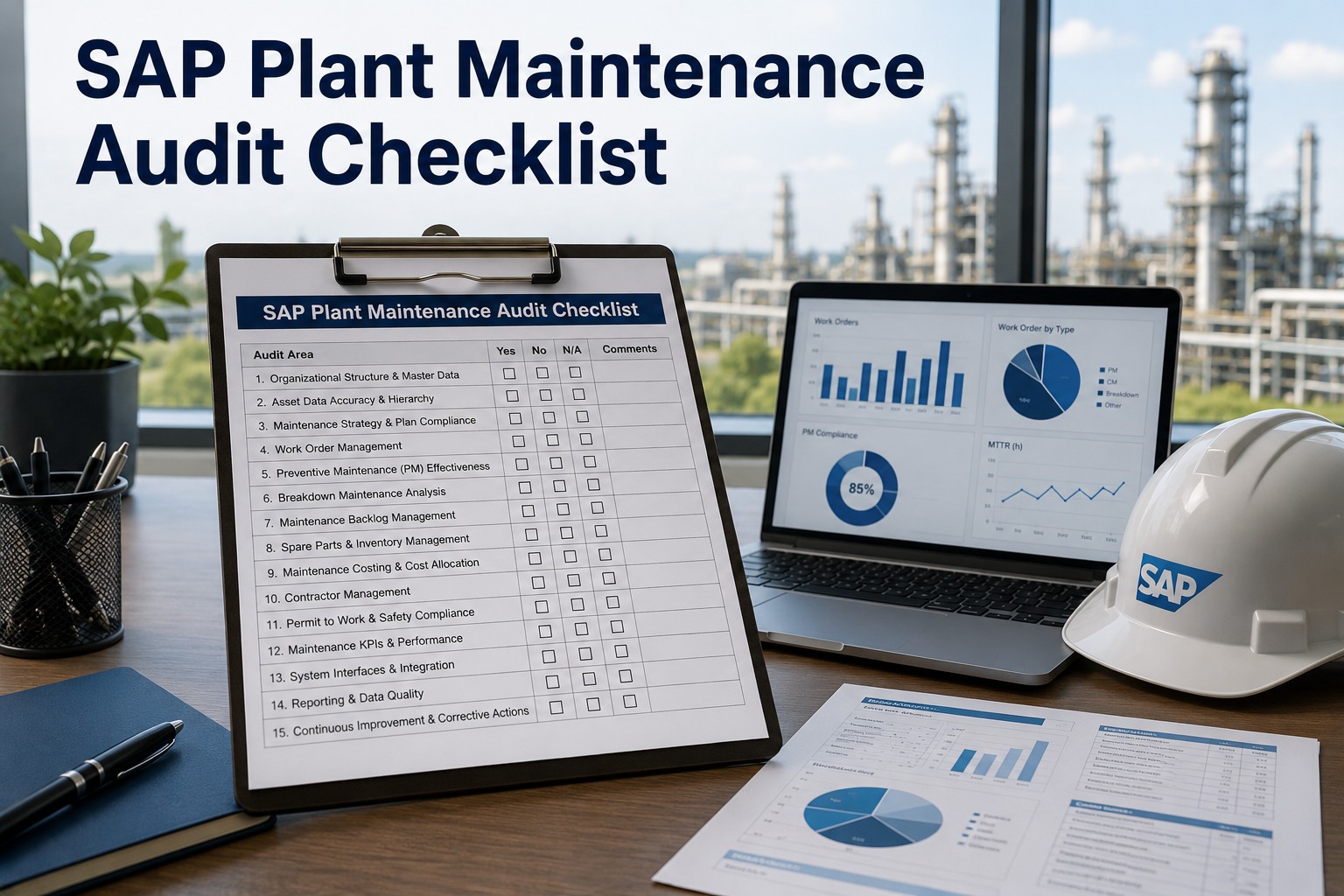
Most maintenance organizations don't know their work order data completeness rate — they only discover the gaps when running a failure analysis or audit and finding the data isn't there. The quality matrix below gives your team a self-assessment framework. Score each field category for your plant's current practice. Any category below 80% is creating systematic blind spots in your maintenance intelligence. Organizations using Oxmaint can sign up free and run an automated SAP PM data quality audit that scores these fields across your live work order history.
Rate your plant's current completion rate for each data category
Expert Perspective: Why Work Order Data Quality Is a Leadership Issue
Every maintenance manager I work with wants better failure analysis. Every one of them has the same problem: the data to support it doesn't exist. Not because the system can't capture it — SAP PM has the most comprehensive failure data model of any CMMS on the market. Because nobody enforced data entry at work order closure, for years. Work order data quality is not a technician discipline problem. It's a process design problem. If your SAP closure workflow allows a technician to set TECO with blank failure codes and no labor confirmation, your process is designed to produce bad data. The fix is at the system design level, not the individual level.
Make Required Fields Actually Required
SAP PM allows mandatory field configuration per order type and plant. Failure codes, labor confirmation, and notification completion can be enforced at TECO. If your system doesn't require them, your data won't have them.
Measure Completeness, Not Just Count
Track your work order data completeness rate monthly — the percentage of closed orders with all required fields populated. This is a more meaningful maintenance KPI than order volume. A low rate is a process problem that compounds every month.
Mobile Reduces Friction at the Source
Technicians who complete closure on a mobile device at the point of work have significantly higher data quality rates than those entering data later at a desktop. Reducing the time gap between work performed and data entry is the single most effective intervention.
Frequently Asked Questions
What is the difference between TECO and CLSD status in SAP PM?
TECO (Technically Complete) signals that all maintenance work is finished and the order is ready for cost settlement. It is set by the maintenance planner or technician and triggers settlement of actual costs to the cost center or asset. CLSD (Closed) is set by the controller after settlement is complete and the order is locked — no further postings are permitted. Most maintenance organizations operate primarily with TECO as the functional closure status. CLSD is a financial close step that typically happens at period-end during the CO settlement run (transaction KO88 or CO88 for collective settlement).
Can you reverse TECO status if errors are found after closure?
Yes, TECO can be reversed in SAP PM using transaction IW32 by removing the TECO user status, provided the order has not yet been fully settled and closed (CLSD). After TECO reversal, labor confirmations can be corrected, materials posting errors reversed, and failure codes updated. However, if partial settlement has already run, reversing TECO may create unbalanced cost postings that require CO involvement to correct. This is why the pre-TECO verification checklist in Step 5 is critical — it is significantly easier to verify all fields before setting TECO than to reverse and rework after settlement has started.
How do you handle work order closure when a technician is unavailable to confirm hours?
The standard SAP PM approach is to assign a supervisor or planner with appropriate authorization to enter labor confirmation on behalf of an unavailable technician, using the correct personnel number and activity type for the work performed. This maintains accurate cost attribution rather than leaving the confirmation blank. The confirmation long text field should note that entry was made by a delegate and the reason. Some organizations configure delegation authorization objects in SAP that allow planners to confirm for specific work centers without having full technician access. Avoid closing orders with zero labor hours recorded — this is worse for data quality than a delayed confirmation.
What SAP PM reports rely most heavily on work order closure data quality?
The five reports most affected by incomplete work order closure data are: IW38/IW39 (order list with costs — requires labor confirmation for accurate actuals), MCJB/MCJR (equipment breakdown analysis — requires failure codes and malfunction dates), PM Cost Analysis via Report Writer or SAP Analytics (requires goods issue postings for materials cost), MTTR/MTBF equipment statistics (requires accurate malfunction start and end times), and PM backlog reports (requires correct order status progression from REL through TECO). Any of these run against a work order history with incomplete data will produce misleading results that drive incorrect maintenance decisions.
Should preventive maintenance orders use failure codes the same way as breakdown orders?
Not exactly. For preventive maintenance orders where no failure occurred, the Activity code (M) is always required to document what was done (lubricated, inspected, replaced per schedule, adjusted). The Object Part (P) and Damage (K) codes may be left blank if no defect was found — many plants configure this as optional for PM order types. However, if a defect is found during a PM inspection, all four PKZM levels should be entered to capture the opportunity maintenance event. This distinction — planned PM with no findings vs. PM that uncovers a defect — is valuable data for optimizing PM intervals and identifying assets where planned maintenance is consistently finding problems.
Stop Closing Work Orders With Incomplete Data
Oxmaint enforces every step in this checklist at mobile closure — labor, materials, failure codes, and TECO — so your SAP PM history is always complete and your failure analysis is always valid.