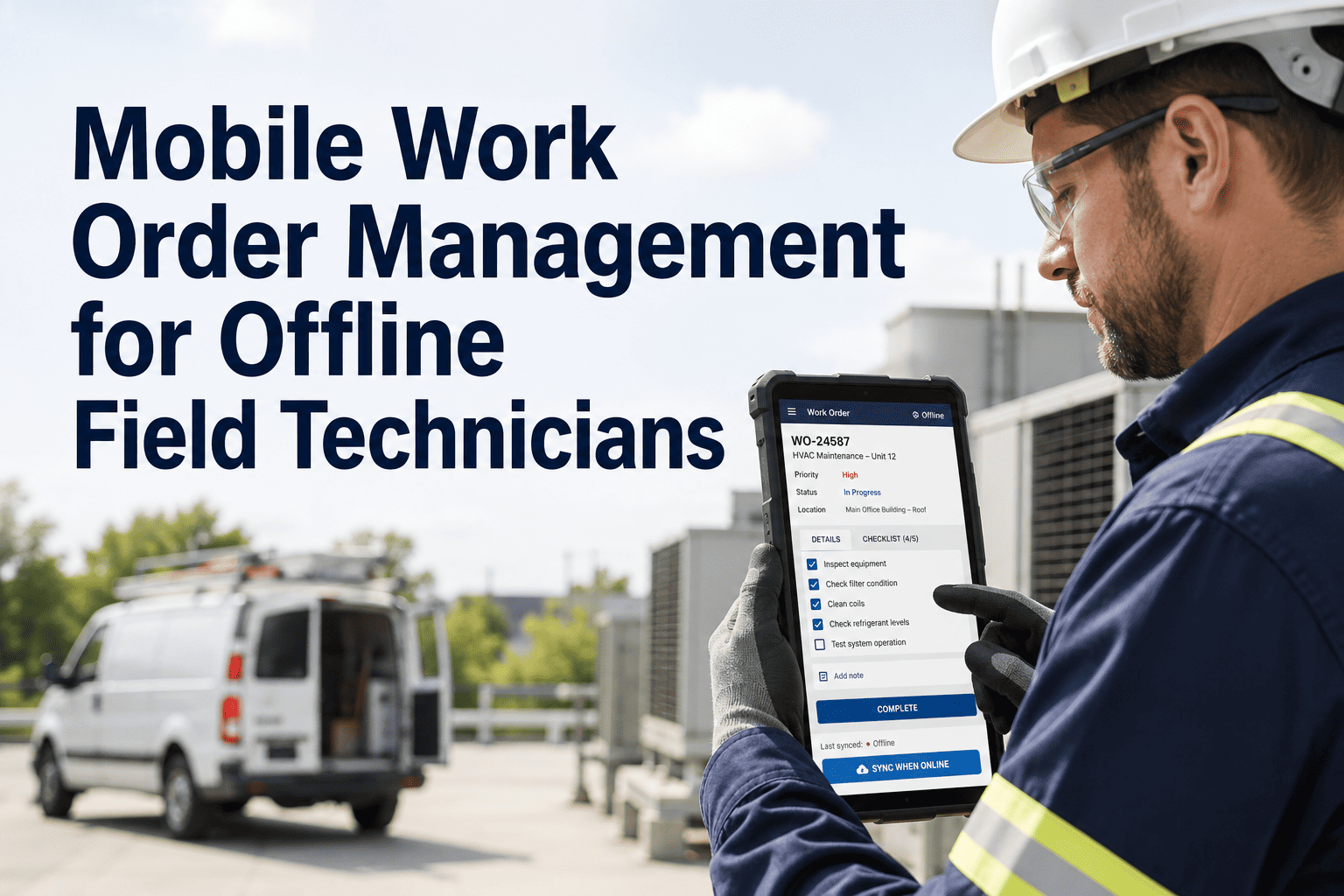
It is 7:12 AM and a maintenance technician is standing in front of a cooling tower with a leaking seal. He knows exactly what's wrong. He knows the part number. He knows the fix takes 45 minutes. But he can't start — because the work order is sitting in the maintenance office on a clipboard he never received, the spare part requires a paper requisition signed by a supervisor who is in a meeting, and when he finishes the repair he'll need to walk back to the office to close the ticket on a desktop computer he shares with four other techs. By the time the paperwork catches up to reality, it is 3 PM and he's completed two jobs instead of five. This is not an efficiency problem — it is an architecture problem. Maintenance software designed for desktops forces field technicians into a workflow that doesn't match how they actually work: moving between assets, making decisions on-site, and needing information at the point of action. Mobile CMMS eliminates this friction entirely by putting the full maintenance management system — work orders, asset history, parts inventory, photos, and signatures — into the technician's pocket. Plants that deploy mobile CMMS report 28% more work orders completed per technician per day and a 45% reduction in administrative time spent on paperwork. Book a demo with Oxmaint to see mobile work order management built for technicians who never sit at desks.
The shift from desktop-first to mobile-first CMMS is not a feature upgrade — it is a fundamental redesign of how maintenance information flows. When the system lives in the technician's hand, every decision happens faster, every record is more accurate, and every asset gets the attention it needs without the friction of paper and desktop bottlenecks. Sign up for Oxmaint — purpose-built for mobile-first maintenance teams.
Core Mobile CMMS Capabilities That Matter in the Field
Not every mobile CMMS feature is equally valuable to a technician standing next to a broken pump at 6 AM. These eight capabilities are ranked by field impact — the ones that save the most time, eliminate the most errors, and make the biggest difference when you are holding a wrench in one hand and a phone in the other.
Mobile Work Order Management
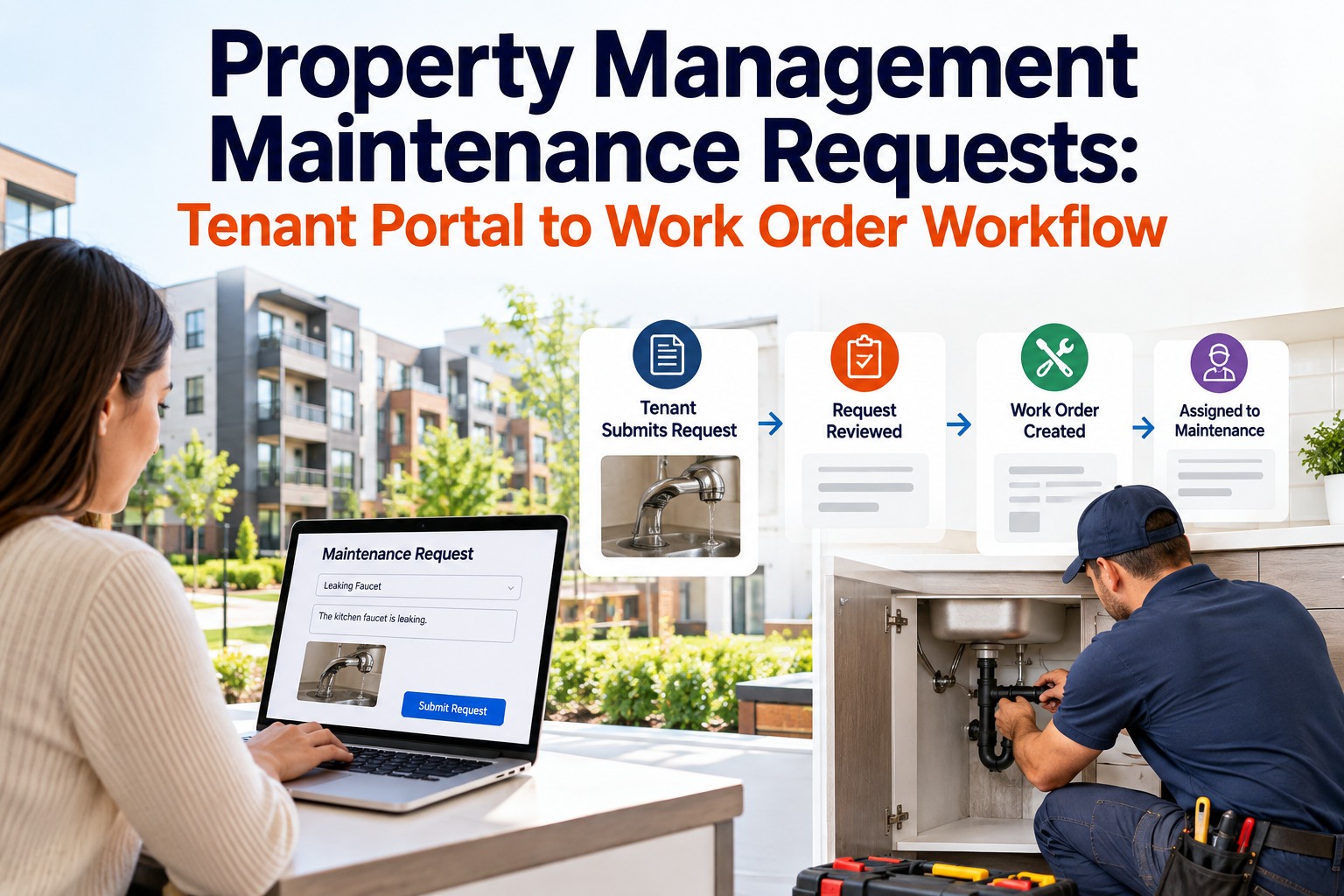
Field Impact: 10/10Receive, accept, update, and close work orders from any location. Includes priority indicators, due dates, attached procedures, and required parts lists. Technicians see exactly what needs doing, in what order, with all context — no office visit needed.
Photo & Video Capture on Work Orders
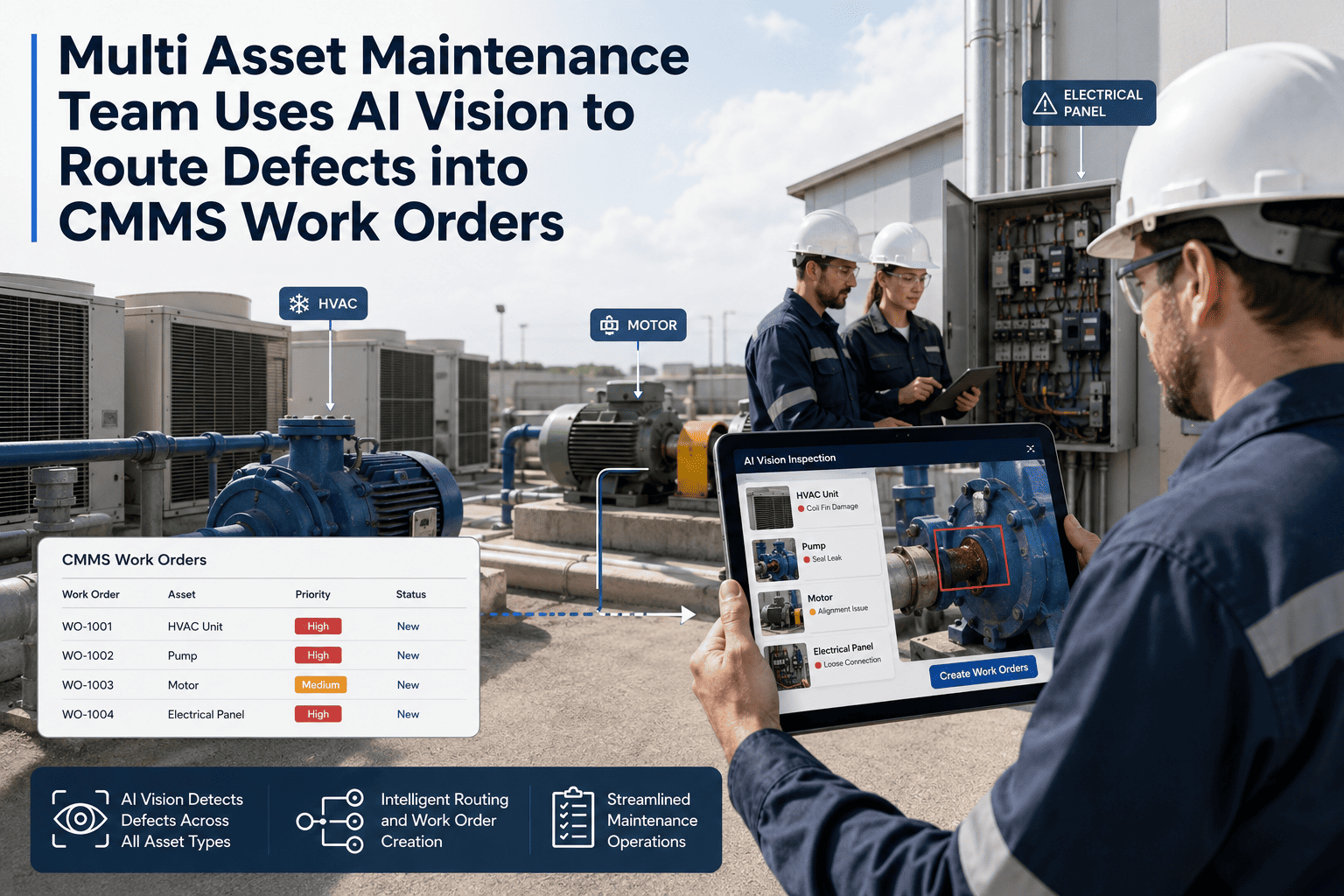
Field Impact: 9.5/10Attach before/after photos, short video clips, and annotated images directly to work orders. Eliminates "I couldn't read the handwriting" and creates a visual maintenance history that transforms how teams communicate conditions across shifts.
QR/Barcode Asset Scanning
Field Impact: 9.2/10Scan an asset's QR code with the phone camera to instantly pull up full maintenance history, manuals, warranty info, open work orders, and linked spare parts. Eliminates the "what's the asset number?" problem and ensures the right equipment gets the right attention.
Offline Mode with Auto-Sync
Field Impact: 8.8/10Full functionality without internet connection — critical for basements, remote sites, and industrial areas with poor coverage. All data syncs automatically when connectivity returns. Zero data loss, zero duplicate entries, zero excuses for incomplete records.
Real-Time Parts Availability Check
Field Impact: 8.5/10Check spare parts stock from the field before walking to the warehouse. See bin location, available quantity, and alternative parts. If the part is out, request it directly from the app with one tap — no paper requisition, no phone calls.
Digital Signatures & Approvals
Field Impact: 8.2/10Capture supervisor sign-offs, permit-to-work approvals, and safety confirmations on-screen. No printing, no scanning, no chasing signatures across buildings. Compliance documentation completes at the point of work, not hours later at a desk.
Push Notifications & Alerts
Field Impact: 7.8/10Instant alerts for new high-priority work orders, overdue PMs, IoT sensor alarms, and approval requests. Technicians respond in minutes instead of discovering urgent tasks at the next office check-in. Critical for emergency response and SLA compliance.
Time Tracking & GPS Logging
Field Impact: 7.5/10Automatic time stamps when work orders are started, paused, and completed. Optional GPS confirmation for multi-site operations. Generates accurate labor cost data without technicians filling out timesheets — the system records reality, not recollection.
What if every technician on your team had instant access to work orders, asset history, spare parts, and manuals — from any location, even offline?
Desktop CMMS vs. Mobile CMMS: What Changes for Field Teams
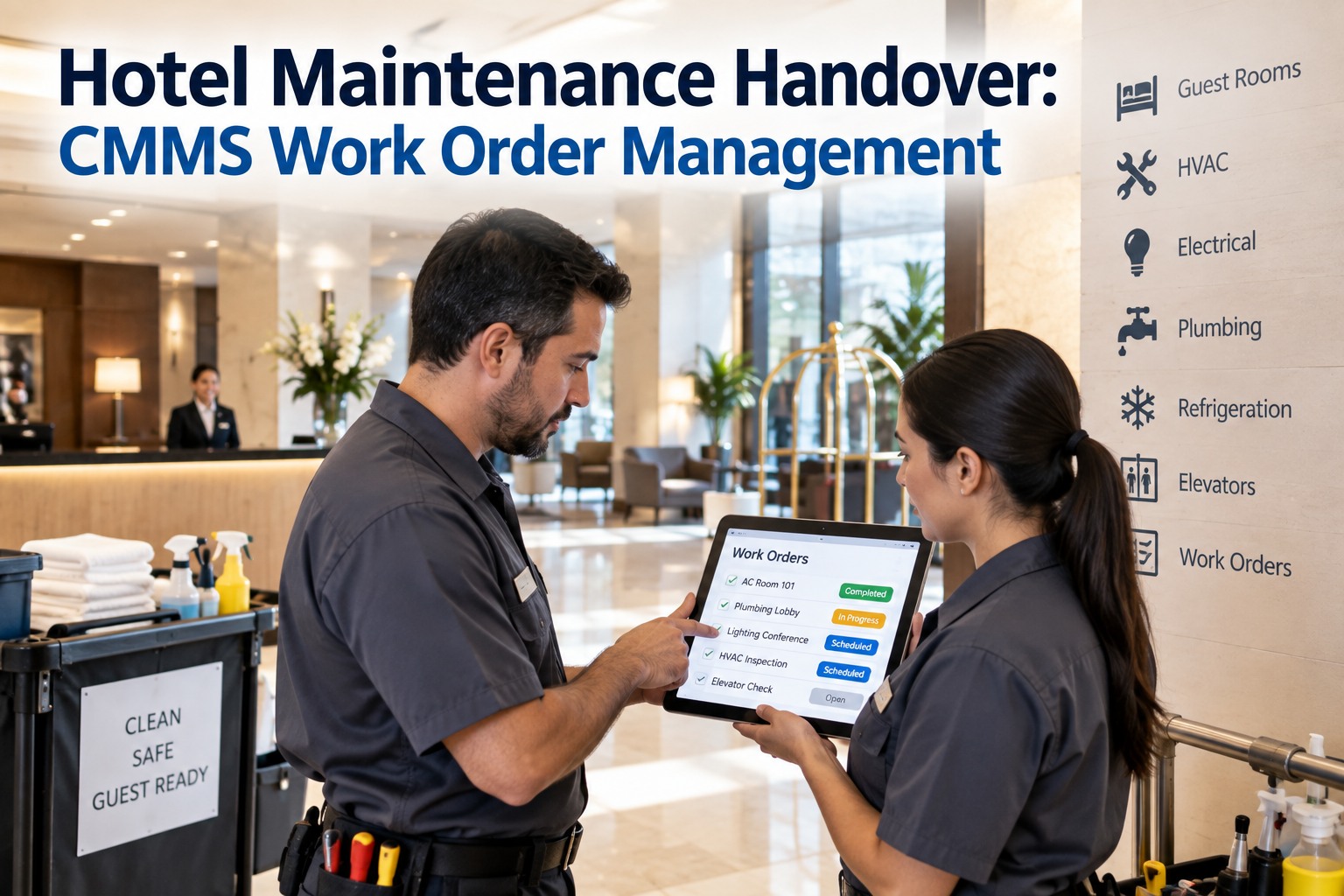
Moving from desktop to mobile is not about screen size — it is about workflow architecture. Desktop CMMS forces technicians to adapt to the software's location (the office). Mobile CMMS adapts the software to the technician's location (the field).
Implementation: Going Mobile in 30 Days
The fastest mobile CMMS deployments follow a four-phase approach that gets technicians using the system within the first week and fully operational within 30 days. The key is starting with a small pilot team and expanding after proving the workflow. Schedule a demo to see the 30-day deployment plan customized for your team size.
Setup & Configuration
Import asset registry from existing system or spreadsheets. Configure work order categories, priority levels, and notification rules. Create user accounts for pilot team (5–8 technicians). Install mobile app on all pilot devices — takes 3 minutes per phone.
Pilot Team Training & Go-Live
45-minute hands-on training session covering work order flow, photo capture, QR scanning, and offline mode. Pilot team begins using mobile app for all work orders immediately. Planner creates and dispatches via web while techs execute via phone. Support available for real-time troubleshooting.
Feedback & Workflow Tuning
Review pilot team experience. Adjust notification settings, simplify any friction points, and customize mobile forms based on what technicians actually need in the field. Add QR codes to highest-traffic assets. Begin shifting PM checklists from paper to digital.
Full Team Rollout
Expand to all technicians and supervisors. Pilot team members become peer trainers — the most effective adoption method in blue-collar teams. Retire paper forms, clipboards, and whiteboard assignments. Mobile CMMS becomes the single source of truth for all maintenance activity.
Selecting Mobile CMMS: What Field Technicians Actually Need
Most CMMS vendors claim "mobile-friendly" — but there is a massive difference between a desktop interface crammed onto a small screen and a system designed mobile-first for field work. Evaluate platforms against these criteria from the technician's perspective, not the IT department's. Test Oxmaint free and judge for yourself.
Native App (Not Just Responsive Web)
True native iOS/Android apps work faster, support push notifications, enable camera and GPS hardware access, and function offline. Responsive web pages in a browser are not the same — they're slower, less reliable, and lose functionality without connection.
Three Taps or Less to Core Actions
Opening a work order, adding a photo, checking parts, closing a ticket — each should take three taps maximum. If a technician wearing gloves in a loud plant can't navigate it quickly, the adoption fails regardless of feature count.
True Offline Mode
The app must work fully without connection — view work orders, update status, add notes and photos, complete checklists. Everything queues locally and syncs when connectivity returns. Partial offline is useless in basements, remote sites, and metal buildings.
Speed on Older Devices
Not every technician carries a flagship phone. The app must perform well on 3–4 year old devices with limited RAM. Bloated apps that freeze on budget phones guarantee abandonment. Test on the worst phone in your fleet, not the best.
Configurable Mobile Forms
Inspection checklists, safety forms, and PM procedures must be customizable without developer involvement. Maintenance planners should build and deploy new mobile forms in minutes — adapting to equipment changes, new procedures, and regulatory requirements on the fly.
Role-Based Views
Technicians see their assigned tasks. Supervisors see team workload. Managers see KPIs. The same platform serves all three without overwhelming anyone with data they don't need. Complexity for planners, simplicity for field workers.
Documented Results from Mobile CMMS Deployment
Give Your Technicians the Tool They Actually Need
Oxmaint is built mobile-first — not adapted from a desktop system. Native iOS and Android apps with full offline mode, QR scanning, photo capture, and one-tap work order management designed for technicians who never sit at desks.
Frequently Asked Questions
Does mobile CMMS work without internet connection?
Yes — true mobile CMMS platforms like Oxmaint include full offline mode. Technicians can view work orders, update status, add notes and photos, complete checklists, and scan QR codes without any internet connection. All data queues locally on the device and syncs automatically when connectivity returns. No data is lost, and no duplicate entries are created. This is essential for basements, remote facilities, and industrial buildings with poor cellular coverage.
How long does it take to deploy mobile CMMS to a maintenance team?
A focused deployment takes 30 days from kickoff to full team adoption. Week 1 covers setup and configuration (importing assets, creating users). Week 2 is pilot team go-live with 5–8 technicians. Week 3 involves feedback and workflow tuning. Week 4 expands to all technicians using pilot team members as peer trainers. Most teams report that technicians are comfortable using the app within 2–3 days of hands-on use.
What's the difference between mobile-friendly and mobile-first CMMS?
Mobile-friendly means a desktop CMMS that renders on a phone browser — it technically works but is slow, clunky, and missing native device capabilities. Mobile-first means the application was designed from the ground up for phone usage: native iOS/Android apps with camera integration, push notifications, GPS, offline storage, and touch-optimized interfaces. The difference in field adoption is dramatic — mobile-first platforms achieve 90%+ sustained usage while mobile-friendly tools typically see adoption drop below 40% within 60 days.
How much productivity improvement can we expect from mobile CMMS?
Documented results from mobile CMMS deployments show 28% more work orders completed per technician per day, 45% reduction in administrative time, 73% faster response to high-priority work orders, and 99.5% documentation completeness (vs. 60–70% with paper systems). The primary driver is eliminating the office round-trips, phone calls, and duplicate data entry that consume 3.2 hours per technician per week in paper-based or desktop-only environments.
Do technicians need their own smartphones?
Most organizations provide company-owned devices or use a BYOD (bring your own device) policy with a mobile device management layer. Rugged smartphones ($200–400) designed for industrial environments are popular choices. The mobile CMMS app should work on both iOS and Android, on devices 3–4 years old, and consume minimal storage and battery. Some organizations start with shared tablets at common work areas before transitioning to individual devices.
How do you get technicians to actually adopt a new mobile system?
The biggest adoption driver is peer influence, not management mandate. Start with a pilot team of 5–8 tech-savvy technicians who become advocates. When their colleagues see them completing more work with less paperwork, adoption follows naturally. Other success factors: keep initial training under 45 minutes, make the mobile app genuinely easier than the paper process (not just different), and show technicians their own productivity improvement data within the first month.
How does Oxmaint's mobile CMMS work for field technicians?
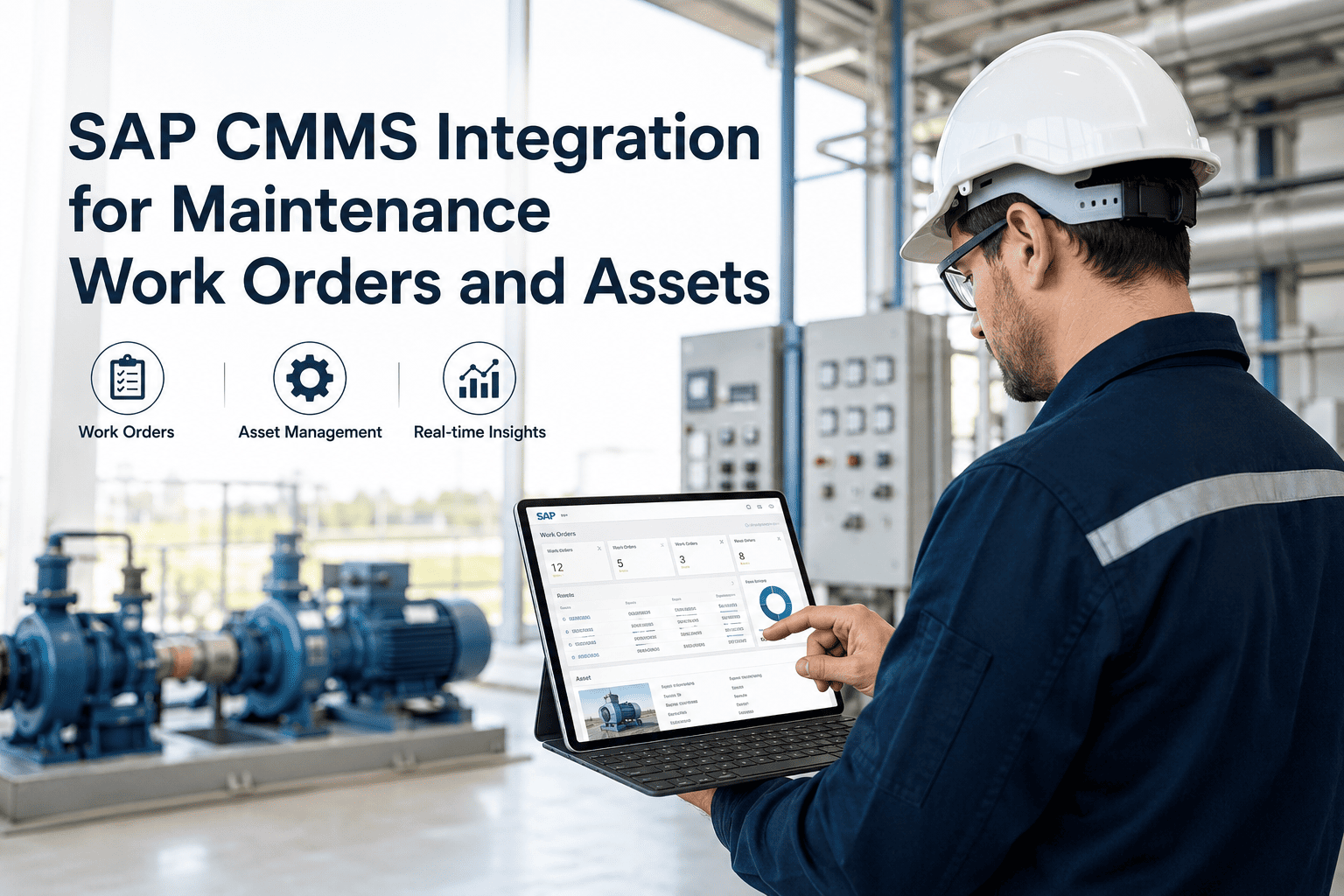
Oxmaint provides native iOS and Android apps with full offline capability. Technicians receive push notifications for new assignments, view prioritized task lists with asset details and procedures, scan QR codes for instant asset history, attach photos and notes directly to work orders, check spare parts availability in real-time, capture digital signatures for approvals, and auto-log time and location data. Everything syncs to the web platform where planners and managers see real-time team status, KPI dashboards, and compliance reports — one platform, two optimized interfaces for two different jobs.